Rogallo v1.1.0 is now available. This release includes a number of new features and improvements, plus a small cosmetic fix.
Diagnostics
On the off chance that someone else does use Rogallo, and needs help getting to the bottom of some sort of issue, I thought it might be useful to add a diagnostics command to the CLI. Right now it's pretty simple, just dumping some version and environment information.
$ rogallo diagnostics
# Libraries
bagofstuff: 1.2.1
cryptography: 49.0.0
gemtext: 1.0.0
rogallo: 1.1.0
textual: 8.2.8
textual_enhanced: 1.6.0
textual_fspicker: 1.0.1
wasat: 1.0.1

# Python
Compiler: Clang 17.0.0 (clang-1700.3.19.1)
Executable: /Users/davep/.local/share/uv/tools/rogallo/bin/python3
Implementation: CPython
Version: 3.14.0

# System
Name: Darwin
Release: 25.5.0
Version: Darwin Kernel Version 25.5.0: Mon Apr 27 20:40:51 PDT 2026; root:xnu-12377.121.6~2/RELEASE_ARM64_T8112

# Terminal
Detected: ghostty
Finger protocol support
This was something I was interested in adding, and a couple of people have already requested it, so Rogallo now has finger support. This has been added in a couple of ways. The first and most obvious is that finger: URIs are now natively supported in Gemtext content. So now if you follow a finger:// link you'll see the response in Rogallo itself.
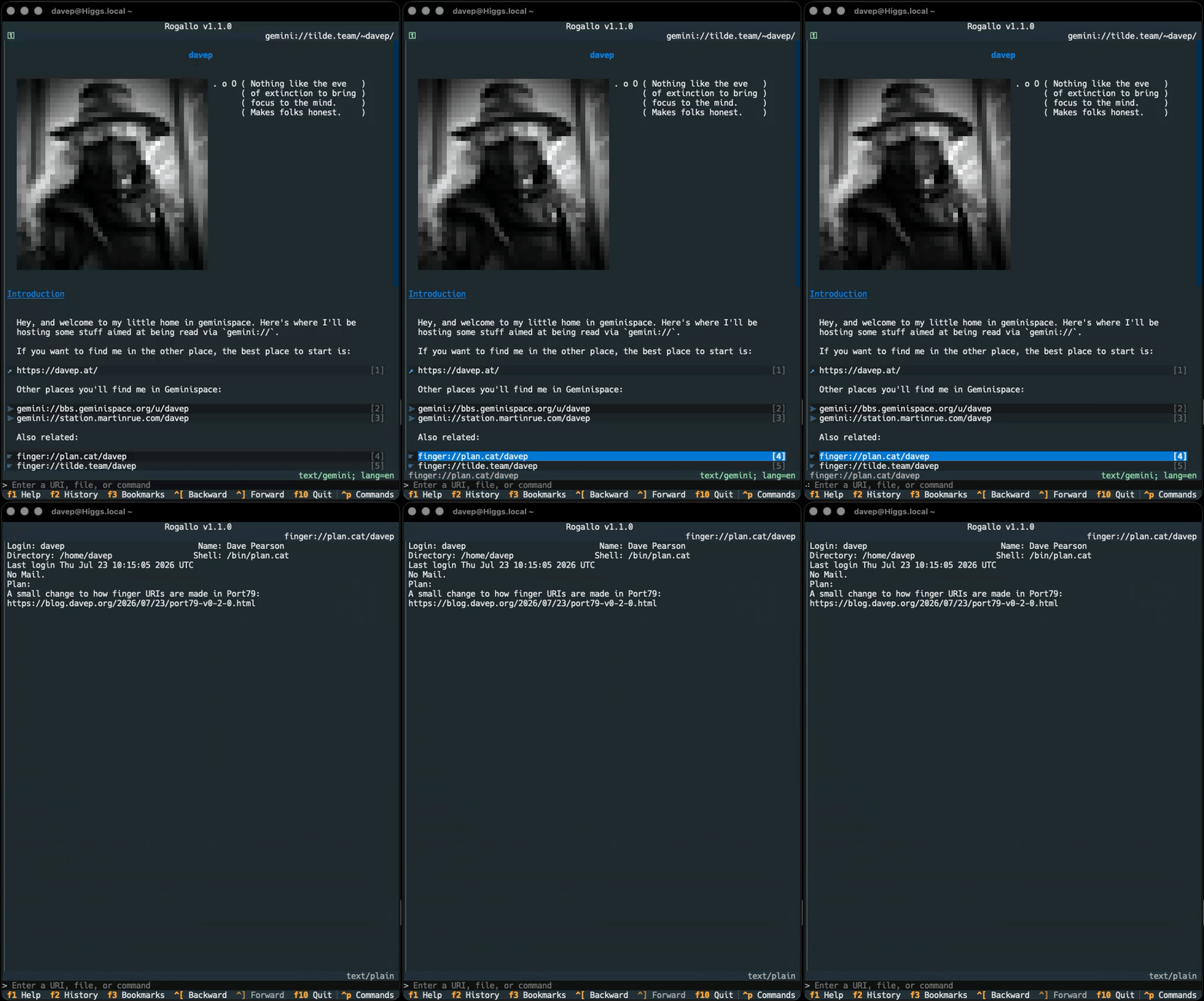
The other method is to use the new !finger command that has been added to the application's command line.
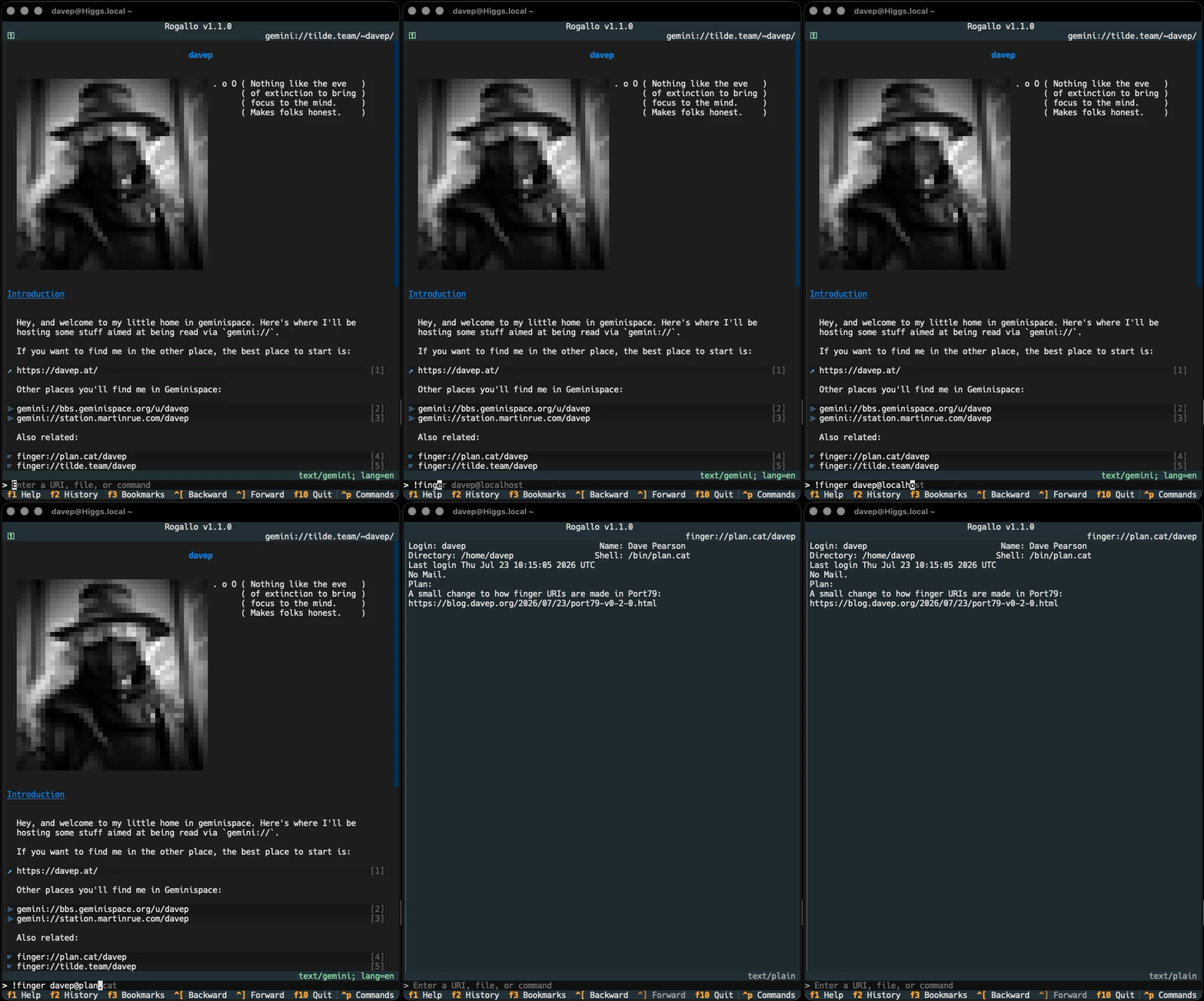
Of course, in the command line, you can also just enter a finger:// URI if you wish, which I guess is a third way of doing it.
Finger URIs are recorded in the history, and can also be bookmarked.
Using an external editor for user input
This was also something I was keen on doing, and then someone else happened to ask for it: support for swapping out to an external editor for writing user input. While the current mechanism is fine for entering a one-liner -- or composing a very short message -- a proper editor (for me that's ideally one with the ability to check spellings) is generally going to be far more useful for a longer body of text. So, with this in mind, the internal editor can now optionally swap out to your text editor of choice.
If you have either VISUAL or EDITOR set in your environment (VISUAL beats EDITOR), Rogallo will let you swap to it by pressing F3 in the internal editor. You can also override that choice by setting external_editor in the configuration file.
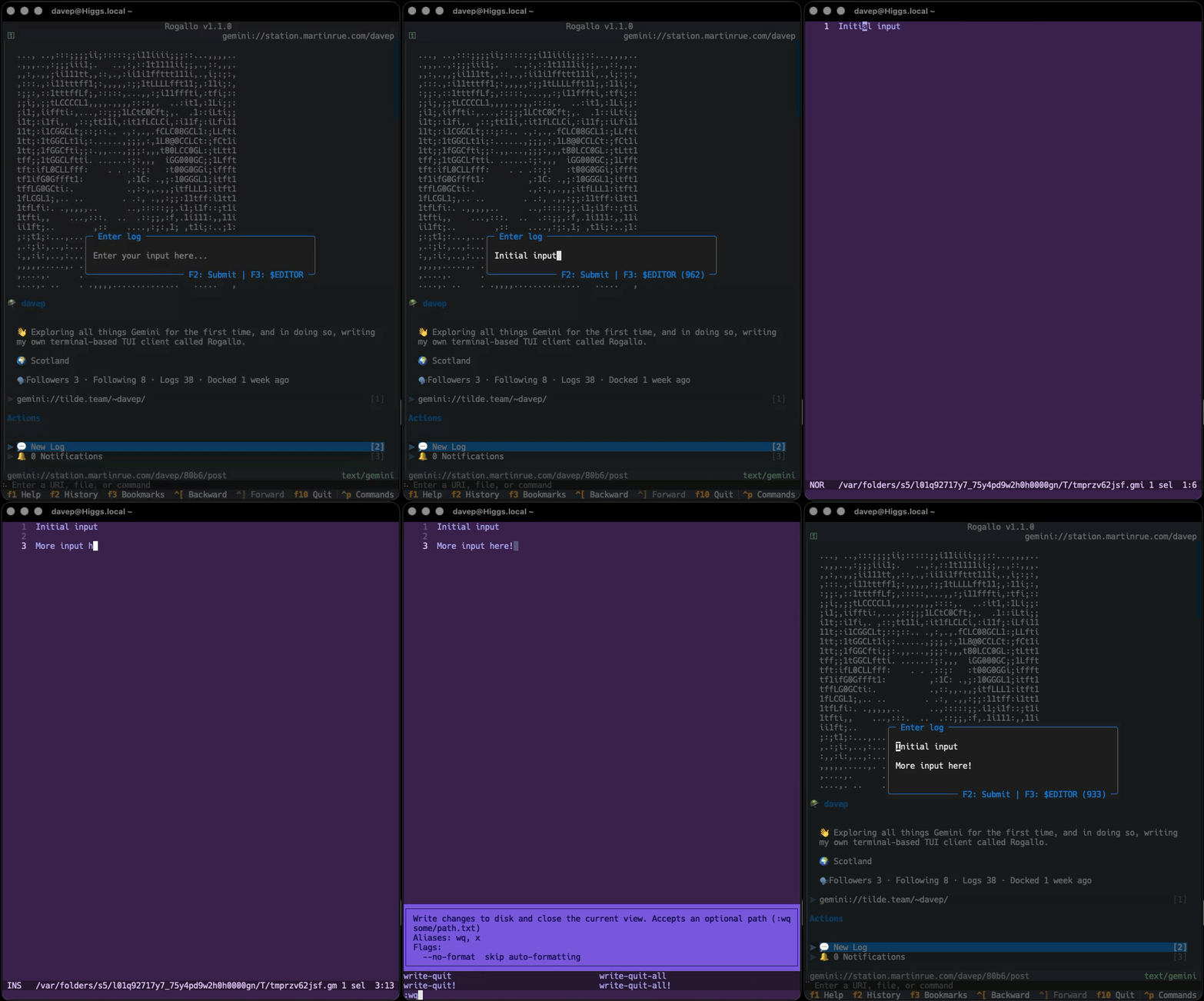
Personally, I'm finding this is working really well with emacsclient. From now on, I'm going to find writing content in Geminispace a lot easier.
Blended pre-formatted text
Now that I've been wandering around Geminispace some more, I've noticed that a common use of pre-formatted text is for logos, ASCII art, that sort of thing. Generally, the sort of things that are best presented with the background the same as the surrounding text. A different shade of background is fine if showing code and stuff, but I feel that this:
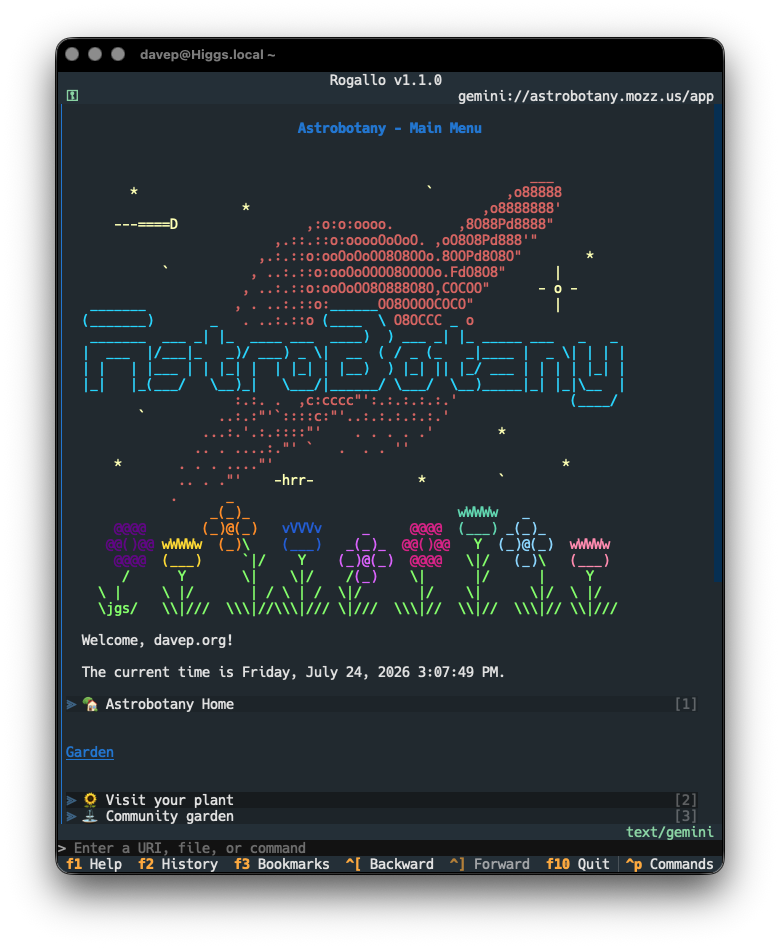
looks better than this:
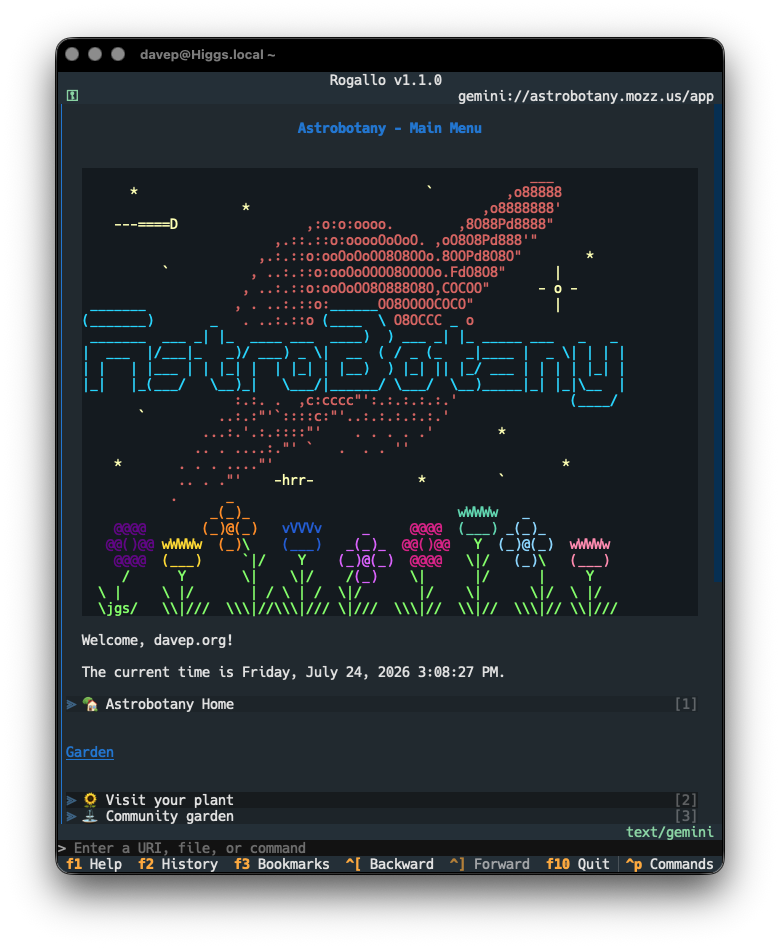
To this end, I've modified the pre-formatted text rendering so that, by default, if pre-formatted text has no alt-text, the background is the same as the surrounding text. On the other hand, if it does have alt-text (and so is likely the name of a programming language, which implies syntax highlighting, which in turn implies you want it to stand out), it isn't blended with the rest of the text.
If your preferences differ from mine, you can control this with the new blend_pre_formatted_with_background configuration file setting. It takes a list of alt-text strings that should be blended. By default it looks like this:
    "blend_pre_formatted_with_background": [
        "",
    ]
That is, by default, it only blends empty alt-text pre-formatted text. As it happens, Station uses alt-text for the logo and the user image, but I'd like them blended in too, so I'm running with this:
    "blend_pre_formatted_with_background": [
        "",
        "Station logo",
        "User image"
    ]
Doubtless I'll add others as I run into them.
Fixed mouse hover effect
The last change is a small cosmetic fix to mouse interaction with links. When the mouse cursor is over a link, there should be a hover effect (that is, the background should change colour). This wasn't working if you had link stripes turned on. This is now fixed.