Posts in category "Tech"

The HomePod fixed itself

1 min read

A couple of weeks back I mentioned home my main HomePod had got stuck installing 16.6 of the software that runs it. This situation persisted for days after writing that post and I kept promising myself that I was going to see if I could unstick it by removing it from the Home, doing a factory reset and adding it back again.

Of course, during the week that followed, I never got round to that. You can imagine what it's like: no time in the morning, and by the time I get home in the evening I want to watch TV and use the HomePod as the speaker for the Apple TV, I don't want to be doing tech support shit.

The following weekend... yeah, I kinda forgot.

So, here I am, a couple of Saturdays on, it's early morning, I've had breakfast and I'm having coffee and I think it's the perfect time to do this. I hope the Home app my on iPad and... it's sorted!

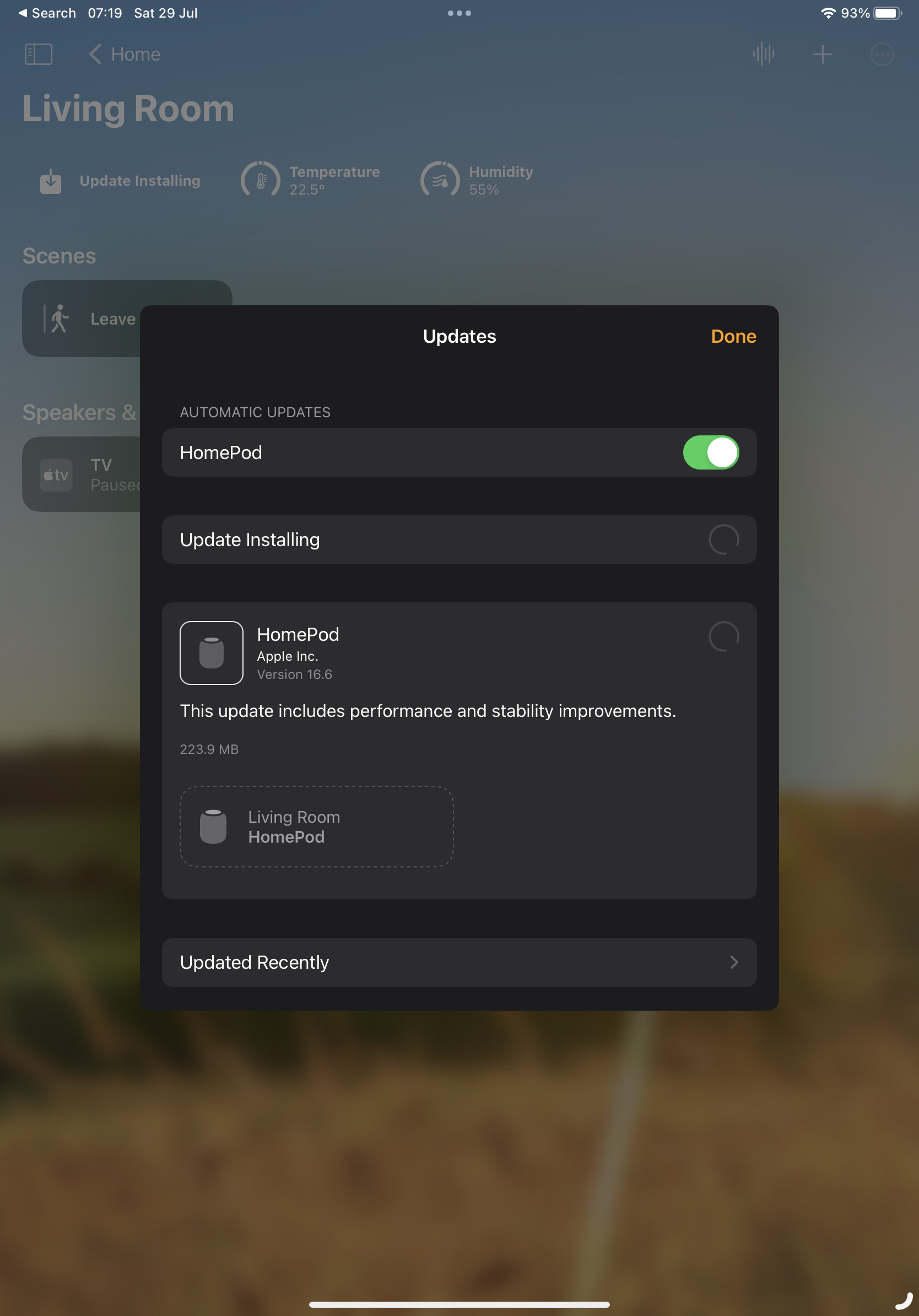
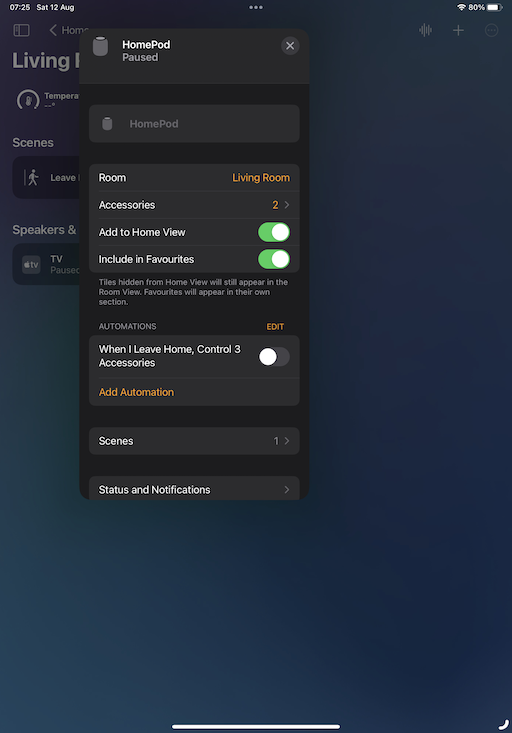
HomePod all good again

So, yeah, it looks like it somehow managed to unstick itself in the end. A quick test of some of the issues I was seeing suggested there was still an issue, for example asking for the temperature in the bedroom would still result in a "working on it" reply followed by it telling me it wasn't responding. A quick reset seems to have fixed that.

I guess it's good to know: if it happens again, it'll keep on working as the speaker for my Apple TV, and it'll eventually sort itself out even if I don't muck about with a hard reset.

I turned it off and on again

1 min read

Following on from the previous entry, where I outlined a weird problem I'd started having with syncing Obsidian via iCloud, I finally decided to sit down and try and work out the exact flow of the problem. Today, for example, I'd created an entry in two different vaults on my phone while on the bus into work, and when I got to my desk the vault I use on my work machine had updated.

However, when I got home this evening, the vault for my personal stuff hadn't updated on my home Mac Mini. I tried a few edits, in both vaults, on the iPhone, and nothing came through to the Mac.

So... before I started really diving into things I decided to "turn it off and on again" -- the iPhone that is -- and when it came back I ran up Obsidian, which told me it wasn't allowed to access my iCloud drive!

I took a moment to go into the settings to try and figure it out, didn't find what I wanted right away, then got to thinking that perhaps some of the phone's services were still spinning up, so I ran Obsidian up again (after killing it).

Sure enough, this time, it saw my vaults. With both vaults open on my Mac I made edits to open entries and the edits started to flow.

So, yup, looks like it was a simple case of "turn it off and on again".

Apple: #ItJustWorks.

Strange Obsidian sync issue

2 min read

Since October last year I've been getting into using Obsidian. Not that heavily, not to the extent some people do, but just as a way to keep a daily journal of work-related things. Each day at Textual HQ we finish off with a chat about how our day has gone, stuff we're wondering about, etc, etc... So I don't lose tack of what I've been up to I keep notes and Obsidian is how I do that.

One of the things I really like about it is how I can have iPhone, iPad and macOS versions on the go and have it all sync via iCloud. It generally works well.

But in the last couple of days I've noted the oddest problem, and I've yet to pin down the exact flow. But it seems to be this:

  • If I create or edit a note on my iPhone, it doesn't turn up on my Mac.
  • If I create or edit a note on my Mac, it turns up on my iPhone.

I think I might have seen variations on that theme but I've not made careful note -- normally I'm made aware of it when I'm trying to get something done.

What's super weird is this: on the iPhone, if I create a note, and then go into the Files app and look at the iCloud folders for Obsidian, the file isn't there! It's there in Obsidian itself, I can move it about, edit it, etc, etc... but it's not in the "vault" as seen from the Files app.

It's the last part that has be really puzzled.

If I get to the bottom of this I'll try and remember to write up what I find. I suspect I'm going to need some proper clear time, without other distractions, and experiment with all the edit and sync options and see what works and what fails.

HomePod Stuck Installing Update

1 min read

I have three HomePods. I have a Mini in the kitchen and one in the bedroom. I then have one of the newer-gen "big" HomePods in the living room, which amongst other things is the speaker for my Apple TV device (yeah, I'm kinda Apple all over the place these days).

This week there was an update to the software, updating to 16.6. The two Minis updated just fine. The big one, however, days later...

HomePod stuck installing the update

It's been like this all the time since the update turned up. I've tried a reboot from the Home app. I've tried pulling the plug and plugging it in again. Nope. It just keeps sitting there like this.

Meanwhile... it's working (more or less) fine. It's still playing music. It's still being the speaker for the Apple TV. It still answers most questions and performs most commands (most of the commands I give it are to add stuff to my Reminders).

On occasion if I ask it questions about other devices in the apartment ("hey siri, what's the temperature in the bedroom?") it'll do the "working on it" thing and then give up saying the thing wasn't responding. That seems to be about the worst of it.

Having checked this online it looks like, annoyingly, the one option I have left is to do a full reset, removing it from my Home, doing a factory reset, and then setting it up again. I'm sure it's something that'll take 10 minutes or so; but it's an annoyance.

Apple: #ItJustWorks.

Quiche Reader

2 min read

I can't quite remember where I found this this week, I think it might have been via a comment on some article on the orange site1, but I stumbled on a really handy bit of free (as in beer) software called Quiche Reader.

It's really simple and I feel exactly the sort of thing I need. Over the years I've tried all sorts of "save to read later" tools and systems; be it things like Pocket, or tools now built into the browser these days, even adding URLs to Remember the Milk (back when I used that) or (these days) Apple Reminders.

Nothing ever quite stuck. Normally I'd end up slapping stuff to read into these systems and then never reading them.

Quiche Reader, so far, feels like the perfect approach.

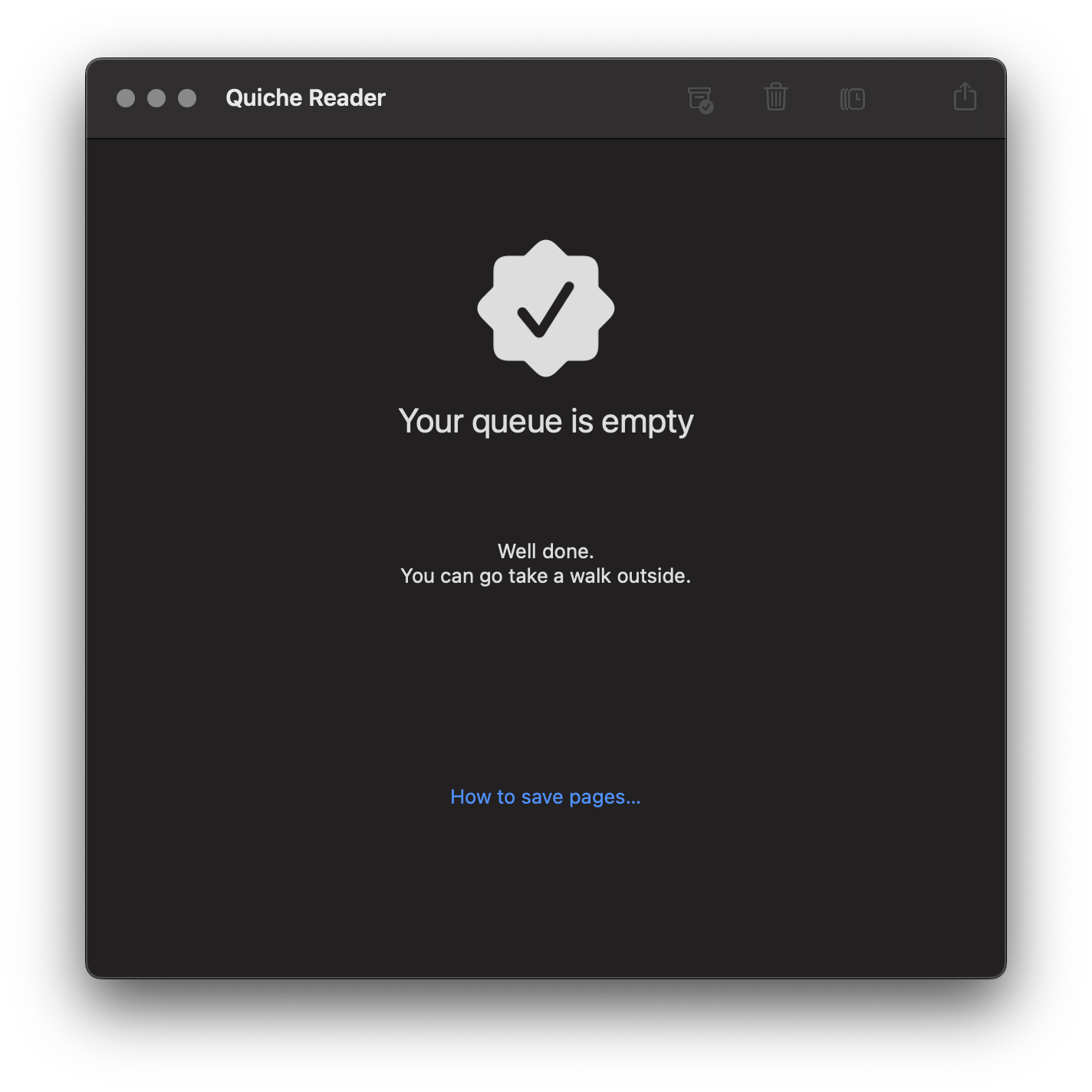
Quiche Reader in action

It's quite simple: if I see something I want to read a bit later I save it into the application (which will sync to my other devices via iCloud). Then, when I go to Quiche Reader, I have to read the article or delete it and move on. This is sort of what I'd do anyway, saving stuff up for months on end until one day I'd declare saved reading bankruptcy and then start the whole cycle again.

Now I can look at the saved article stack and I'm forced to either read the thing, or be honest with myself that if I'm not gonna read it now, I'm probably never going to.

It does have a "pause" facility (or something like that, I forget the name) where you can throw an article to the back of the queue; but even then that means it'll keep popping back to the top again.

I'll see how it goes; but so far I feel like this is the best "I'll save this to read later" tool I've found yet.


  1. I know, I KNOW! But there's so few places left to aimlessly scroll on the bus now! 

Failed successfully

2 min read

A couple of days back (for vague values of "couple", of course), first of the month, having my morning coffee, I go and open my bank's mobile app to move a bit of money about and pay a couple of things. This happens every month. This is so routine I do it almost on autopilot.

Yeah, yeah, I know, it's banking, pay attention! But still... morning, coffee, routine.

I get to the final movement/payment and then notice something:

Useless error message

That.... that text! WTF? So then I look back at my payment history and notice that all but one payment hadn't gone through! O_o

This alone is fine. Stuff happens. Things fail. I'm okay with that. It's an inconvenience for sure but doubtless whatever the problem is will be fixed and I can make the payments again later. But...

That result. There's a tick. A GREEN tick. And a "Thank you". It's natural to see that image, know that it's always meant "shit worked" and just carry on.

In one of my systems at work there's a tool I wrote for checking a repository of code to make sure it conforms to a certain standard. When folk use it they get a night big, bold and bright green thumb-up above the text that says everything is cool. If there's a problem, any sort of problem at all, then the display is red and there's no jolly icon and it's obvious that things are different and you likely want to pay attention to the explanation of what isn't right.

This isn't news, of course. This isn't some revelation about UI design or anything. We know this stuff. I think what boggles my mind a little bit about this is that something as important -- and hopefully by this point as mature -- as a mobile banking app should get something as obvious as this right.

But here we are, with a nice friendly green icon showing a tick and a friendly big "Thank you" followed by smaller text going "aye shit didn't work pal".

My VR recording setup

6 min read

Introduction

For well over a year now I've been recording my VR gameplay and uploading it to YouTube. Less as a "content creation" thing, more as a nice record of games I've played and, on occasion, as a little bit of help to others; in the past I've watched other folk play games I like to get ideas for approaches to them, and I've also received the odd comment now and again where my play-through has helped someone else.

A question I've had a couple of times is what I use to do the recording, so I thought I'd make an effort to write it all down here.

First up, a couple of things to note: I started recording PCVR around April 2021 and the initial setup was a bit trial-and-error and Google searching and blog reading. As such, not all of the details of how to set up will be here, and I may even miss off some stuff I changed and is worthy of note; at the same time I might mention stuff that's just an obvious default.

Consider this blog post as being a written version of one of my videos: it's for my own fun and benefit and might also help me in the future should I want to apply some of this again, and if it helps someone else that's a lovely bonus.

The Hardware

While it's not exactly the point of this post, I guess it's worth mentioning the hardware I use as of the time of writing. Given this is about PCVR, I of course have a PC which is running Windows. The machine information within Windows says it's a:

Intel(R) Core(TM) i5-10400F CPU @ 2.90GHz

Warning: I don't do hardware. I buy it from time to time, but hardware leaves me bored. It runs VR on a PC. This is fine.

The machine itself has 16 GB of memory, is running Windows 10 Home and has a GeForce RTX 3060 for handling the graphics.

The headset I'm using is an Oculus Meta Quest 2. I've had this since around November 2020, playing Quest-native games for the first few months, until I cracked and got the PC mentioned here to get into PCVR.

The headset is connected to the PC with a USB cable.

Finally, for recording voice, I use a USB lapel microphone with a really long cable.

It should be said that, yes, sometimes, I do get a little caught up in things with two cables hanging off me. If I could give one tip here it would be that running the microphone cable up your trousers and shirt makes life a ton easier. As a bonus I have the USB cable for the headset running around the headset's strap and connected to it at the back and then running down my back.

OBS Studio

The core software used is OBS Studio. This has got to be one of the best bits of free software I've ever used, in terms of interface and what it delivers.

Years back my son used to record and upload gameplay to YouTube and I can remember him having no end of issues using different recording software; some working with one game but not another, some other working with a different set of games, video and sync issues, etc... Lots of pain quite often. With OBS Studio the only issues I've ever had have been my own mistakes.

At this point I have to confess that when I set it up I didn't make a point of keeping a recording of what I changed -- I was experimenting and not expecting much to come of it. So what I note here are the things that feel like they're important, and only the things that relate to recording PCVR, not streaming it (that might end up being a different blog post).

That said, here are things I seem to remember as being key:

Output Settings

The items in the output pane in settings that I have and which might be important are:

  • Output Mode: Simple
  • Recording Quality: High Quality, Medium File Size
  • Recording format: mkv
  • Encoder: Hardware (NVENC)

I do remember the recording format being set to mkv as something that's really important. I think it's mp4 by default, or was when I first installed, and if your machine crashes or OBS were to crash or something, you could end up with footage that can't be used. Using mkv means you can still use the footage (as I understand it). It does mean that once you're finished you have to use the "remux" option under the File menu, but that's a small price to pay.

I can say that at least once I've had to hard-reboot my machine when a game and SteamVR and the like all got upset. I likely saved 45 minutes or more of footage thanks to mkv.

Video Settings

Nothing really special in here, I simply have both the base and output resolutions set to the desktop resolution. This might be something for me to tinker with in the future, but so far I've not run into any problems.

VR Capture

Now, of course, all of the above is great and fine and all but there's the issue of how you capture the VR gameplay. I approach this a couple of different ways. The first is I use the OpenVR Capture plugin for OBS. This makes capturing footage from SteamVR really easy. The only downside I found is that out of the box there's no default crop setting for using a Quest 2 (or I guess the Rift, as the Quest 2 sort of appears as a Rift to SteamVR games). As such I remember playing trial and error with that until I was happy I was getting as much footage as possible without having black bars and the like.

Something I also like about the OpenVR Capture plugin is you can say if you want to capture the left or right eye. Normally not that big a deal for some things, but if you're playing a shooter and want people to see exactly what your dominant eye is seeing, that matters.

Sadly, of course, not every game can be captured with that plugin. So far I've found that any game that can't be has its own mirror window on the desktop. In that case I use a Game Capture source and set it to capture that specific window. I could of course just get it to capture the focused window or something like that but I prefer to know that it's only grabbing what I want it to grab.

Conclusion

That's pretty much it I think. There's not a lot to it, although on occasion a lot can go wrong. Mostly it's a wonder any of it works. I mean, think about it, I have a computer with two screens strapped to my face, with two controllers in my hands talking to it; it's then connected via the Oculus Link to the Oculus Home; from which I start up SteamVR; and from the SteamVR home I start up the game and then "live" inside the game. It's a virtual world inside a virtual world inside a virtual world inside a real world; with lots of software along the way, all talking at once.

That is then being recorded.

Sometimes, on occasion, it takes a reboot or five to make it all work together.

Really, it's a wonder it ever works. ;-)
Why I really like fish abbreviations

3 min read

I'm filing this as a TIL because, while it wasn't T, I did L it very recently and it was a new trick that impacted on around 25 years if prior working practice.

I think it must have been around 1991 when I first encountered 4DOS. While I'd used the odd Unix shell here and there previously, it'd only been in passing. It was 4DOS that first introduced me to the power of aliases on the command line. Many of the aliases I set up and used in 4DOS still remain with me to this day, on GNU/Linux and macOS, in some form or another.

I'm sure I don't need to tell anyone reading this why aliases and cool and handy and pretty much vital if you do lots of work on the command line.

And then, a couple or so weeks ago, as a very recent convert to fish, I discovered the abbr command. At first glance it didn't seem to make much sense. It was like alias, only it expanded what you typed rather than acted as a command in its own right.

I did a bit of digging and some of it started to make sense. One thing that really won me over -- and while it's something that doesn't directly impact on me -- was the argument that it allows for a far more transparent command history; especially if you're likely to use a transcript of a shell session in a place where people might not know or have access to your aliases.

Imagine being in a position where you have loads of handy and cool aliases, but you also need to record what you've done so other people can follow your work (does it show that I sit amongst people who maintain lab notebooks?); it seems like it would be a bit of a bother needing to record all of the aliases in your own work environment up front. Without that information few people will be able to make sense of the recorded commands, with that information they'd still need to double-check what each command does.

So imagine an alias that, when used, expands in place. Then you'd get all of the benefit of aliases while also having a full and readable record of what you actually did.

Seems neat!

Here's a silly example. For a long time I've carried around an alias called greedy that runs something like this:

du -hs * | sort -rh

It's pretty straightforward: I'm using du to get a sense of which directories are using what space, and then using sort to make a worst-to-best-offender list out of it. So I could use an alias:

alias greedy="du -hs * | sort -rh"

The only downside to this is that, any time I run it, if I were to record the shell session and make it available for someone else to read, they'd just see:

~/develop$ greedy
1.1G    JavaScript
824M    C
699M    rust
 93M    python
 33M    fonts
 33M    elisp
3.4M    zsh
3.0M    misc
1.1M    bash
840K    ocaml
428K    C++
316K    lisp
172K    Swift
152K    git
132K    ruby
 28K    ObjC

Now, with an abbreviation rather than an alias, I'd type greedy but as soon as I hit Enter it'd get expanded to something anyone could read and follow:

~/develop$ du -hs * | sort -rh
1.1G    JavaScript
824M    C
699M    rust
 93M    python
 33M    fonts
 33M    elisp
3.4M    zsh
3.0M    misc
1.1M    bash
840K    ocaml
428K    C++
316K    lisp
172K    Swift
152K    git
132K    ruby
 28K    ObjC

This is far from the only benefit of abbreviations; for most people it probably isn't one of the most important ones, but I find it neat and compelling and this alone drove me to rework almost all of my aliases as abbreviations.

Having done that, I get other benefits too. For example, fish (like other shells) has good support for argument completion for well-known commands. The problem is, if you alias such a command, you don't get that completion. With an abbreviation though you do! All you need to do is type the abbreviation, hit space and it'll expand to the underlying command and then the full range of completion can happen.

There's also one last reason why I like abbreviations over aliases, and it's kind of a silly one, but in a good way. It's actually fun to see what you type magically expand as you do things, it makes you look like you can type even faster than you normally can! ;-)

PS: If you've never tried fish before and you're curious, it's easy to try in your browser.

I want to like Gboard

4 min read

I want to like Gboard. On paper it looks really rather good. It's a keyboard from Google, it ties in with your account, it syncs things, it has clever searching for emoji and gifs and the like... what's not to like?

Problem is, I've been a user of SwiftKey since around 2011 (I think it was). I'm very used to how SwiftKey works and it also contains a lot of handy things. I like that it has smart completion, that it learns how I type a bit skewed and that it takes this into account, that I can turn off the fancy swipe typing and instead make use of handy gestures like swipe-left to delete a word. I like some of the themes a lot.

Into the mix comes my iPad, which I use on occasion. The standard Apple keyboard is horrible and, sadly, I find SwiftKey on iOS just as frustrating. It seems to lack enough key features there (especially the word deletion gesture, as far as I can tell) that it's also a bit annoying. My dream of a consistent typing experience across all devices just wasn't happening -- until I found Gboard on iOS.

That felt almost right. And from what I could tell it worked almost exactly the same on iOS and Android. So it felt like a good time to try and force myself to use Gboard on my Google Pixel and Nexus 7.

Sadly, though, I'm just not getting on with it. It's okay. It's not bad. It's just... not good. I'm finding that it lacks enough useful things that it's a frustrating experience. Little things like: when I enter Google Search, there's no word completion in the keyboard (SwiftKey has that); the word deletion gesture (swipe left from the backspace key) seems very hit-and-miss; the most obvious completion for a word sometimes appears in the middle slot but, other times, in the left slot. And so on.

Nothing huge. Nothing that's a show-stopper. But a handful of a little things that make me miss the comfortable home that is SwiftKey.

Don't get me wrong, it does have some very handy and cleaver features too. The searching for emoji -- including showing them up as word completions -- is rather clever. The gif-search thing is all kinds of fun too (mostly used to annoy the hell out of my son on twitter).

None of those quite make up for the bits I miss from SwiftKey though.

All that said, I've being making a point of pushing on with Gboard, thinking that most of my issues might just be because I'm too used to my "old home". Mostly this was working well, until I noticed something this morning. While reading the description for Gboard I noticed this handy thing in the "Pro Tips" section:

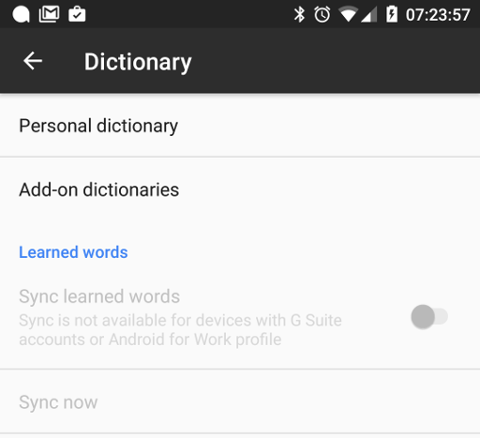
Sync your learned words across devices to improve suggestions (enable in Gboard Settings→ Dictionary → Sync learned words).

Useful! I'd assumed that this was the case anyway -- it's Google after all -- but it's good to know I can ensure it's turned on. So I went to turn it on. This is what I found:

Gboard WTF

What the hell Google? Sure, I do have a Gsuite account on my phone -- as in various apps have access to a Gsuite account (Gmail, Drive, etc...) -- but it's not the primary account on my phone and it's not the account I'd really want to be doing the dictionary sync with anyway. If I've got dictionary sync I want it tied to the keyboard no matter the app I'm in, and no matter the account I'm using in that app. I want the keyboard to be tied to a specific account when it comes to sync (just like SwiftKey does it).

This, I think, is a show-stopper for me.

I can overlook the other niggles, I can learn to cope with it not being quite so perfect in some situations; but the blanket inability to do something as simple as cloud-sync the predictions and learn from how I type -- things that are, these days, central to what Google's about -- it's frankly stupid.

I guess I'm going to have to keep Gboard as a backup keyboard for those times when I need to find the perfect gif.

Google WTF

Google Now Achievements?

1 min read

Over the past couple or so weeks I've been having some issues with Google Now. It first seemed to start on my Nexus 7, then appeared on my Nexus 6. More recently, even as of today, I've seen it on my Google Pixel. The problem is that, in the Google Now launcher (or on the Pixel, in the Pixel launcher), the Google Now page (that you swipe to the left for) sits empty for ages. All I see is the little animated waiting circle and nothing else. Once or twice I've had the Google app die and restart or, more often than not, after quite some time it finally loads up.

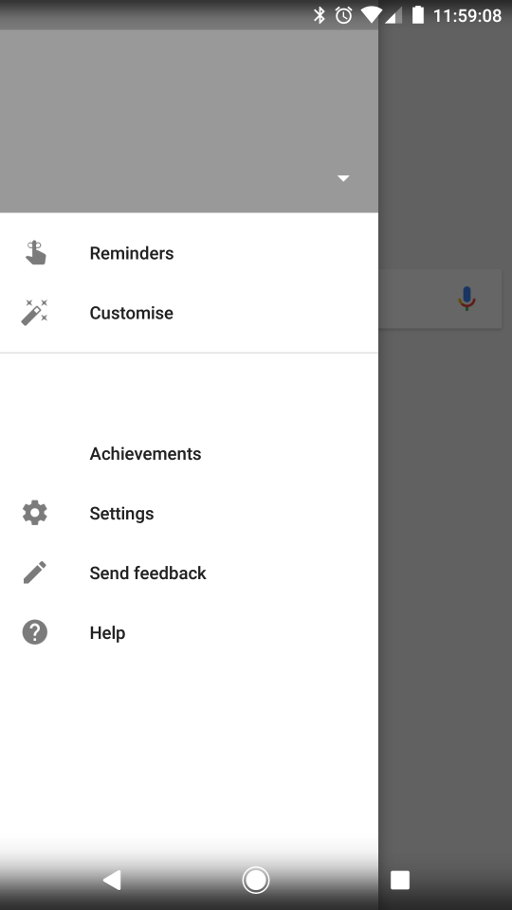
The latter happened a little earlier and I noticed something I'd not seen before:

Blank Google Now

What's with that "Achievements" menu option? You'll notice that the whole of the menu is blank -- no profile picture or anything and none of the menu options seemed to work.

Eventually, after I'd left it for a while, it ended up working.

Google Now finally working

And, once this happened, no "Achievements" option.

Presumably this is some back-end server issue, I'm being served up something I'm not supposed to be seeing and it's confusing the client app. Okay, I don't know that's the case, but it has that sort of feel.

So now I need to go looking for what this Achievements thing is all about.

Using Google, obviously.