Posts tagged with "macOS"

Siri is broken

2 min read; 11 GFI

I think, in part, I regret upgrading any of my Apple devices to the 27 line of operating systems. While my experience as a whole has been pretty favourable, the one thing I was looking forward to is not just disappointing, but is a huge step backwards.

Waiting for Siri to do anything

I don't use Siri for many things, but I do use it a lot for a small number of core things. On any given day I'll lift my watch up and speak to it to set a timer or a reminder. Occasionally I'll ask other things, but they're the main uses. Thanks to the fairly recent addition of on-device voice handling, these requests have been near-instant.

With the new Siri that comes with iOS 27, etc., if I'm really lucky the reply will be super slow (getting on for 20 seconds or so to do the job), but more often than not it just doesn't work at all. Either it tells me that my main device isn't available right now1 (which I take to mean my iPhone, which is wild given it's always in my pocket at the time), or it just busy spins for ages and then simply times out and does nothing.

If I try to use Siri on the iPhone itself, it either just busy waits for ages without getting anything done, or it finally tells me it isn't working.

Siri failing

I was one of the people who upgraded to the 16 Pro because of the promise of "Apple Intelligence". I was, unsurprisingly, kind of annoyed that they didn't deliver. But it was fine, the phone is a good one and it's still serving me well. Also, if I'm honest, I was comfortable with the idea that they chose to not really implement anything2 rather than implement something bad.

Sadly though, based on my experience so far, they've implemented something bad. Since upgrading, on the Watch and iPhone, I've found that it's either horrifically slow or it just doesn't work. On top of that, I've lost all the benefit of the on-device voice handling of my watches.

  1. Or words to that effect; I can't remember the exact wording. ↩

  2. I mean, of course, they did do the image playground and writing tools, but they're hardly the leap forward in assistant intelligence that was originally being hinted at. ↩

Openreach finally delivered

2 min read; 9 GFI

The day after the last failed attempt to install fibre, I got a follow-up message from Openreach, pretty much not telling me anything I didn't already know:

We came to see if we can connect your property to our Full Fibre network yesterday.

The good news is we can, but the engineer found that the existing network connection point wasn't suitable for private land's underground connection, so we need to plan a new way to bring the fibre cable to your home, which may also require a specialist engineer for a flat roof connection.

We're really sorry for the delay, but we're on it and will update you again in the next 10 days (we're usually much quicker).

We promise Full Fibre's worth the wait. It's the UK's most reliable broadband technology.

The flat roof thing was... interesting, but okay, I'm sure they know what they're doing and that it's some automated system with a restricted set of outcomes.

Skip forward one day and I get an SMS out of the blue:

Hi, it's Openreach on behalf of EE/BT.

Sorry we missed you.

Book a new date for your Full Fibre installation here: [removed]

The "Sorry we missed you" was very odd. They didn't miss me. I saw them two days earlier. But, again, okay... I followed the link and it also seemed to be written as if one of us had missed an appointment and I needed to pick another day. Anyway, I ignored what it said and just used the date picker to pick the next available day (which was today: as in the day I'm writing this).

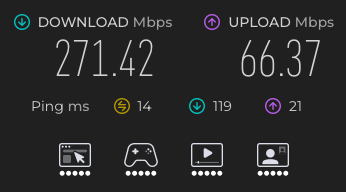
Fast forward to today and there's a knock on the door at around 08:30. Around two hours later, and this is what I was seeing:

My new speeds

To be clear: this isn't the actual speed of the connection. This was a quick test from my Mac, in my office, via the Wi-Fi connection. I don't currently have a Mac or PC wired into the router so can't measure the full speed. Testing on the router itself, it's much closer to 943Mbps/100Mbps. But, yeah, I'm good. I finally have full fibre again!

There was an immediate downside though. Once it was all set up, with the new router (which I swapped to as it has Wi-Fi 6, so why not?), I noticed that the ping times between my Macs were all over the place; this was also noticeable in that the ssh connections were so jittery to the point of being almost unusable.

Bugger.

So I did a bunch of digging online and, without getting too deeply into it (because I'm not a networking guy): the problem is AirDrop/Sidecar. They don't play well with a Wi-Fi 6 connection, so do stuff in the background that causes your ping times to be all over the place.

The solution? Turn this off for the Wi-Fi connection on the affected Macs:

Wi-Fi 6E off

I can't find anything that suggests I'm going to regret doing this for the couple of Macs in my office, and for my MacBook Air, and having done it, the performance is fine again.

This is why I avoid anything to do with networking: it always seems like if you improve one thing, it degrades some other thing, and it's only ever fixed by remembering to tweak some reasonably obscure setting somewhere on some particular item of hardware.

Still... I HAVE FULL FIBRE AGAIN!

Finally, I can think about doing the odd stream again.

Recently I found - 3

1 min read; 8 GFI

Introduction

An occasional collection of things I've recently found on the Internet and added to my bookmarks.

JSON-LD Explained for Personal Websites

Handy guide to how JSON-LD can be useful for personal websites.

TownSquare

On the one hand, this looks like a fun idea: sort of a Second Life for websites. On the other hand, it's the worst of the Internet, which is no surprise.

The AI Resist List

Does what it says in the title, pretty much.

Rest of the World

A good reminder that tech stories come from places other than the "western" world.

smolweb

A handy guide to all things relating to the small web, and related concepts.

Gemtext Is Not Accessible

A good reminder that, as fun and neat as Gemtext is, it's not terribly accessible.

Honesty gets Emacs patch rejected

The FSF, in effect, does what the FSF is there to do: defend the copyright of GNU Emacs (among other projects). Meanwhile someone attempts to contribute a patch written by a large language model, and seemingly gets offended that it's rejected. I think the worst part about it is they seem to think that being honest about using an LLM should let their contribution in.

The UnOfficial History of Second Life!

A pretty fun Reddit post that contains a potted history of the evolution of Second Life. I've had an account for a good chunk of that time, and it all reads about right to me.

Radial

I've long been a fan of pie menus. I wish macOS had adopted and used pie menus. This looks like something I need to try out at some point.

The AI Compass

It's one of those "compass" type quizzes that works out where you stand on the whole issue of AI. I landed on "The Skeptic".

Wipr

1 min read; 8 GFI

While I know the subject really fires some people, ad blockers are something I've never really paid too much attention to. Back in the early days of the web, the really early days, I used to run with full-on JavaScript blocking1. The web changed and I accepted it.

More recently, as I've become a full-time Safari user in the last couple of years, I've been running with Ka-Block! installed. It's been fine. I've never really noticed it. I think it blocked some stuff, but not other stuff. I've never really noticed if it was getting updated or not; I just wasn't paying attention.

Then, this morning, I saw this post in the Fediverse and for some reason it caught my eye. I followed the link, did a bit of searching, asked Misko about his experiences with the app, and saved a bookmark.

Now, this evening, I've thrown down my fiver and I'm running with Wipr 2 installed, both on my Air and my iPhone. When I'm next on either of my Minis, or on my iPad, I'll throw it on there too.

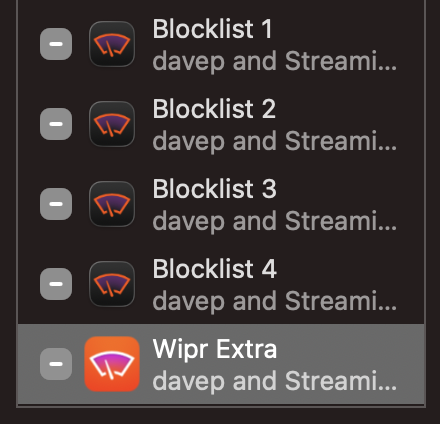
The installation process was straightforward, albeit one where you need to enable four extensions rather than just the one.

Wipr installed

As well as that, you then need to enable it in the app itself and you're good to go. I've since tried visiting a couple of locations that I know still showed adverts or consent pop-ups and... clean. So clean!

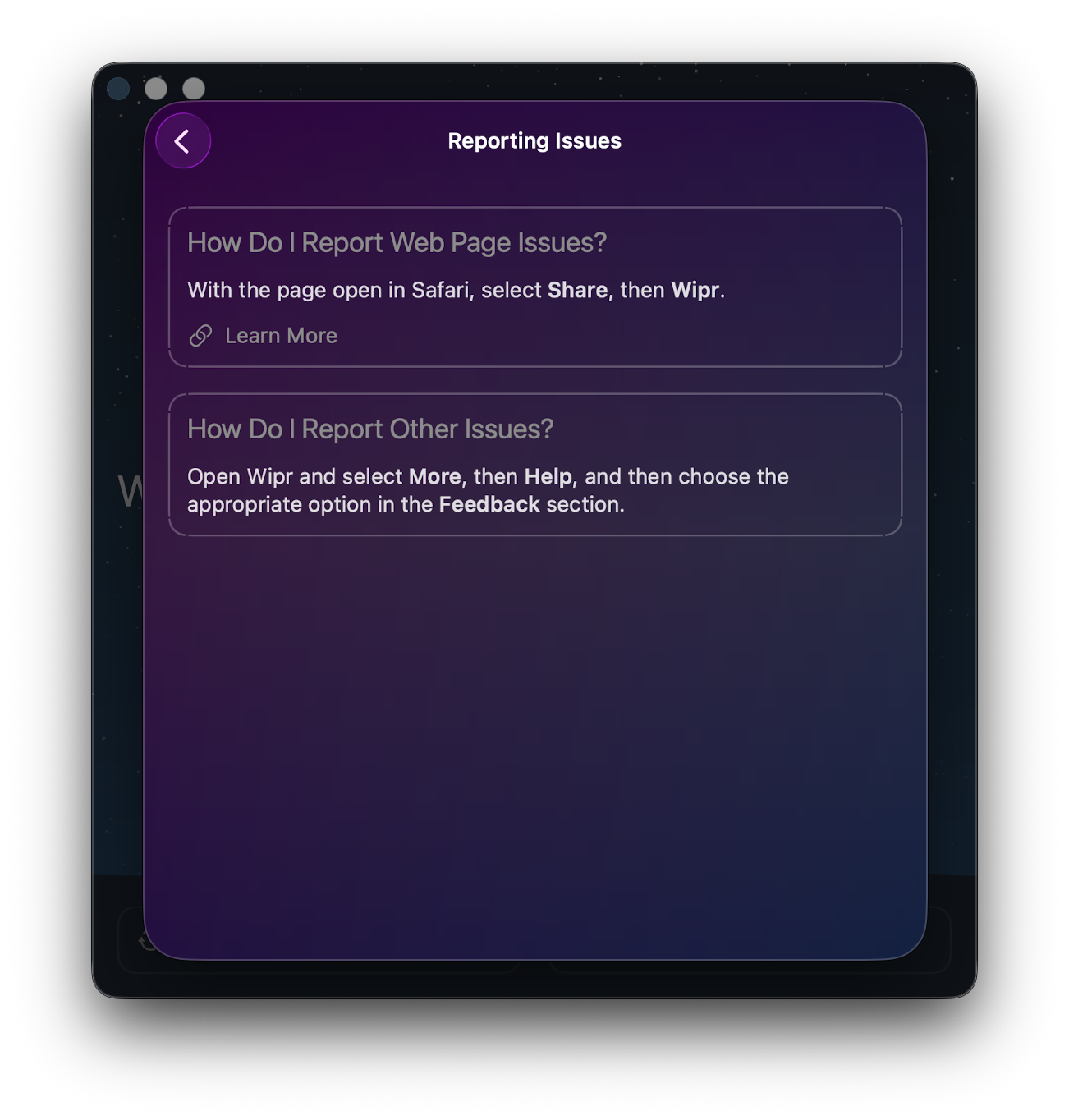
My expectation for tools like this is that they end up breaking some site in a way you least expect, so I'll be very aware of that for a while. That said, if I do run into a problem, not only is it easy enough to turn blocking off just for that one site, there's a very clear route to reporting problems too.

Encouragement to report a problem

Mostly, though, I hope I can go back to paying this app no attention whatsoever. If I can, I imagine that's high praise and a job well done for this sort of tool.


  1. I just know someone is reading that and thinking "pfft, JavaScript came along late into the web you noob". ↩

Ghosted by Ghostty

1 min read; 5 GFI

I just grabbed and opened up the MacBook Air and met this:

Ghosted!

First time I've ever seen this and I've been using Ghostty for quite a while now.

To be fair, the MacBook did update to 26.4.1 overnight and has tried to get back to the state it was in before the restart, so I imagine that's the cause. But I've never seen this before.

I'm all good now; I ⌘-q the app and started it again and there's no sign of a problem.

Goodness knows how I get to see that log...

Hello MacBook Air (again)

2 min read; 8 GFI

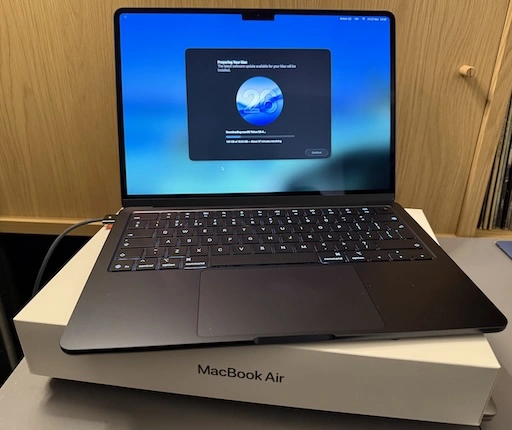
As I mentioned yesterday I decided it was time to update my portable/sofa hacking setup and treat myself to a nice new MacBook Air. It's here (well, I picked it up yesterday evening after dinner).

MacBook Air M5

So far I'm very pleased with the choice. It's light but feels sturdy. The screen is very pleasing to read. The keyboard is really nice to type on (albeit I do prefer the old MacBook Pro, but on the other hand this is a bit more quiet, which matters if you're sharing a living room with someone else). It's fast. So fast! It's also so quiet! So very quiet! And cool too. The Intel-based MacBook Pro would get very warm as I worked; this just stays cold.

The really great part though is the battery life. Depending on what I was doing, with the Intel Pro, I'd get a couple of hours off the cable. On the other hand, last night, I spent a few hours setting things up on the Air and I barely noticed the battery drop at all. This, more than anything, is what I wanted.

Well, okay, I wanted the speed, the quiet, the lack of heat, and the long battery life.

Oh, and the rather lovely "Midnight" colour. It's not black, but it's close enough.

The setup itself went pretty well, although for some odd reason I ran into problems when setting up Emacs. These days I always use Emacs Plus via Homebrew and have never had issues. Weirdly though, this time, if I did the installation method that builds locally all sorts of things went wrong. I don't know if I missed a step or something but I did what I normally do when dropping Emacs on a Mac. So I started again with the pre-built approach and that worked better.

Even then though, I ran into problems with my setup downloading everything. Things mostly worked but I kept seeing all sorts of issues relating to git-gutter and git-gutter-fringe not being able to load (despite the fact they'd downloaded fine, from what I could see).

In the end I gave up trying to get it to all work from scratch and hand-removed and then hand-installed via package-list-packages instead. Not the most scientific of approaches, and one I'm sure I'll regret at some point in the future, but at least I got to a point where I could get other stuff done on the machine.

All of which is to say: if you're reading this blog post I got my Emacs and git environment to the point I can write things and push them out to the world. At which point that's the really important stuff up and going and I can call this "set up".

Once I'm happy that's working, I think it's time to revisit my Emacs setup. While I don't think it needs another complete restart, I think it might be time to at least look through what I have loading in and perhaps remove some things I don't use any more (for example, I always carry around vterm from the days when I was testing every possible terminal I could get my hands on -- that's less important to me these days.)

MacBook Air M5

2 min read; 9 GFI

It's just over a month shy of being 10 years since I bought my first MacBook. As I mentioned at the time: I'd bought my first Mac about 10 months earlier than that, had got used to it, had grown to like the OS, and had need of a small and light hacking machine to use while doing a lot of train travel (and I really did do a lot of train travel after that).

Fast forward a touch over 3 years and, by accident of a windfall due to work things, I ended up treating myself to a MacBook Pro. This was one of the last Intel models. It worked well and served as my main hack-at-home machine for quite a long time. I used it to code and edit videos and a bunch of other things. It sat there, on my desk, plugged into a couple of screens, and never really served as a portable machine.

Fast forward around 4 years and, having been using a MacBook Pro M1 for a while through where I worked then, I had a desire to get a M-chip Mac for personal use and settled on an M2 Pro Mac Mini. That thing was, and remains, a beast of a machine. It's set up here in my office right now and I'm sure will last me for some time to come.

The thing is, in the last 6 months, my home life has changed. I moved. I now share a place again. It's nice to sofa hack and hang out and all that "share a space with other people" stuff. To that end I've been using the Intel MacBook Pro again but I'm noticing that it's getting old now. It's not that it isn't coping with what I need it for -- far from it -- but having the fans kick in lots, and just the heat, and also the fact that the OS is stuck in the past because it's now a "legacy" machine... I sensed it was time for an upgrade.

A new MacBook Pro was an option, of course, but that feels like overkill for some sofa hacking. If I want to do any heavy video editing or any heavy coding the M2 Pro Mini is still the machine for the job. The new Neo looked really good too, but the entry-level storage seemed a bit stingy these days and once you bump up to the next level, while still stuck with the same memory, well the price starts to get dangerously close to...

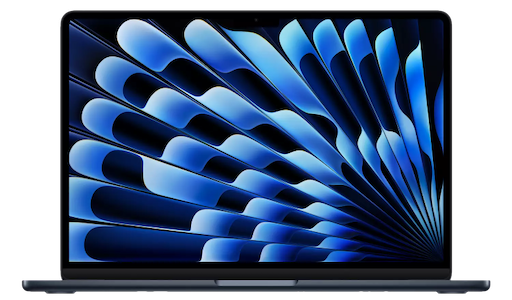
The MacBook Air M5

So, yeah, as of today, I've kind of come full circle; a decade on from that MacBook Air purchase I have a new sofa hacking machine coming in the shape of the new M5 MacBook Air1.

So this weekend will involve me digging out my "new macOS environment" checklist and working through it, getting a hacking environment up and going again. One thing I do want to do is follow that list but also write out a fresh copy, because this time around I want to see if I can get a good Python environment up and going minus the use of pyenv. Not that pyenv is a problem, at all, but I feel like I should be able to achieve everything I need using just uv.


  1. I'm not a hardware nerd, so don't dive deep into this stuff. Despite what I said about the M2 Pro Mini still being there for heavy coding and video editing, it wouldn't surprise me to find out the Air is more than capable too. ↩

macOS desktop widget switching

1 min read; 12 GFI

When desktop widgets first turned up in macOS I was pretty quick to embrace them. On my personal Mac Mini I use a pair of screens, the right one mostly given over to Emacs, and there was generally room to space there. These days that screen generally looks something like this:

The usual layout of my right screen

Recently I've got into streaming while I do some coding and it's the right-hand screen that I work on and capture using OBS. When I was setting this up I realised that the widgets being there could be a problem; not because they could distract or anything, more that they could, at times, contain sensitive information (there's my reminder list and my calendar there after all).

What I needed was a quick method of hiding all the widgets, and showing them again later, without it being a lot of faff.

With a little bit of digging around on the net I finally came up with a pair of fish abbreviations that do just the job!

abbr -g widoff "defaults write com.apple.WindowManager StandardHideWidgets -int 1"
abbr -g widon "defaults write com.apple.WindowManager StandardHideWidgets -int 0"

Now, when I'm going to stream, part of my "getting stuff ready to go live" checklist is to run widoff in the terminal; once I'm finished I can then just run widon again to have them come back.

Fast, clean, handy.

I've also got a pair for when I'm using Stage Manager:

abbr -g smwidoff "defaults write com.apple.WindowManager StageManagerHideWidgets -int 1"
abbr -g smwidon "defaults write com.apple.WindowManager StageManagerHideWidgets -int 0"

Although, really, I can't remember the last time I used Stage Manager. I dabbled with it for a wee while, found it vaguely handy in a couple of situations, but it doesn't seem to have stuck as part of my workflow or work environment.

Quiche Reader

1 min read; 9 GFI

I can't quite remember where I found this this week, I think it might have been via a comment on some article on the orange site1, but I stumbled on a really handy bit of free (as in beer) software called Quiche Reader.

It's really simple and I feel exactly the sort of thing I need. Over the years I've tried all sorts of "save to read later" tools and systems; be it things like Pocket, or tools now built into the browser these days, even adding URLs to Remember the Milk (back when I used that) or (these days) Apple Reminders.

Nothing ever quite stuck. Normally I'd end up slapping stuff to read into these systems and then never reading them.

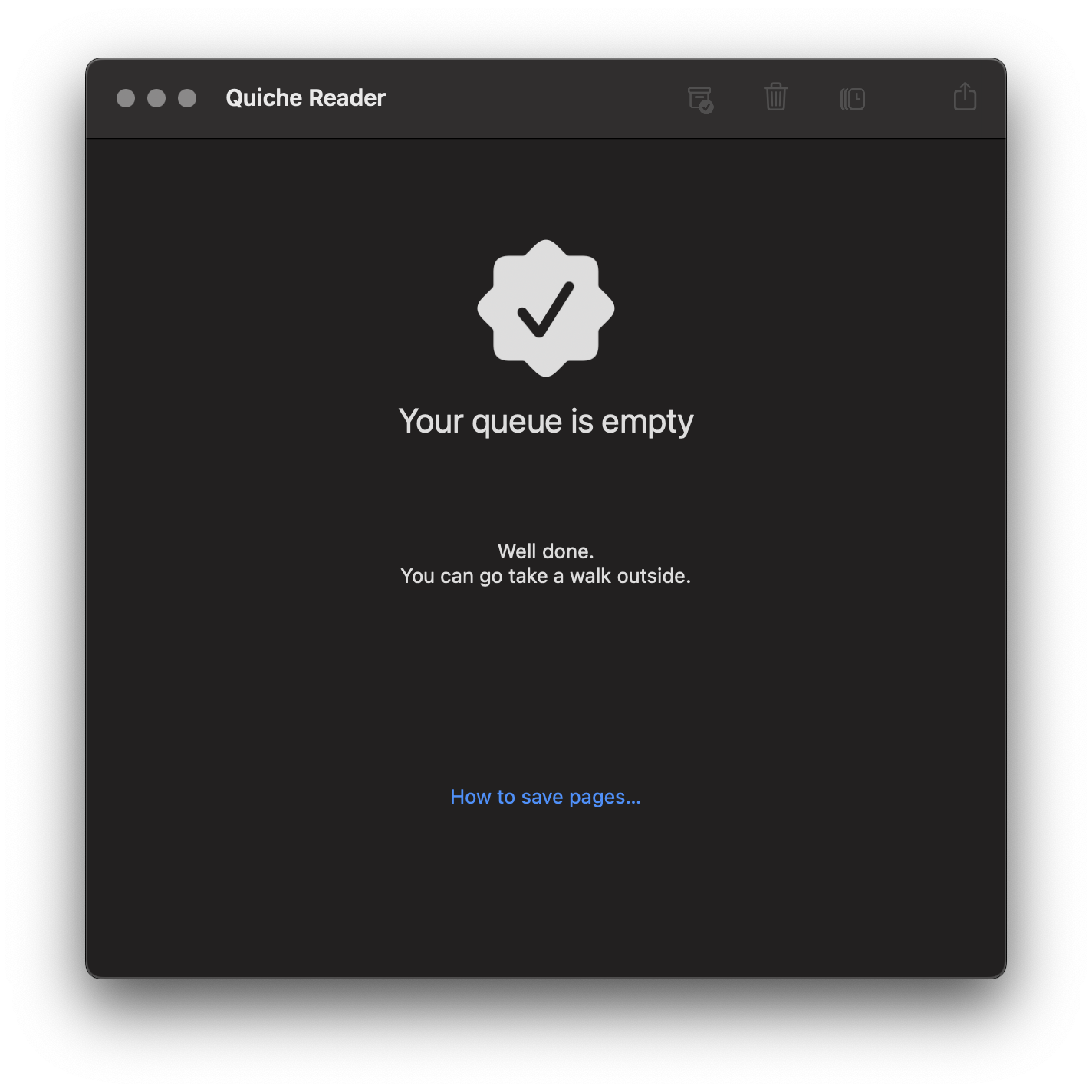
Quiche Reader, so far, feels like the perfect approach.

Quiche Reader in action

It's quite simple: if I see something I want to read a bit later I save it into the application (which will sync to my other devices via iCloud). Then, when I go to Quiche Reader, I have to read the article or delete it and move on. This is sort of what I'd do anyway, saving stuff up for months on end until one day I'd declare saved reading bankruptcy and then start the whole cycle again.

Now I can look at the saved article stack and I'm forced to either read the thing, or be honest with myself that if I'm not gonna read it now, I'm probably never going to.

It does have a "pause" facility (or something like that, I forget the name) where you can throw an article to the back of the queue; but even then that means it'll keep popping back to the top again.

I'll see how it goes; but so far I feel like this is the best "I'll save this to read later" tool I've found yet.


  1. I know, I KNOW! But there's so few places left to aimlessly scroll on the bus now! ↩

Cmd-Tab switcher on all screens

1 min read; 8 GFI

This week, on Monday gone in fact, we moved office. We've now got a bigger space and, as part of that, bigger desks. Somewhat (but not entirely) coincidentally the work desk will also convert into a standing desk1. Also also... I inherited a second screen for the desk too. Ever since the days of CRTs and video cards that supported it, I've been a fan of having at least a couple of screens in front of me, and now at my work desk I've got 3 (two external displays and the display of the MacBook Pro itself).

This caused a slight problem though: horizontally there's quite the spread of things to look at. This is fine, mostly I'm looking at the screen that's in front of me; the MacBook is to the left and the "second" screen is to the right, both with "other" stuff on them. In front of me is Emacs and my browser, which I flip between lots.

The problem is this: the MacBook needs to go to the left (because of physical layout), which means that despite me setting the screen in front of me as the "main" screen, the Cmd-Tab display (you know the thing: when you hit Cmd-Tab you see the icons of all your active applications) appears on the left-most display, which is the MacBook.

Not great. If I'm looking at the right-most display, and want to switch using the keyboard, I've got to look over to the left, as a worst case. That makes for a lot of unnecessary head-swivelling.

One quick Google later and Today I Learnt that the following pretty much solves the problem:

defaults write com.apple.Dock appswitcher-all-displays -bool true
killall Dock

As the name of the setting would suggest: once done, the switcher appears on all displays.

That's perfect.


  1. Although the work one is manual hand-cranked, not electronic button-push goodness like my new one at home. ↩