Posts tagged with "PyPI"

AgiNG

4 min read

AgiNG

It seems I really do still have this need to create new terminal-based projects at the moment. There's been Braindrop, then Peplum, then after that came Hike. While I'm still tweaking and adding to them, and also using them to refine a wee library I'm building up that forms the core of my latest apps, I felt I still had this one app that I needed to finally build.

Since the 1990s I've had this mild obsession with building tools for maintaining access to Norton Guide files. I've written readers for GNU/Linux (which also works on macOS too), OS/2, Windows, GNU Emacs, and also on the web (in multiple incarnations). Those builds have covered a few languages, including C, C++, Pascal, JavaScript and Emacs Lisp.

I'd never written a Python library or application for it though.

So when I first saw Textual mentioned in passing on Twitter a few years back, way back in the 0.1 days, I thought that could be the thing that would push me over the edge. In anticipation of that, back in 2021, I initially developed ngdb.py. This is a library that provides the core Norton Guide reading code for Python applications and could form the basis for other tools.

As a test for this I then wrote ng2web (which works, but I think still needs a bit of tidying up -- something I'm aiming to do in the next few weeks).

Meanwhile, the journey with Textual itself kicked off, happened, and came to an end; and yet somehow I'd never got round to building the thing I'd initially looked at Textual for: a terminal-based Norton Guide reader that looked nice and modern (by terminal standards). When I initially joined Textualize the owner had actually said they wanted me to build this as test of the framework, to essentially start out by employing me to create some Free Software that would help dogfood the library, but that seemed to get forgotten.

Fast forward to the start of this month and I finally felt it was time to tackle this. The result is AgiNG1.
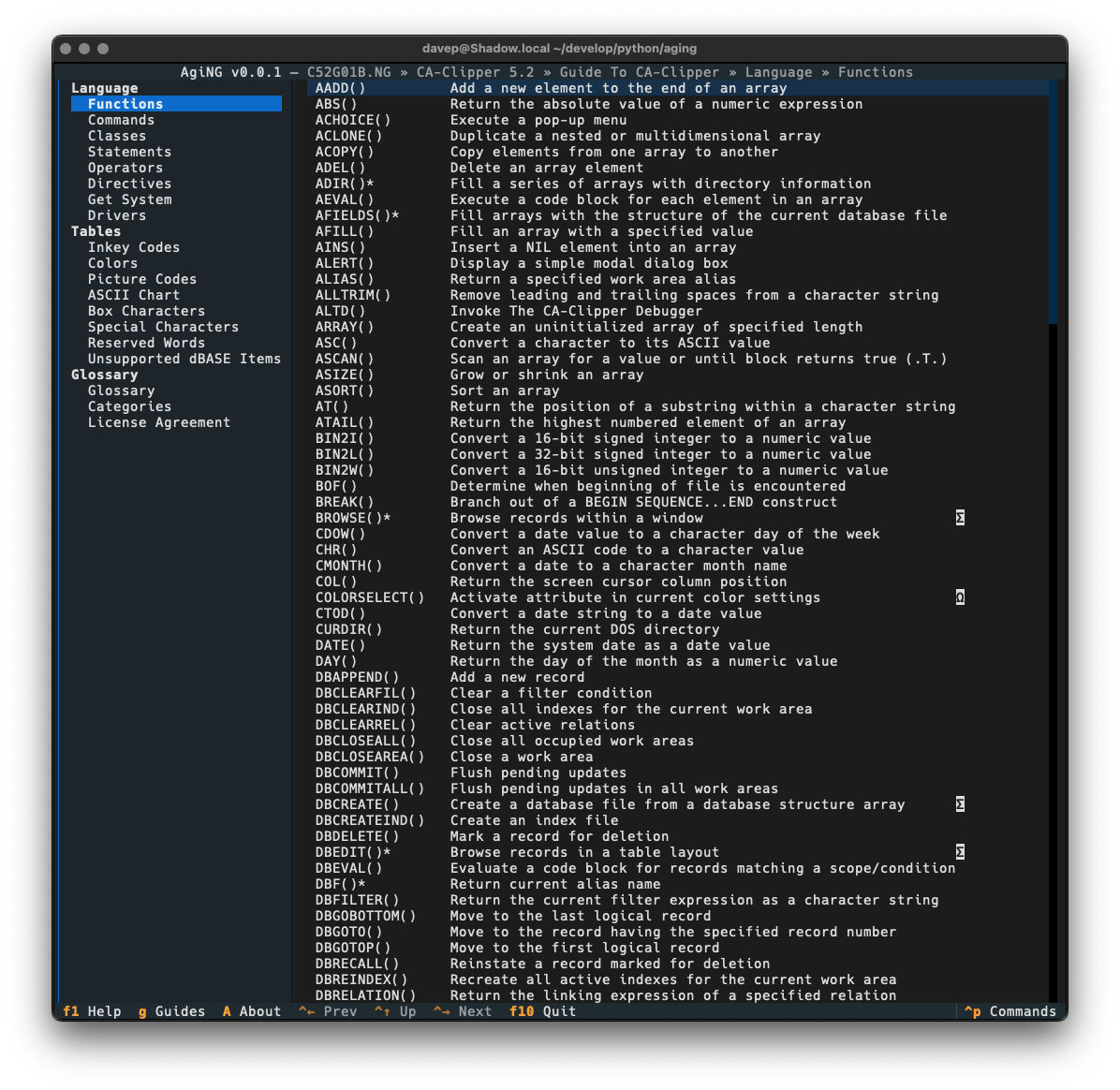
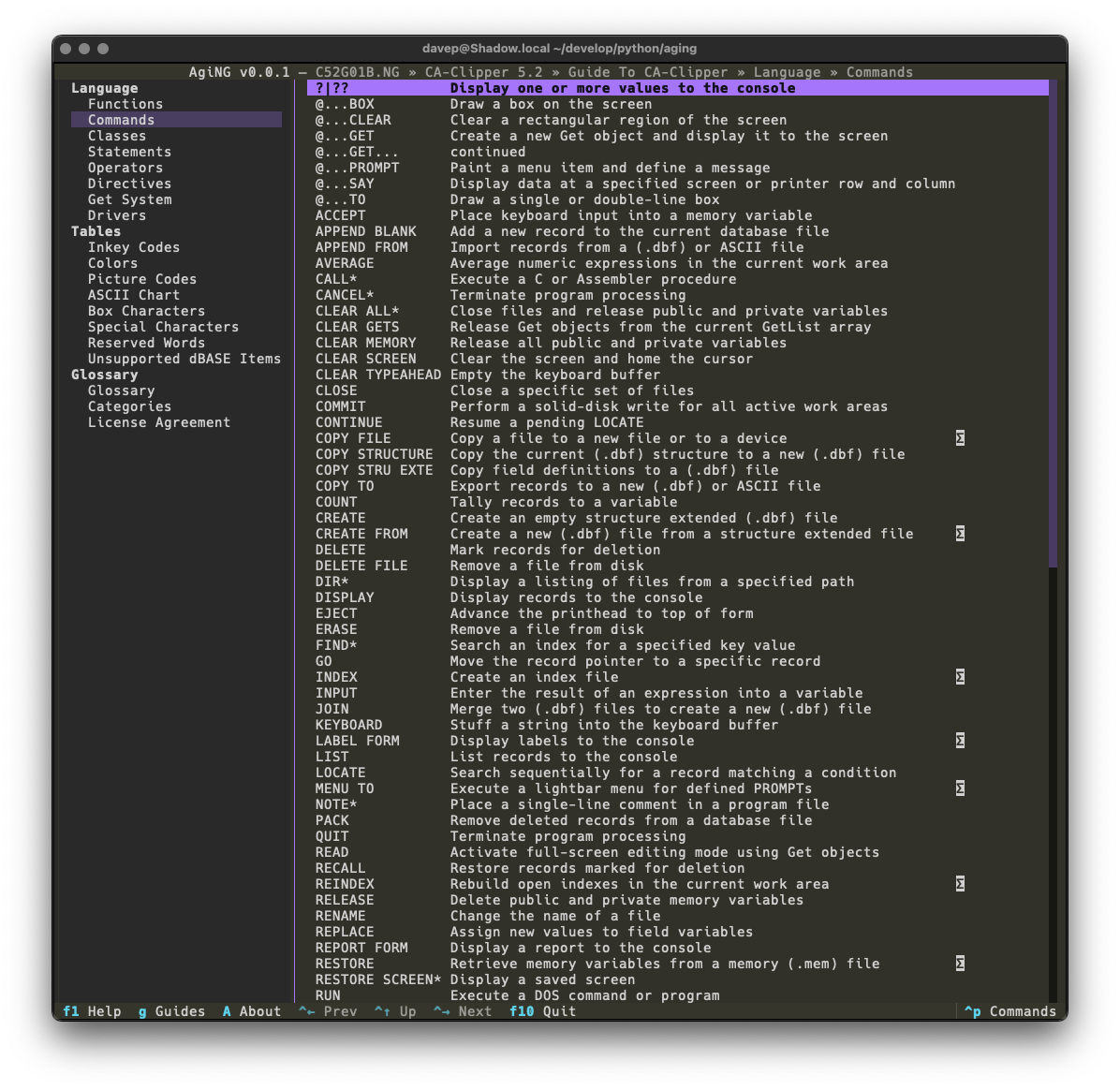
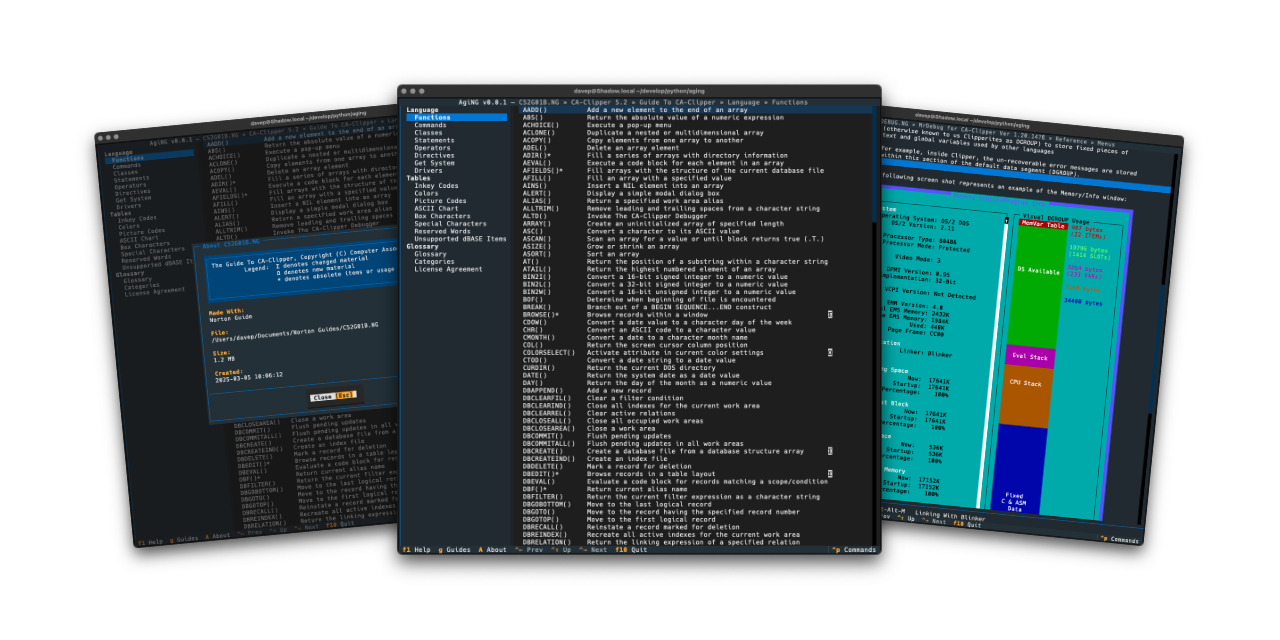
AgiNG in action

As of v0.1.0 it has most of the features you'd expect from a usable Norton Guide reader, including:

  • An ability to add guide files to an in-application directory.
  • The ability open and navigate a guide.
  • Full see-also support, etc.
  • Full translation of characters as were under MS-DOS into the terminal.
  • The ability to copy entry text or source to the clipboard.
  • The ability to copy save entry text or source to a file.
  • Access to a guide's credits.

AgiNG showing a long entry

I still need to write some proper documentation for the application, but meanwhile all commands and key shortcuts can be discovered either via the help screen:
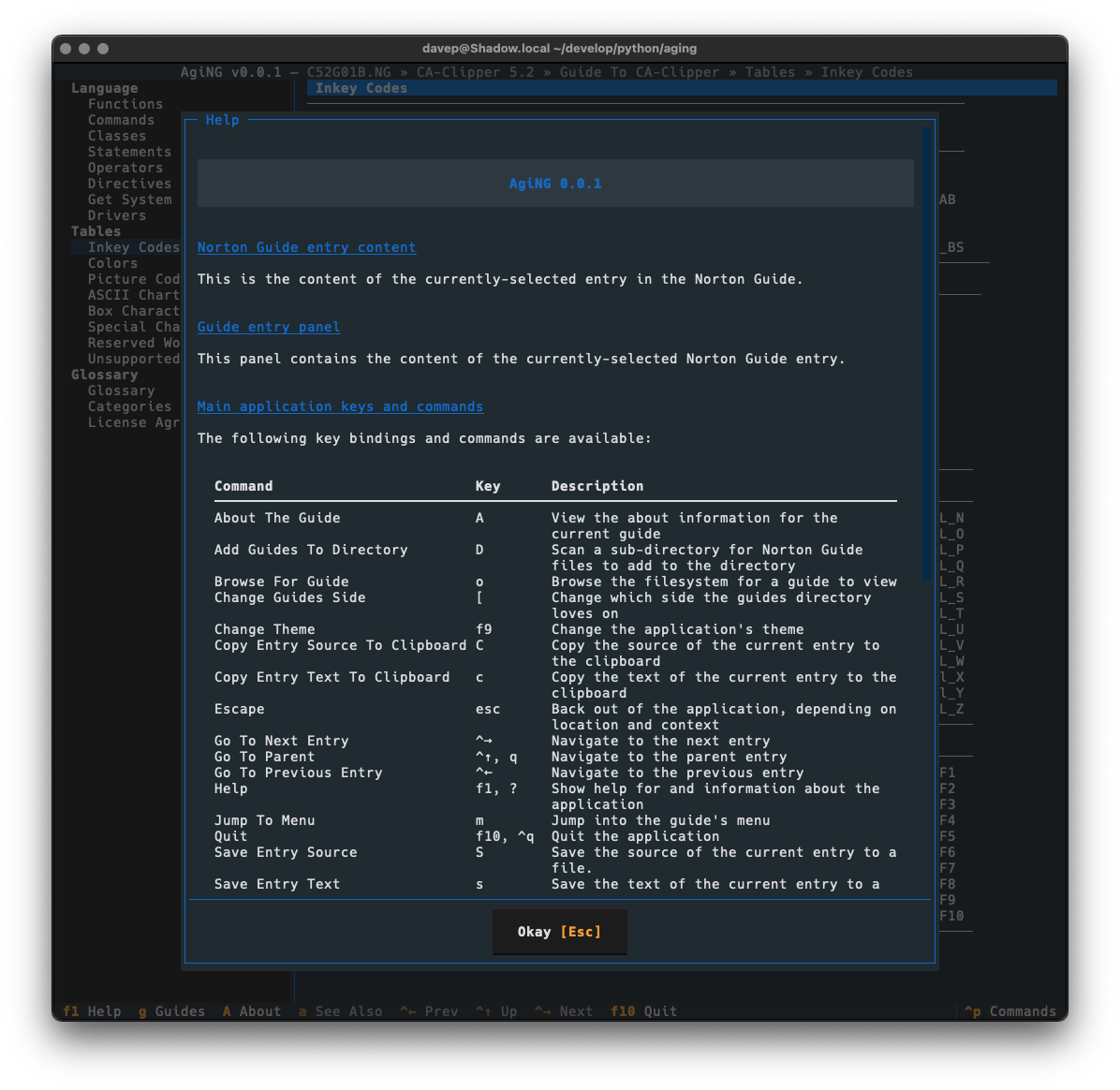
AgiNG help

or by pulling up the command palette:
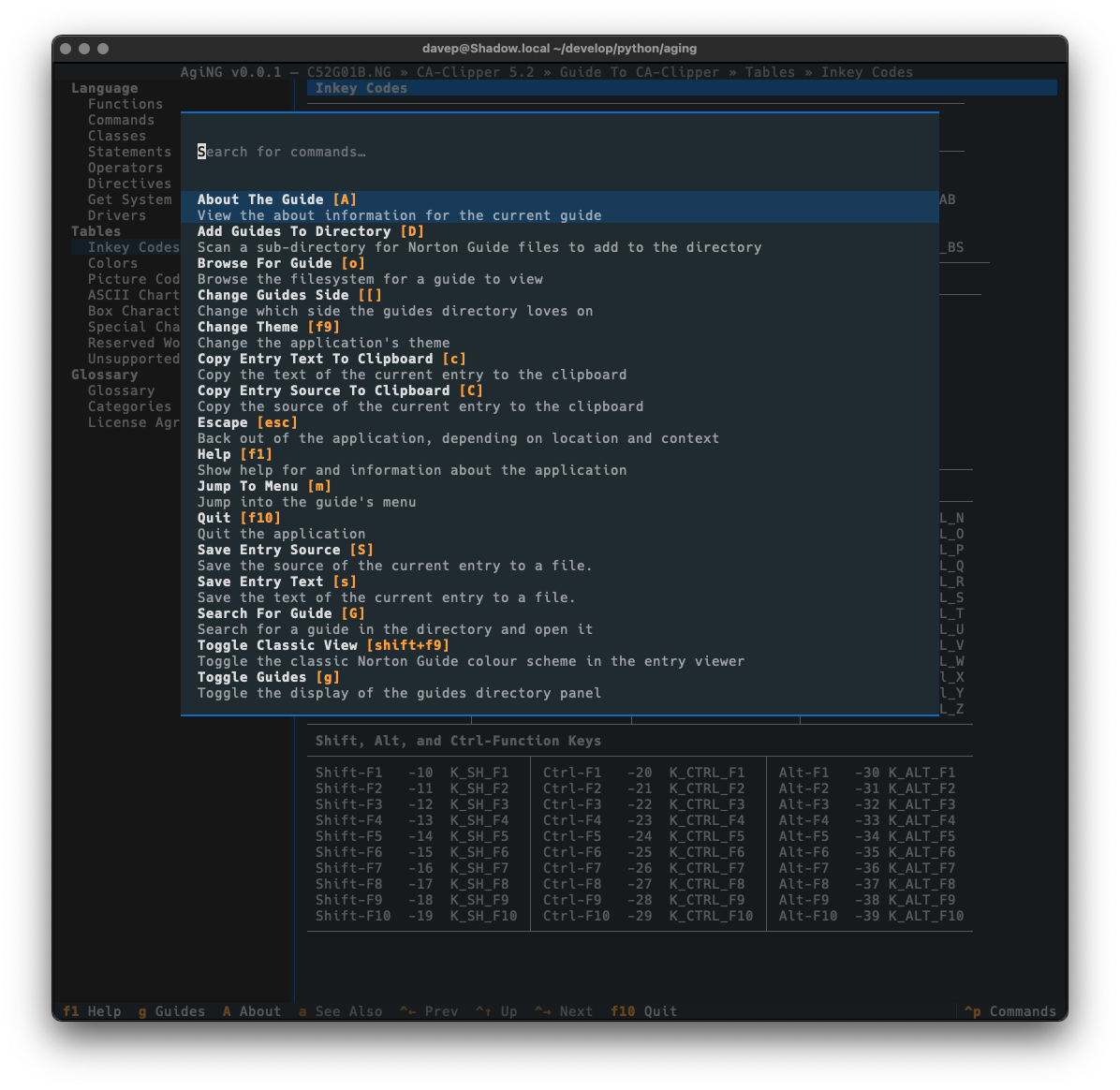
AgiNG command palette

Hopefully the workings of the application will be fairly obvious to anyone who is familiar with Norton Guide files; if anything isn't making sense I'm more than happy to answer questions or take suggestions for improvements.

One wee feature I want to call out, that I felt was important to add, was a "classic view" facility. The thing with Norton Guide files is they were mostly created in the very late 1980s and early-to-mid 1990s. People would often get creative with the colouring within them, but in many cases the colouring assumed the default Norton Guide application. Its colours were white text on a blue background. So sometimes other colouring was done assuming that background.

You can see an example of this here, with an entry in a guide being viewed using the default textual-dark theme:
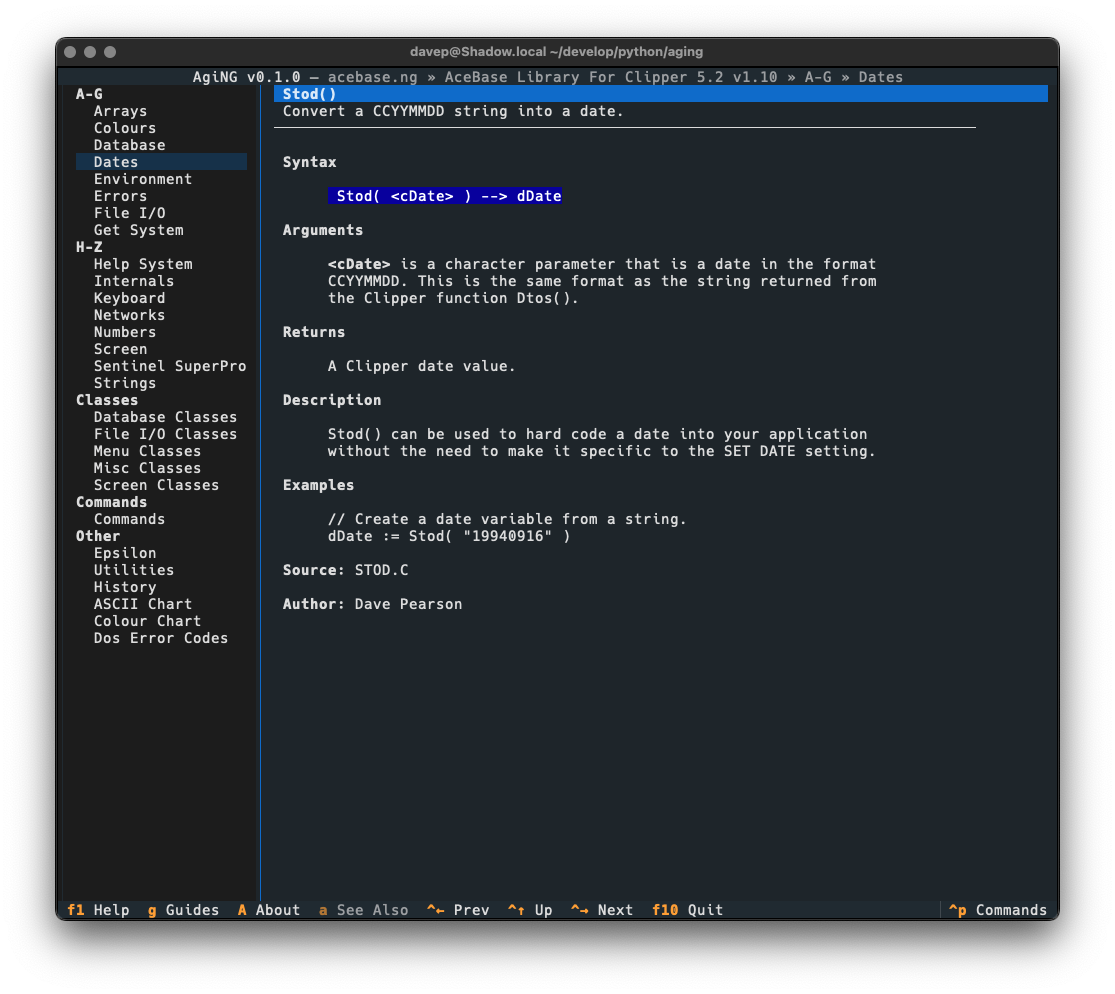
Entry in textual-dark

Notice the colouring in the syntax section. This is more obvious if the application is switched to one of the light themes:
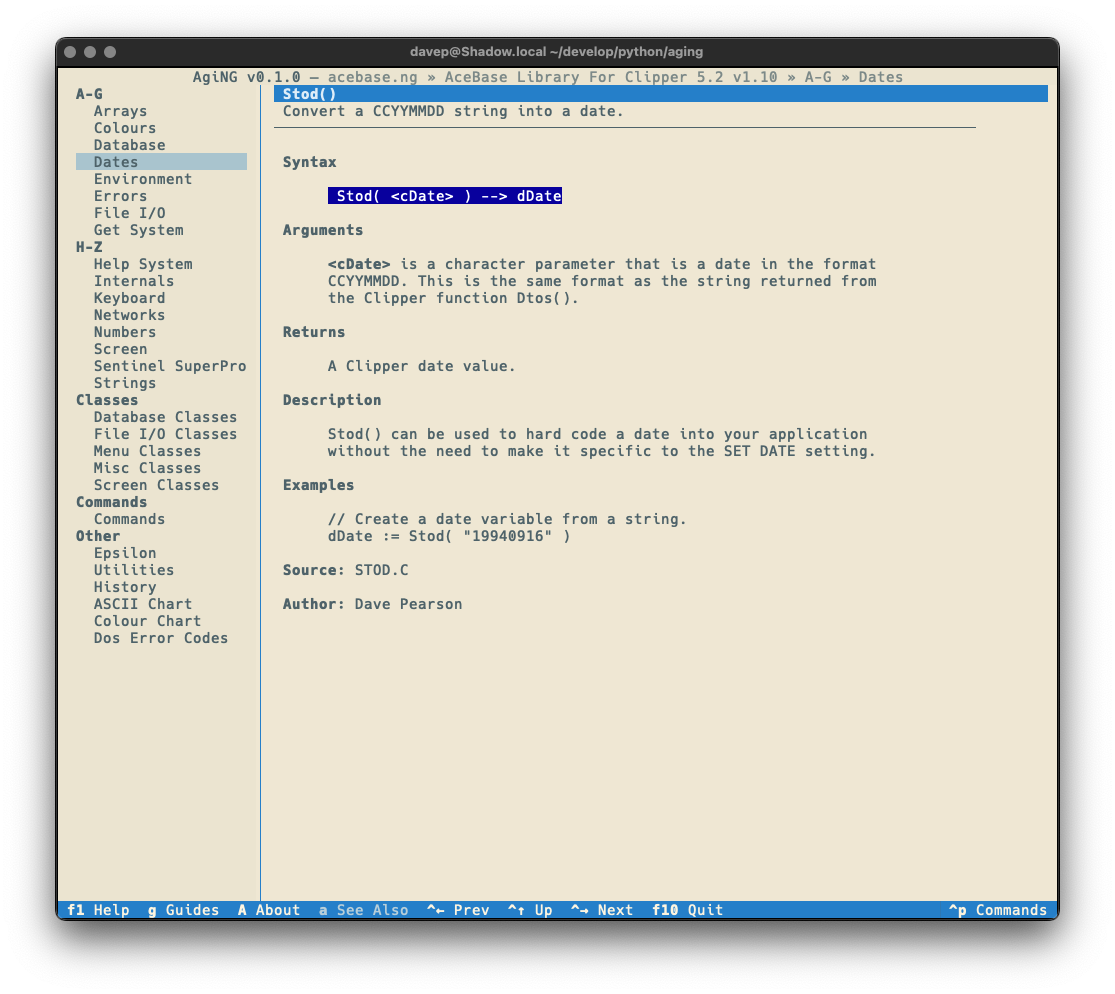
Entry in solarized-light

With a nod to this issue in mind, I added the "classic view" for entries (which is a sticky setting -- turn it on and it stays on until you turn it off):
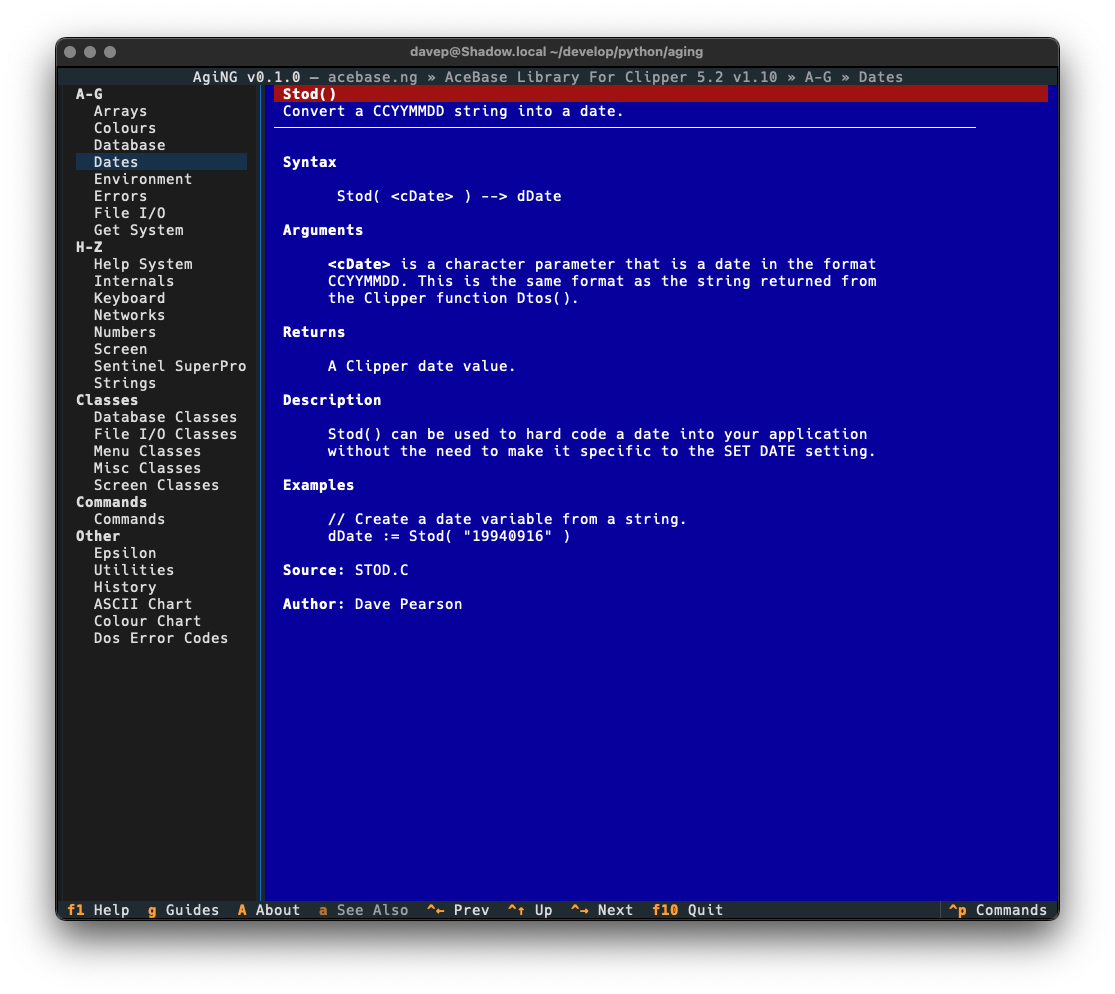
Classic view in action

A little hard on the eyes, I think, but also filled with nostalgia!

Talking of themes, all the usual application themes are available, here's a wee selection:
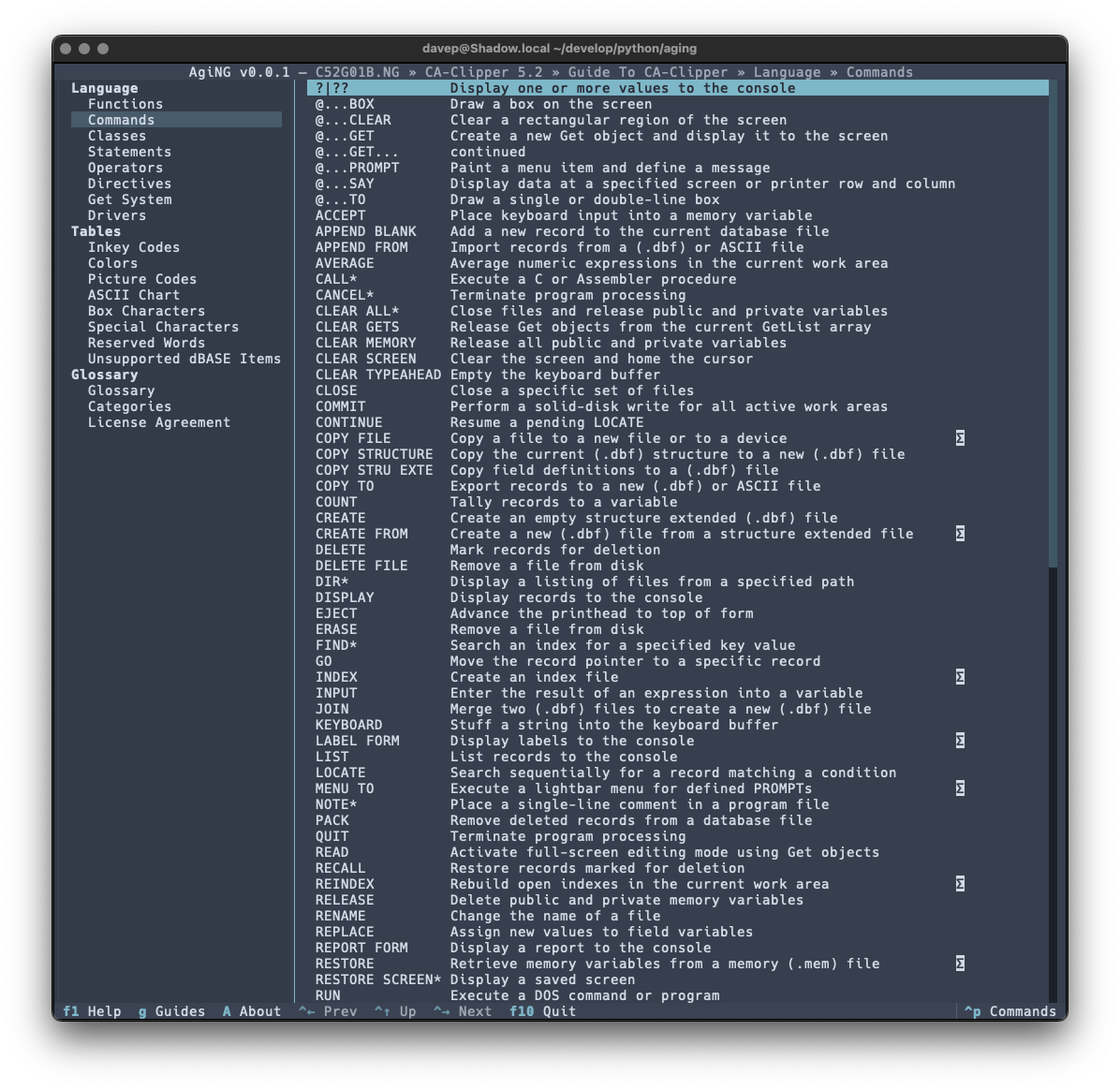
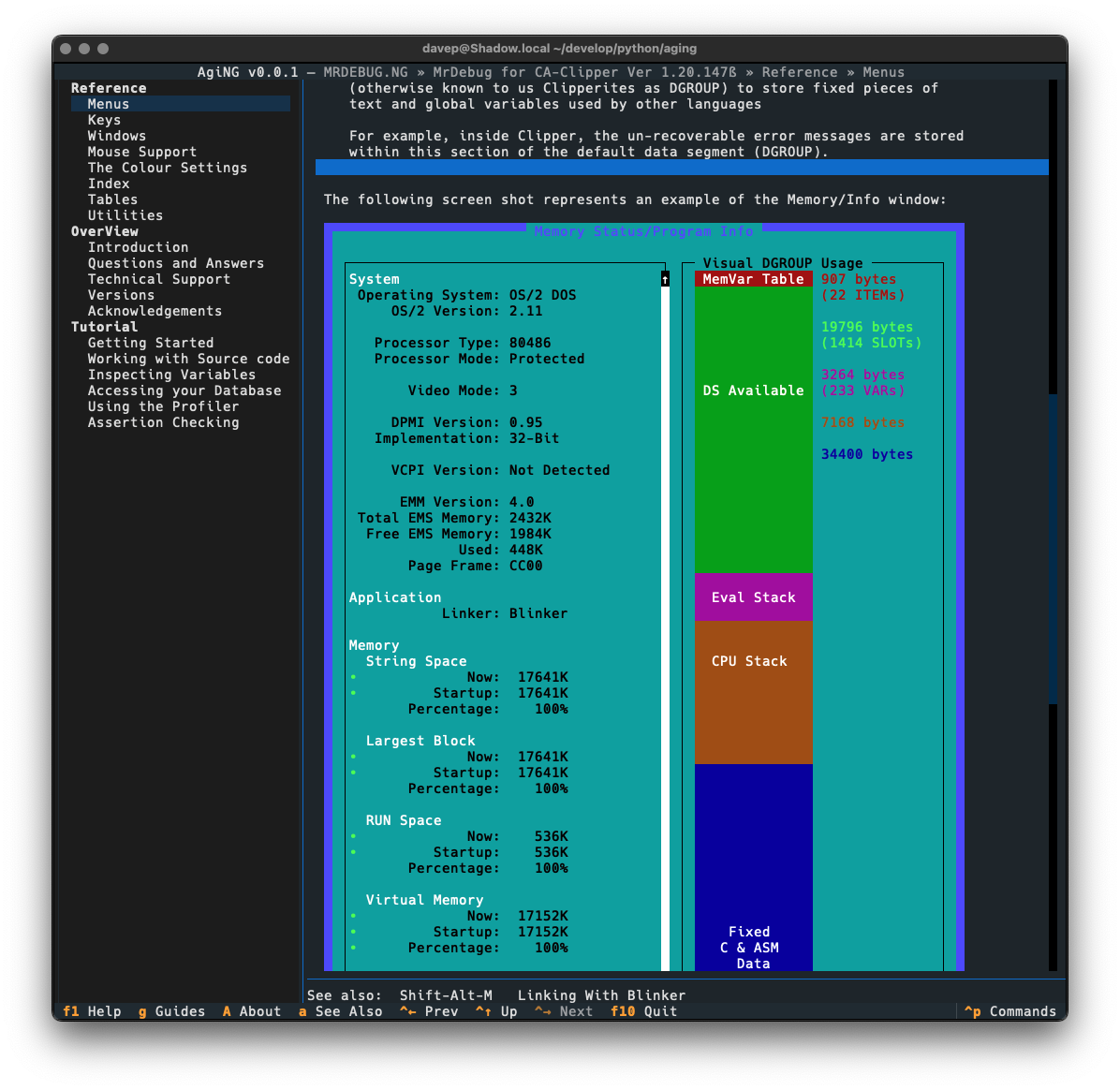
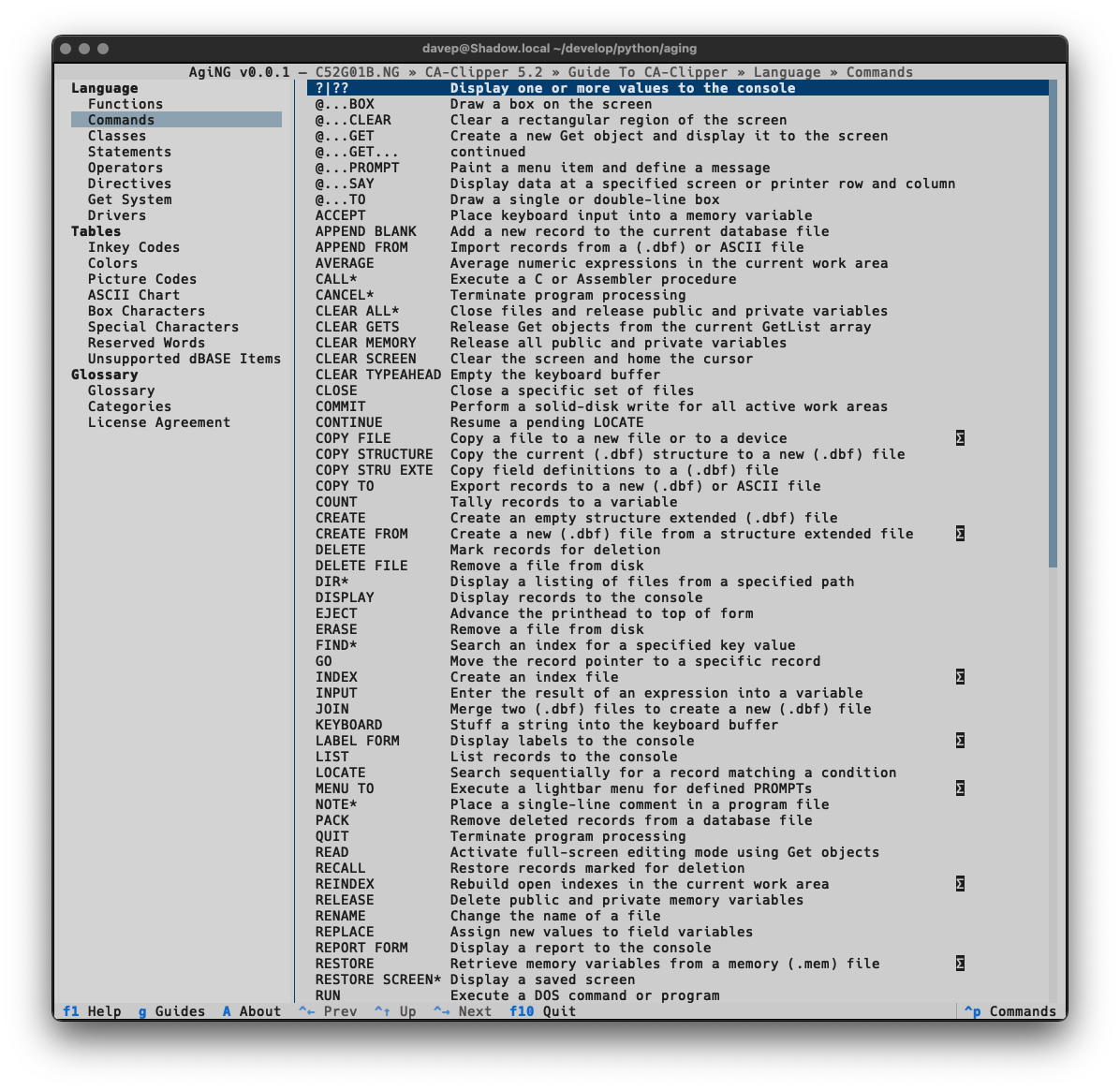
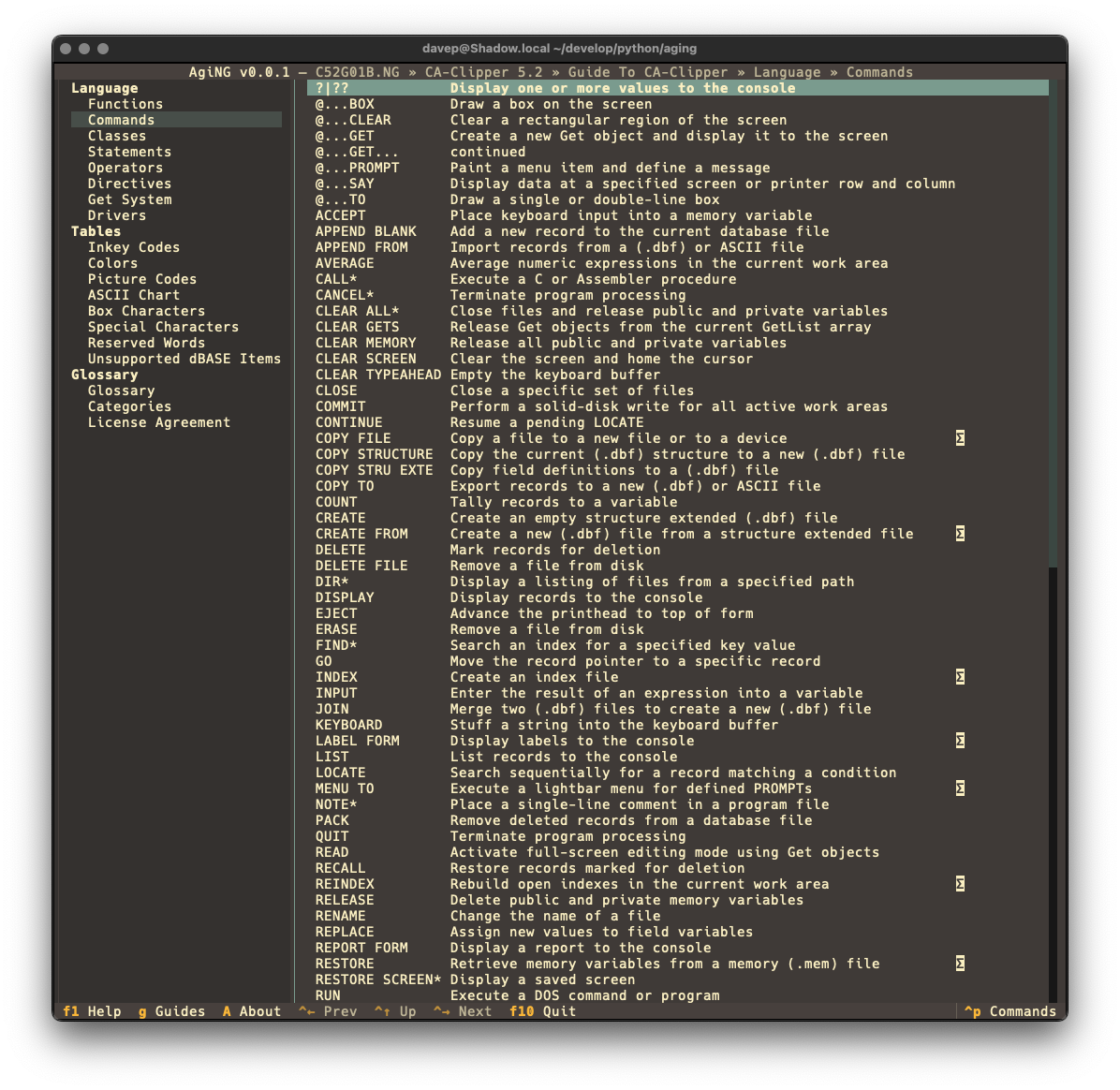
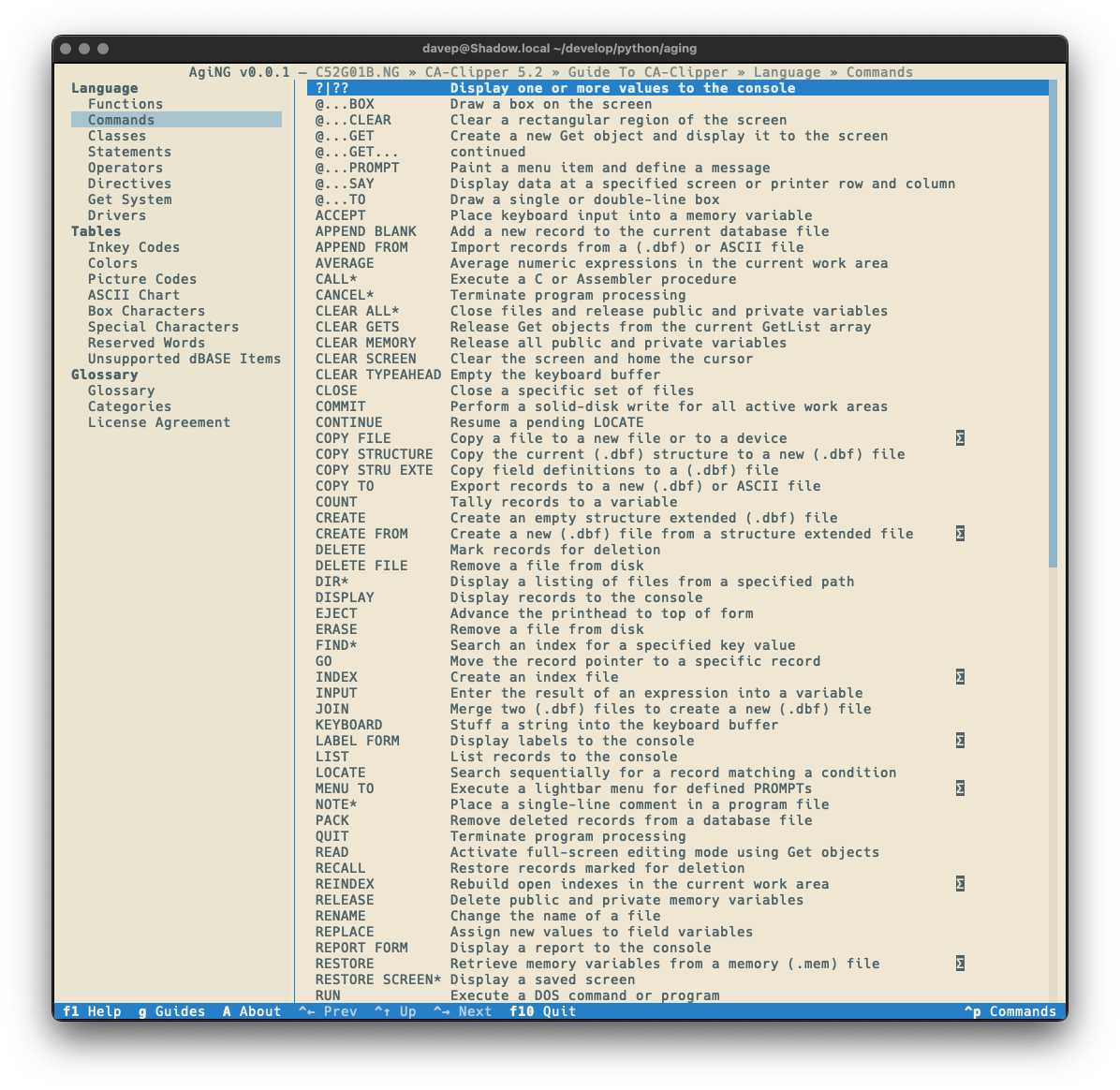
Nord Textual Light Gruvbox Solarize Light Monokai

AgiNG is licensed GPL-3.0 and available via GitHub and also via PyPi. If you have an environment that has pipx installed you should be able to get up and going with:

$ pipx install aging

It can also be installed with Homebrew by tapping davep/homebrew and then installing aging:

$ brew tap davep/homebrew
$ brew install aging

Expect to see more updates in the near future; as with other recent projects this is very much something I'm going to be dabbling with and improving as time goes on.


  1. If you're wondering about the name, it's nothing more than a word that happens to have NG in it, and also a mild pun about this being an ageing hypertext help system; with the spelling acknowledging Peter Norton's nationality. 

Hike

1 min read

Hike

The run of writing new terminal-based tools that I want still keeps going. First there was Braindrop, then there was Peplum, and now, released today, there's Hike.

Hike is yet another terminal-based Markdown browser. While it's far from the first, and unlikely to be the last, it's mine and it looks and works exactly how I need. Perhaps it'll be your sort of thing too?

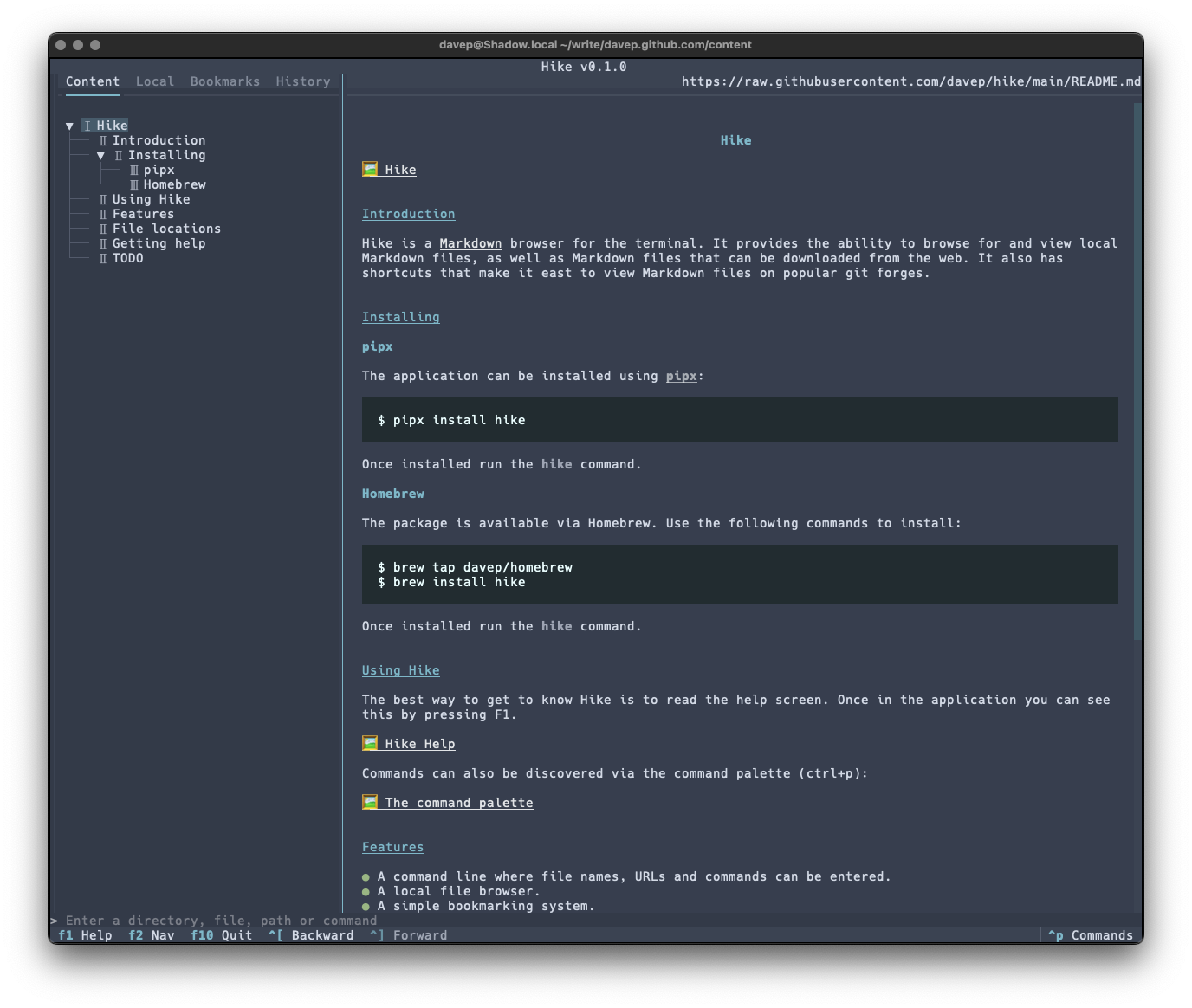
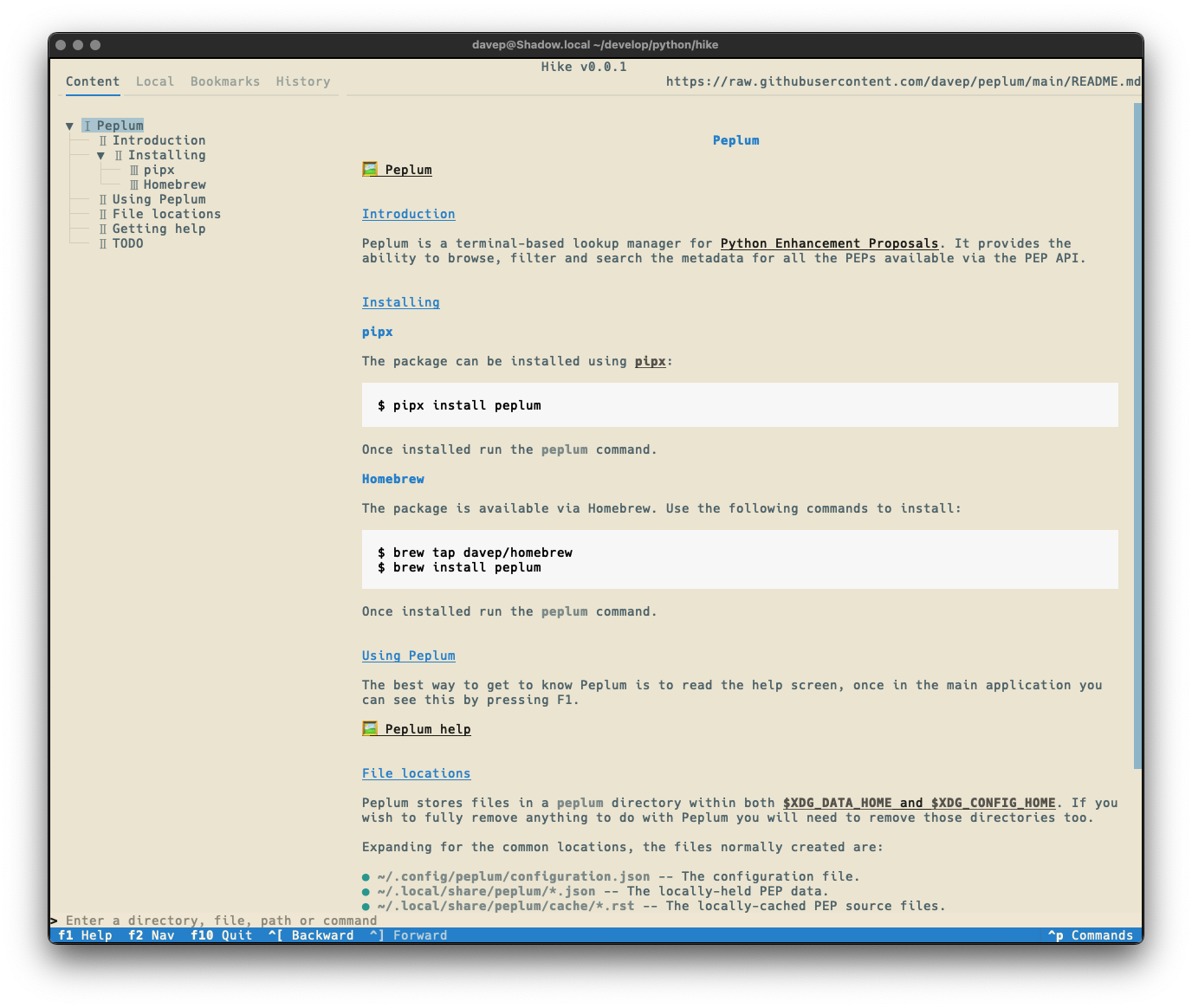
Hike viewing its README

This initial release has a bunch of handy features, including things like:

  • A command line where file names, URLs and commands can be entered.
  • A persistent history for the command line.
  • A local file browser.
  • A simple bookmarking system.
  • A browsing history.
  • Commands for quickly loading and viewing files held on GitHub, GitLab, Codeberg and Bitbucket.

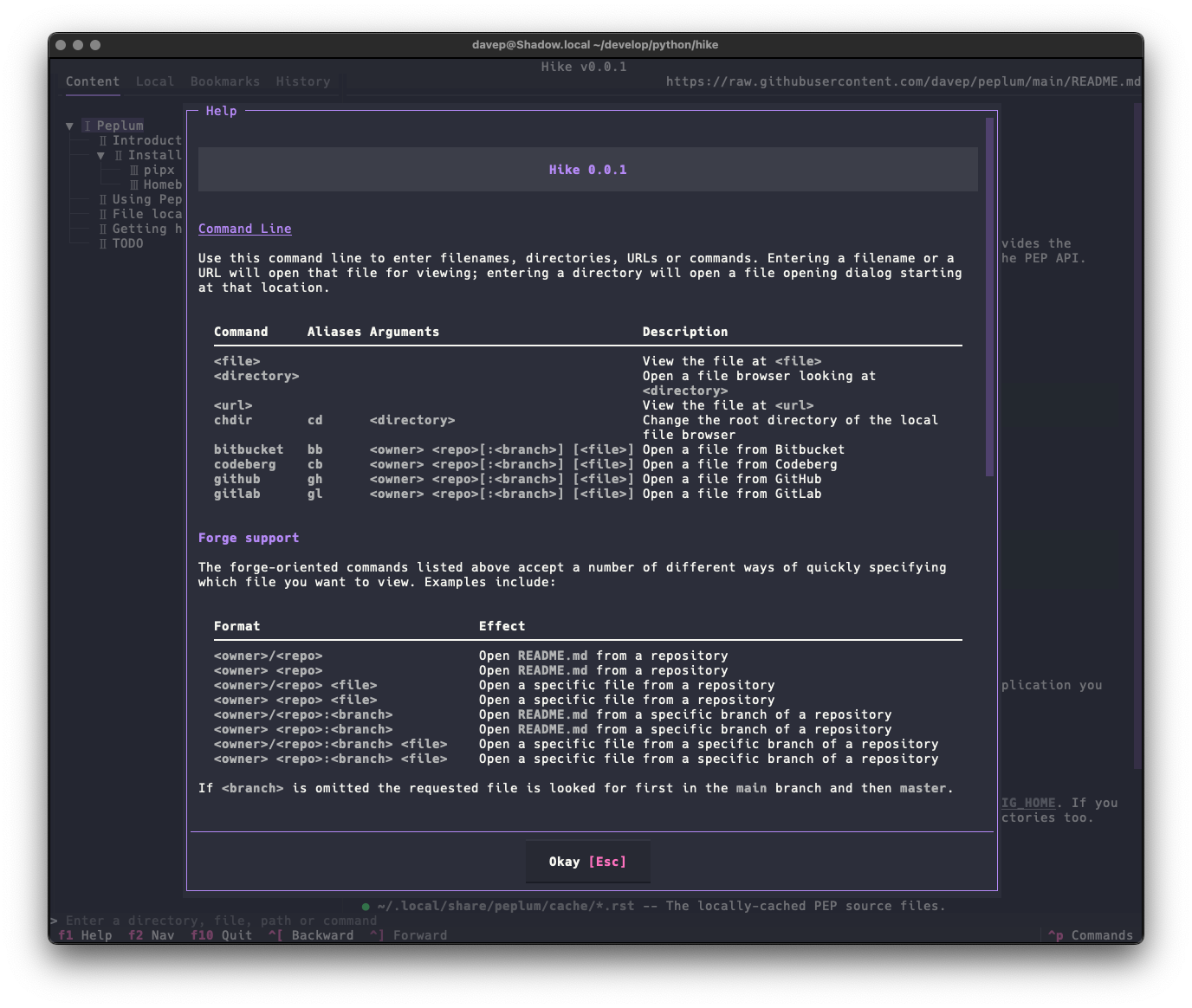
As there's a lot to discover in the application, I've tried to make the help screen as comprehensive as possible:

Hike help

and there's also the command palette to help with discovering commands and the keys that are associated with them:

The command palette in action

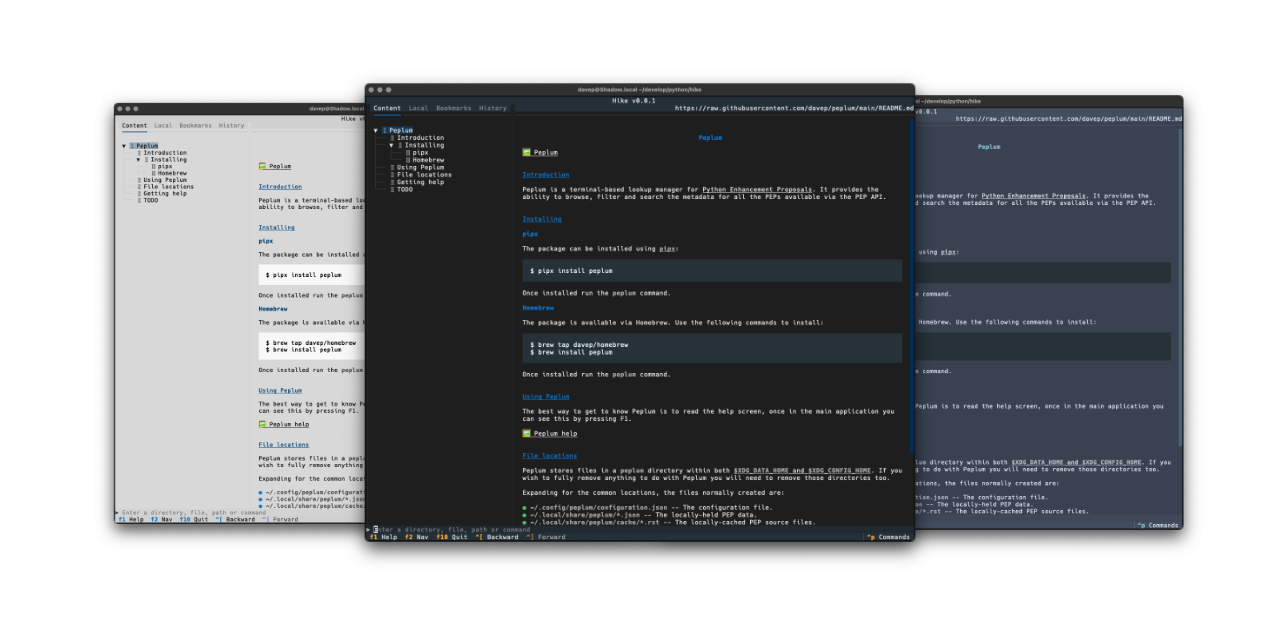
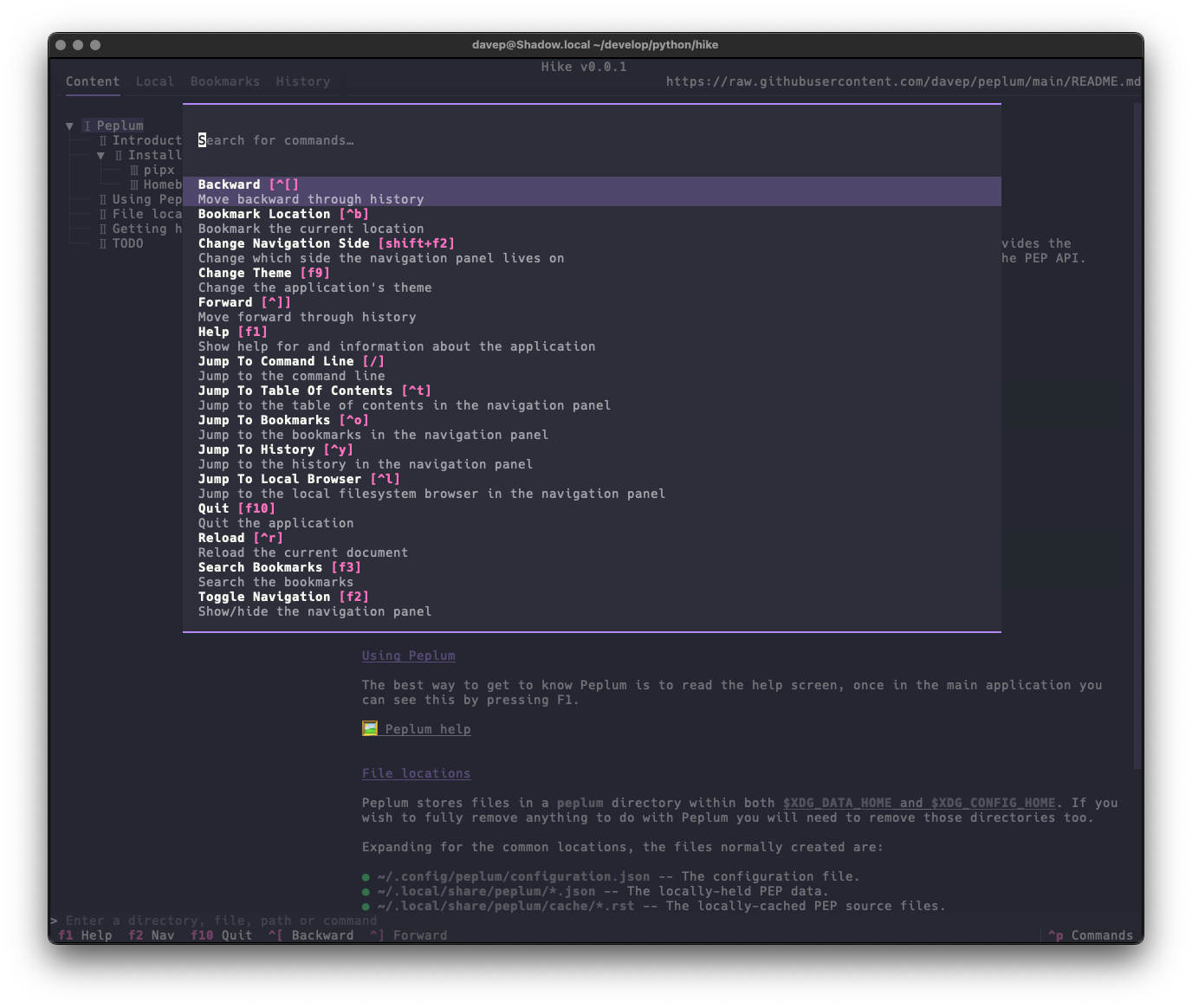
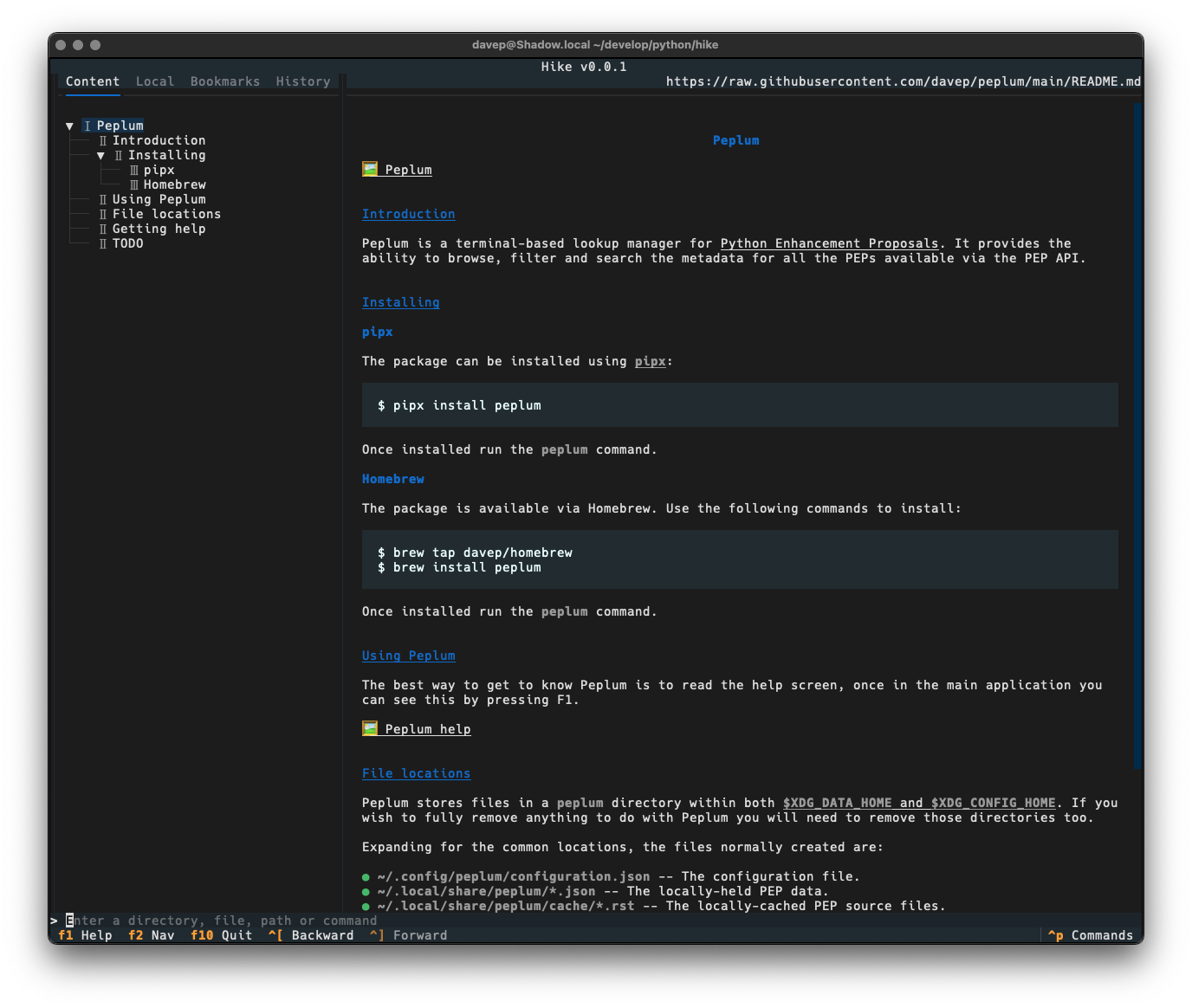
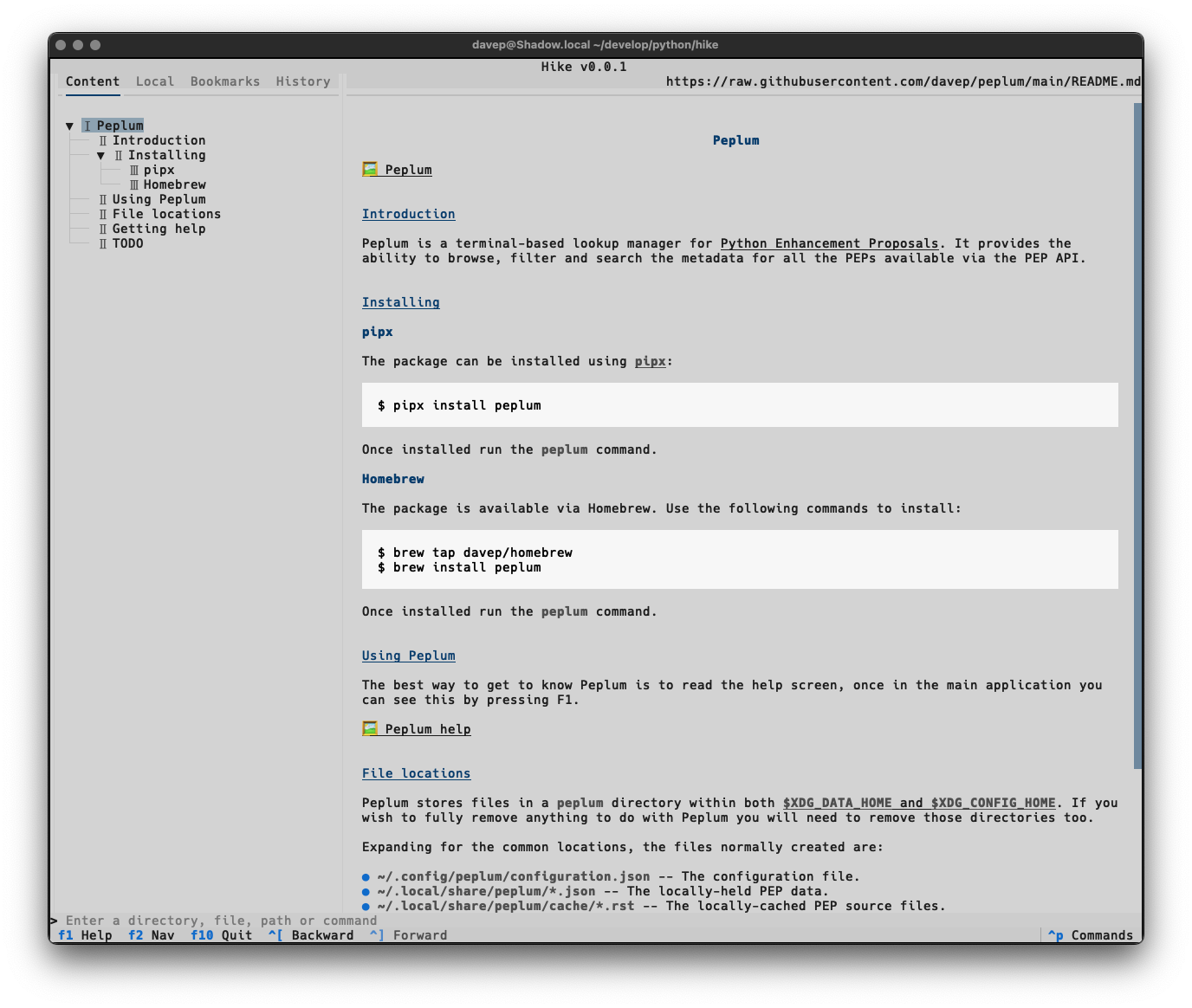
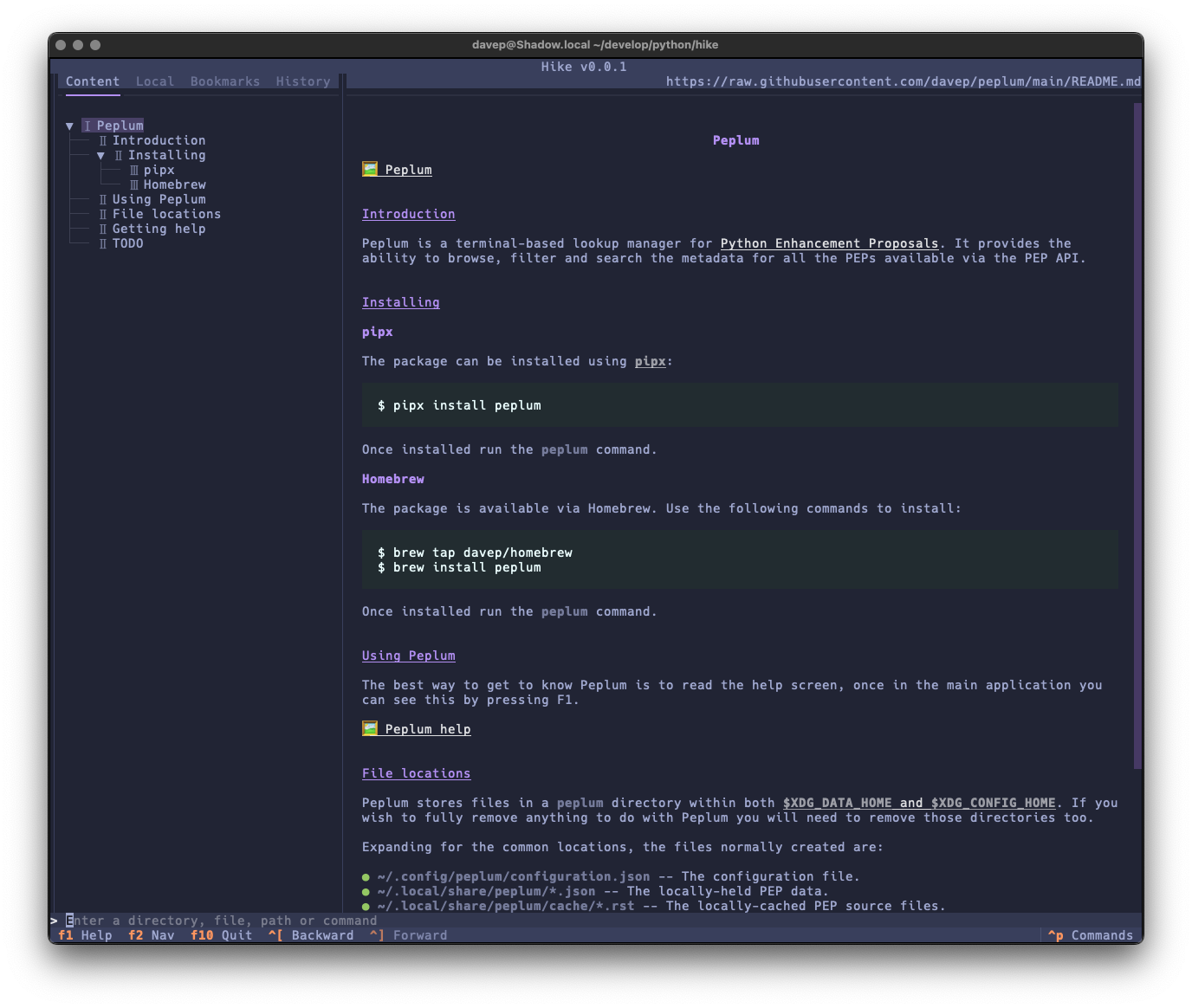
Once again, themes are supported so no matter your taste you should find something that's easy on your eyes:

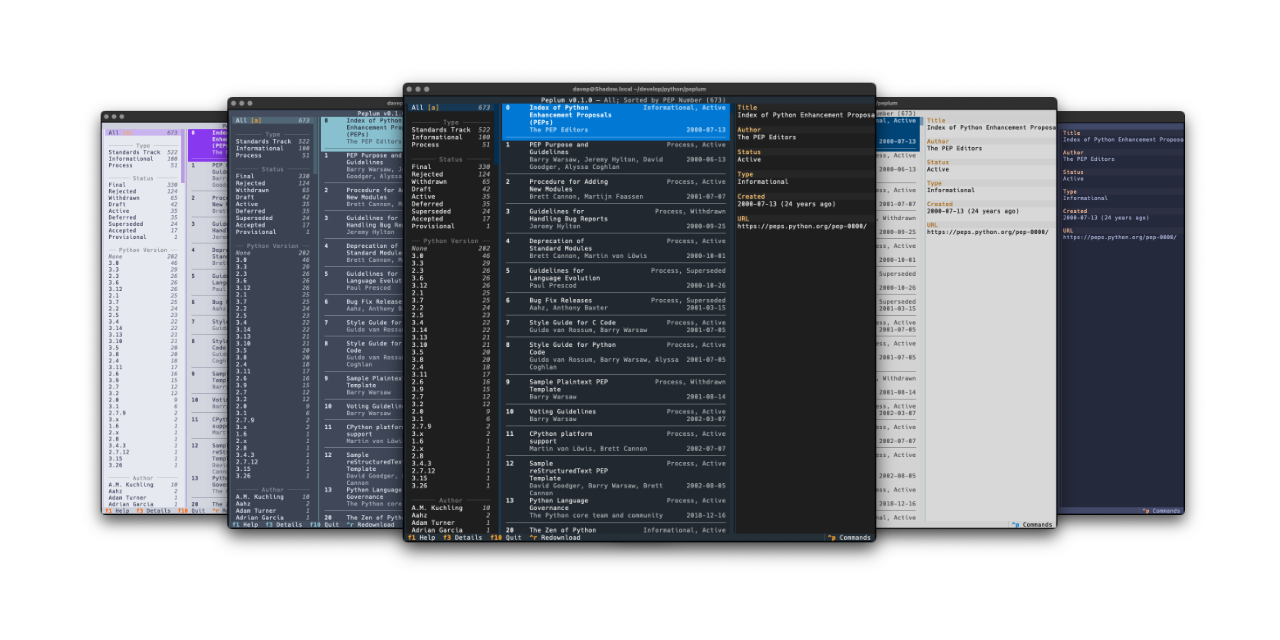
Dark Light Tokyo Night Solarized Light

Hike is licensed GPL-3.0 and available via GitHub and also via PyPi. If you have an environment that has pipx installed you should be able to get up and going with:

pipx install hike

It can also be installed with Homebrew by tapping davep/homebrew and then installing hike:

brew tap davep/homebrew
brew install hike

Expect to see more updates in the near future; this is very much an ongoing tinker project.

Peplum

3 min read

Peplum

I seem to be back in the swing of writing handy (for me) little terminal-based applications again. Having not long since released Braindrop (which I'm still working on and tinkering with; it'll get more features in the near future, for sure), I had an idea for another tool I'd like to have: something for looking through, searching, and filtering Python PEPs.

As with anyone who is interested in what's happening with Python itself, I subscribe to the RSS feed of the latest Python PEPs, but I also wanted something that would let me look back at older ones in a way that worked "just so" ("just so" being "what feels right for me", of course). Having finished the main work on Braindrop I realised that the general layout of its UI would work here, as would the filtering and searching approach I used.

From this idea Peplum was born!

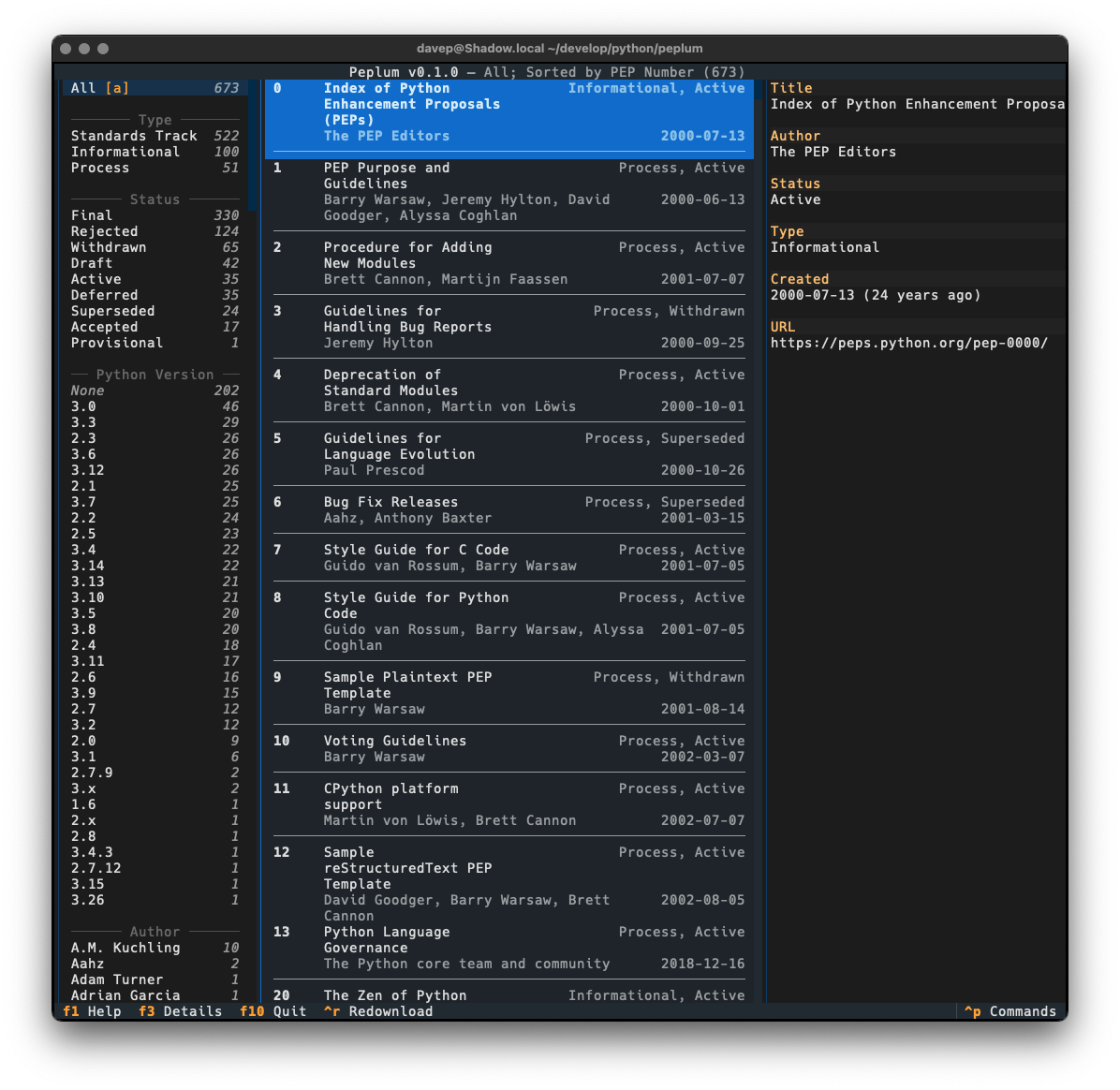
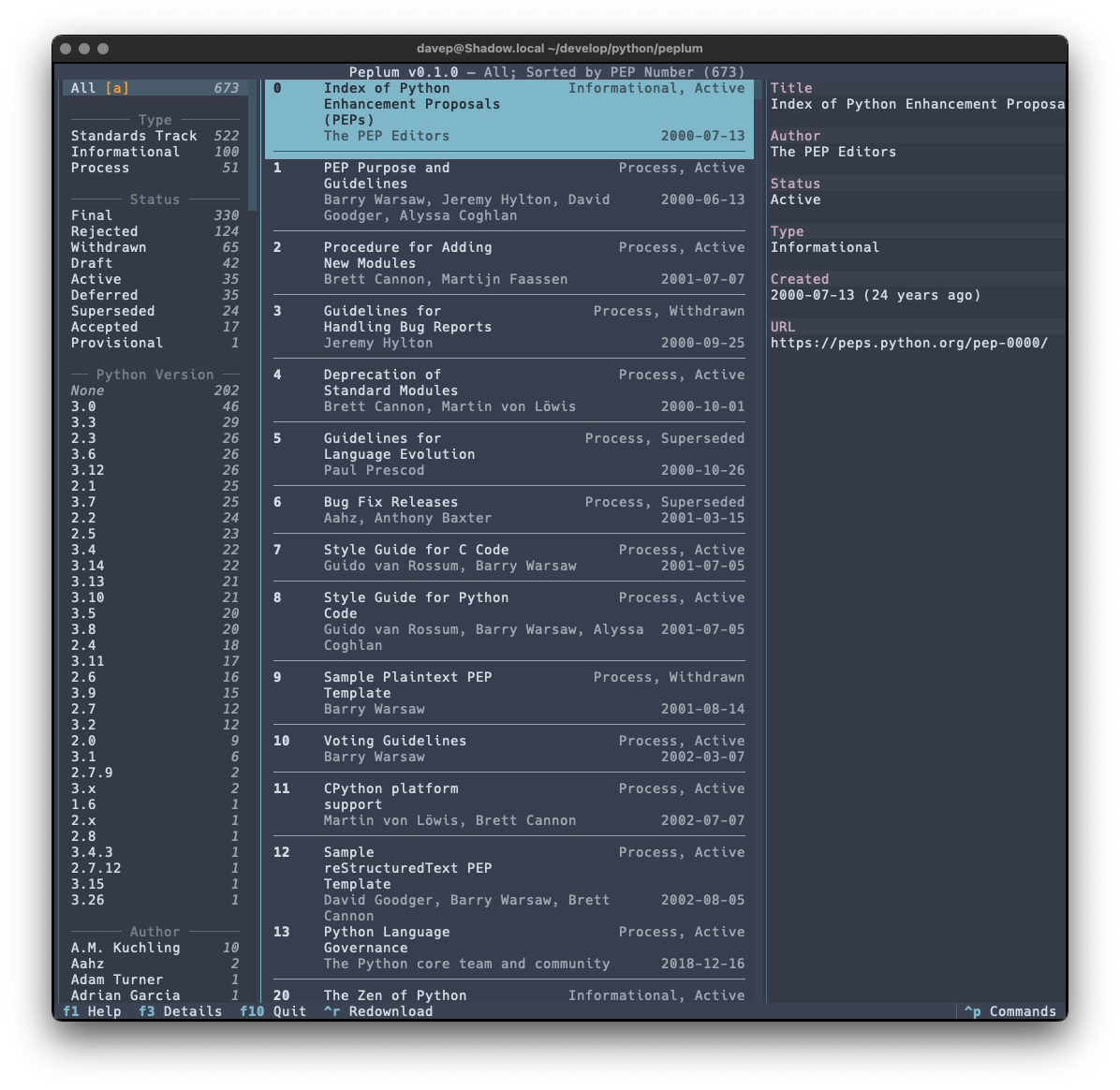
Peplum in action

In this first release I've simply concentrated on all things to do with grabbing the list of PEPs and presenting them in a useful way; adding various forms of filtering them; adding the ability to search the metadata; that sort of thing. I aim to keep developing this out over the next few weeks and months, adding things like the ability to make notes, to locally view the text of a PEP, perhaps even to mark PEPs as unread and read, etc.

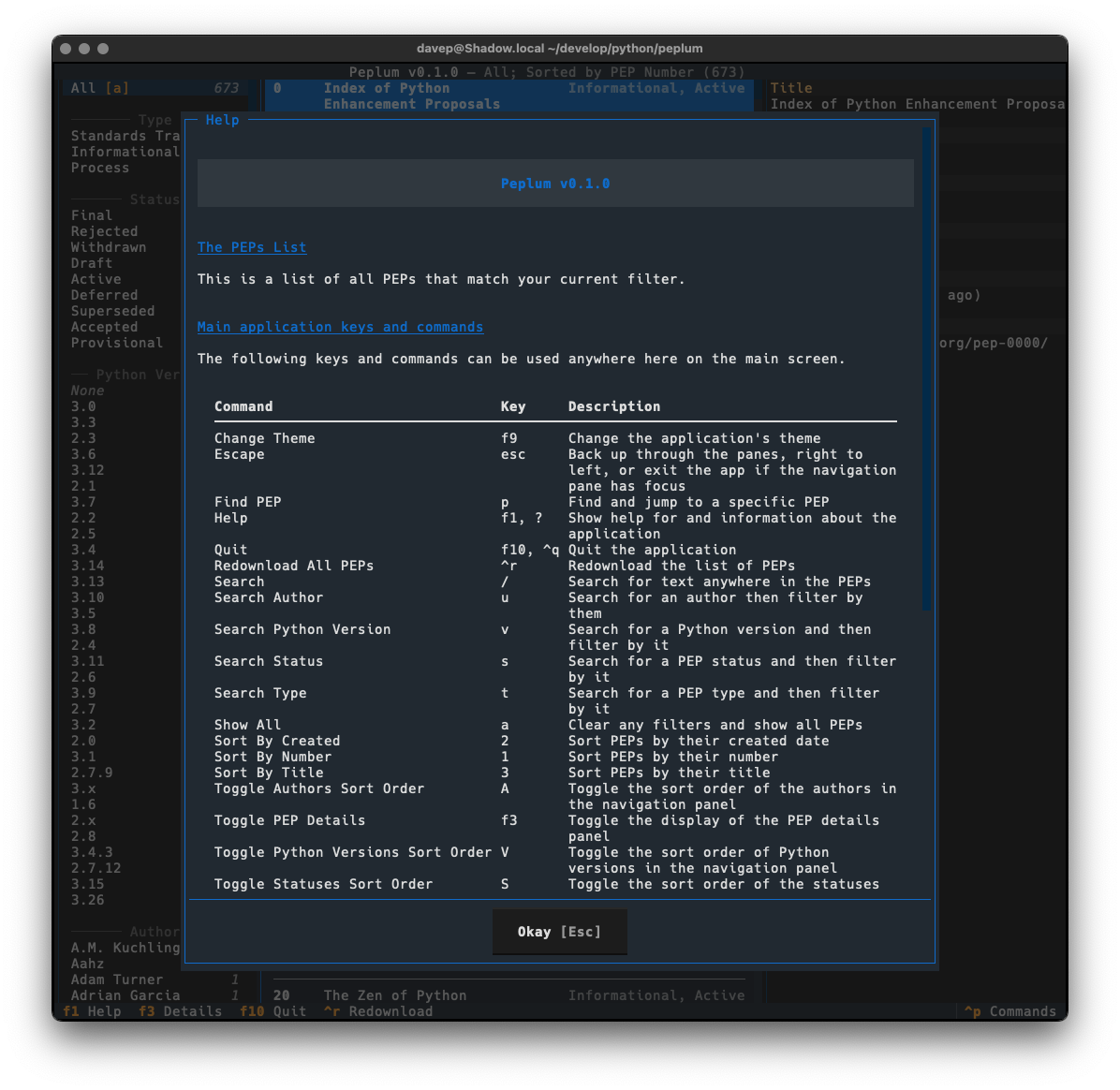
As I mentioned earlier, much of the design was driven by what I did with Braindrop, so once again I've tried my very best to make it keyboard-friendly and as much as possible keyboard-first. This sometimes means having to work against how Textual works, but generally that isn't too tricky to do. I'm once again making heavy use of the command palette and also ensuring that all commands that have corresponding keyboard bindings are documented in the help screen.

Peplum Help

There's enough common code between Peplum and Braindrop, when it comes to this aspect of building a Textual application, that I'm minded to spin it out into a little library of its own. I'm going to sit on this code for a wee while and see how it develops, but I can see me taking this approach with future applications and doing this will stop the need to copy and paste.

It might also be useful to others building with Textual.

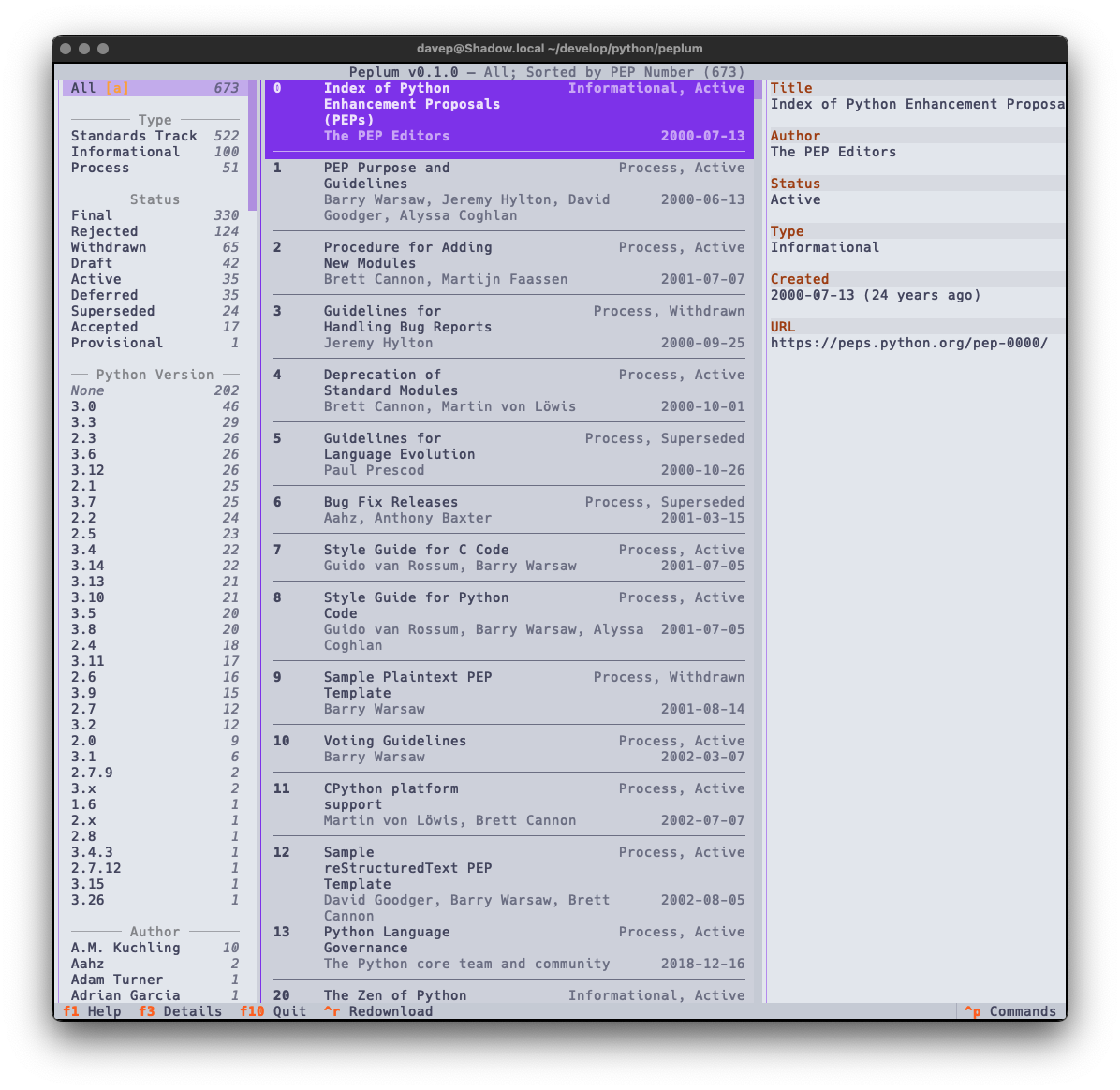
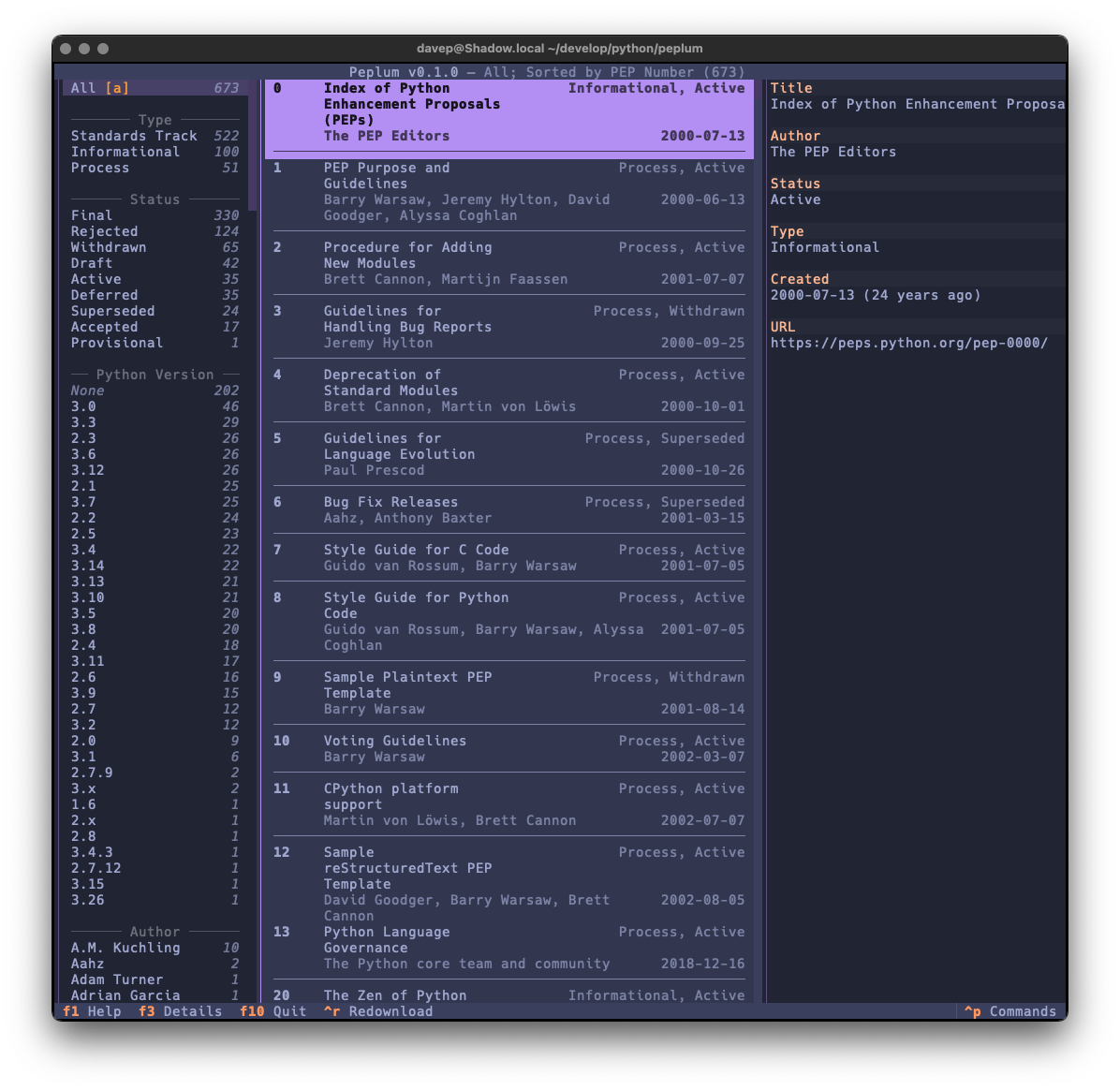
Also as with Braindrop, themes are a thing, and the theme setting is sticky so you can set it the once and stick with that you like. Here's some examples:

Nord Catppuccin Latte Tokyo Night

That's a small selection of the themes, with more to explore.

While working on this project I managed to find a couple more bugs in Textual, including a fun way to get transparent backgrounds to get out of sync and also a way to get an easy crash out of OptionList if it's set to width: auto.

What was even more fun was I sort of discovered a bug in the Python PEP API. Thanks to Hugo noticing my "huh, weird" post on Fosstodon, there's now an issue for it as well as a PR in the works. In retrospect I should have raised an issue myself; instead I fell into that "they obviously know what they're doing so it must be like this for a reason" trap.

Lesson relearned: it's always better to ask and get an answer, than to assume a thing is how it is for a reason you don't know; which I guess is a version of Linus' law really.

So that's v0.1.0 out in the wild. I'm pleased with how it's turned out and there's more to come. It's licensed GPL-3.0 and available via GitHub and also via PyPi. If you have an environment that has pipx installed you should be able to get up and going with:

pipx install peplum

It can also be installed with Homebrew by tapping davep/homebrew and then installing peplum:

brew tap davep/homebrew
brew install peplum

I'm going to be making good use of this and working on it more; I hope it's useful to someone else. :-)

Braindrop

4 min read

Braindrop

A touch over a year ago I did the initial work on an application called Tinboard, a terminal-based client for the Pinboard bookmarking service. I had a lot of fun building it and it was an application that I used on a near-daily basis. However, around August last year I realised it was time for me to move on from Pinboard and try something new; based on various recommendations I settled on Raindrop.

As mentioned in the other blog post, Raindrop offered more or less everything I had with Pinboard and so the move was fairly straightforward. The one thing that was missing though was an application similar to Tinboard.

So, late on last year, with my winter break approaching, I decided to start from scratch and build a "Tinboard for Raindrop", which I'm calling Braindrop.

This was going to be a bit of an adventure too. Since being laid off from Textualize earlier in 2024 I'd not been following its development quite as closely as I used to, and had also run into some issues and bugs with it since that time; moreover, as well as various bugs appearing, some breaking changes had also been made. As such this was going to be a process where I'd wrap my head around what's happened with the framework over the prior six months or so.

Given all this, over the past couple of weeks I've been spending a few hours a day doing some for-pleasure coding and v0.1.0 of Braindrop is the result.

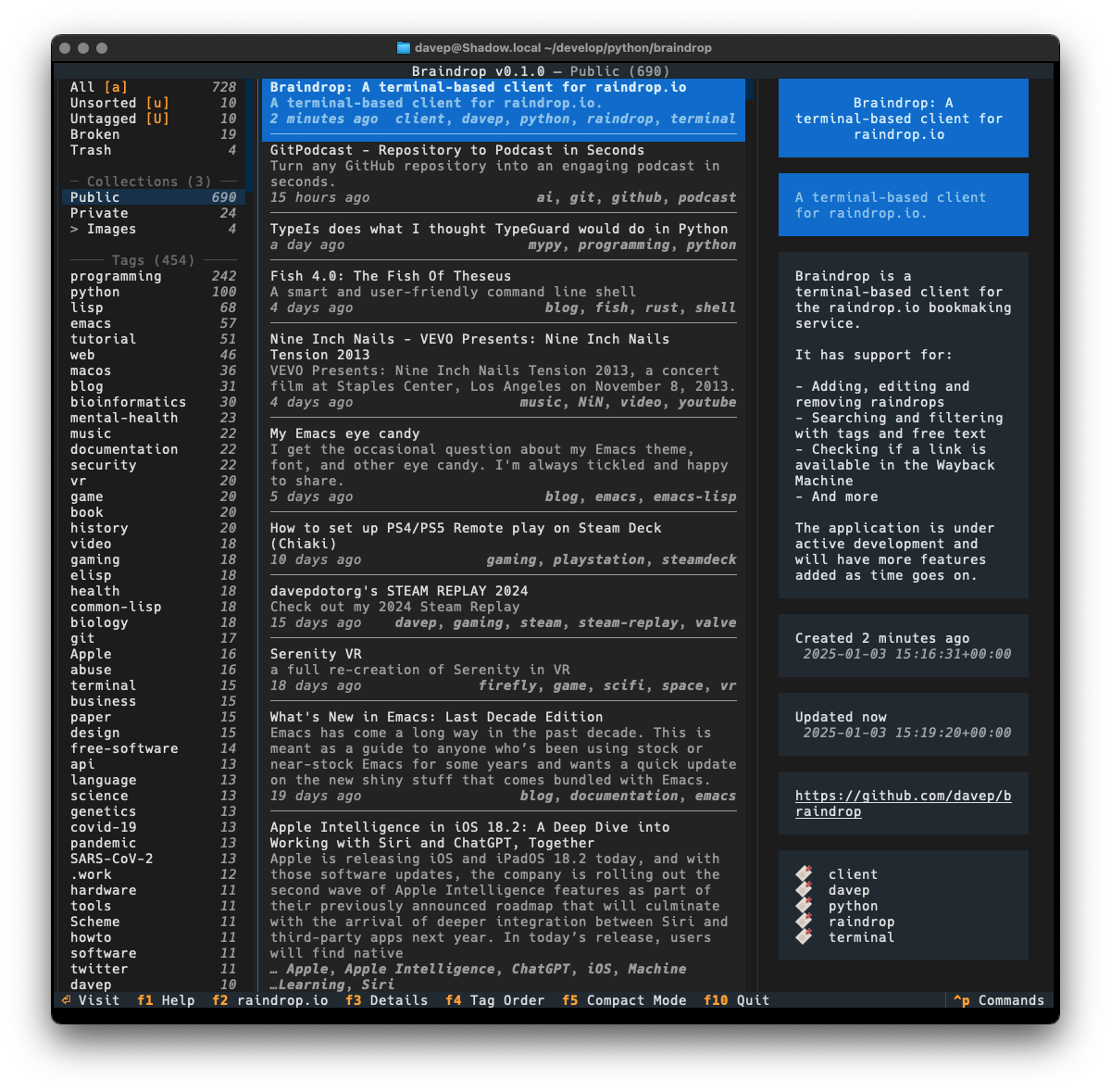
Main display

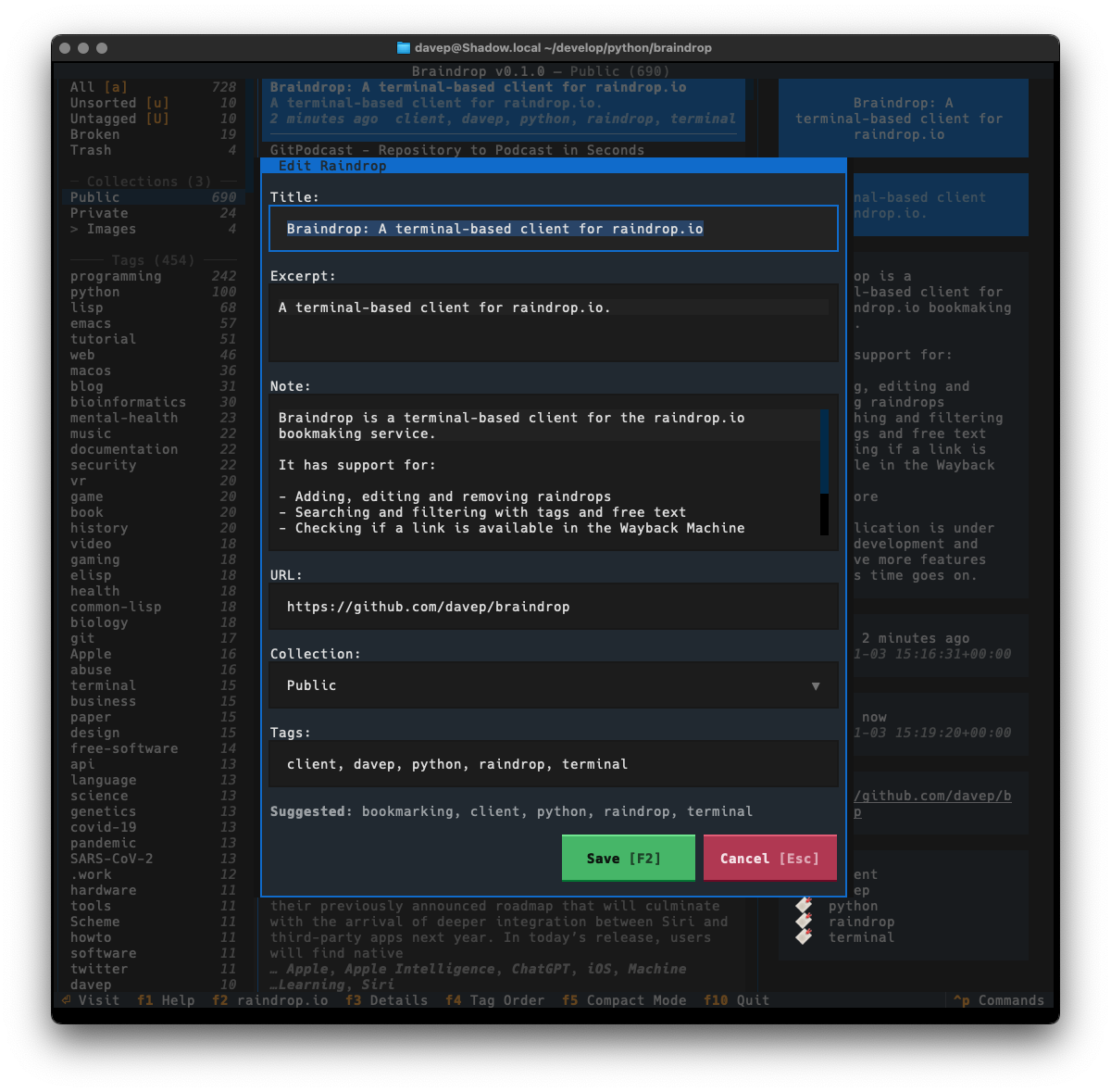
As much as possible I've tried to keep the look and feel similar to that of Tinboard, while also doing my best to avoid some of the "ah, I wish I hadn't done it this way" design decisions I'd made. As of the time of writing I'm very pleased with the result.

The edit dialog

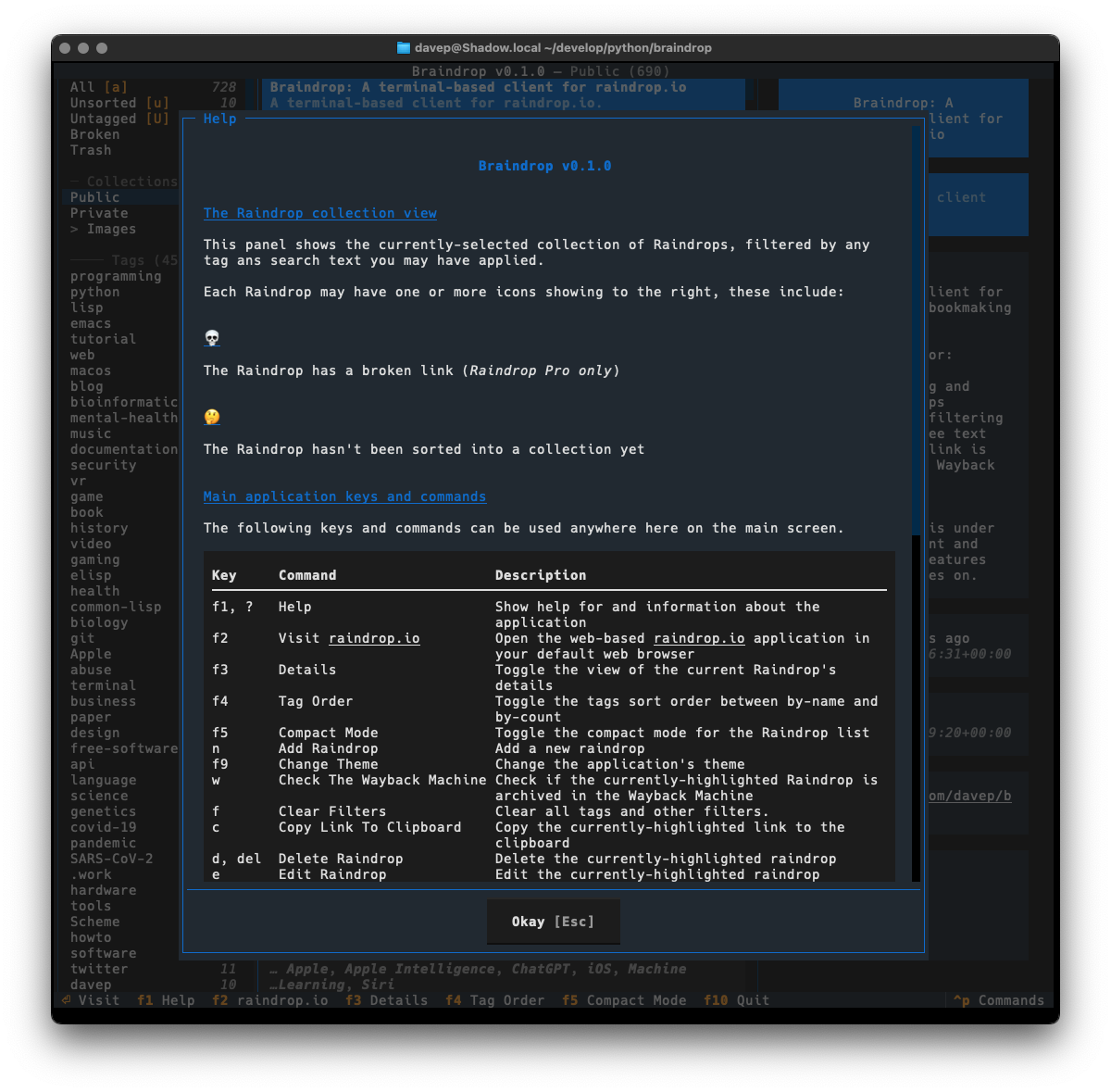
One thing I did want to do is ensure that the application was as keyboard-friendly as possible, while also still allowing use of the mouse. Textual can sometimes get that wrong and I ran into an example of this while trying to ensure that there's good in-application help. Somewhat recently Textual added a built-in help system which, sadly, can't easily be used by and navigated by someone using the keyboard. So instead I've recreated the help system I built into Tinboard, while adopting the documentation standard that Textual had settled on (which, coincidentally, was kind of similar to what I did in Tinboard to start with).

The help dialog

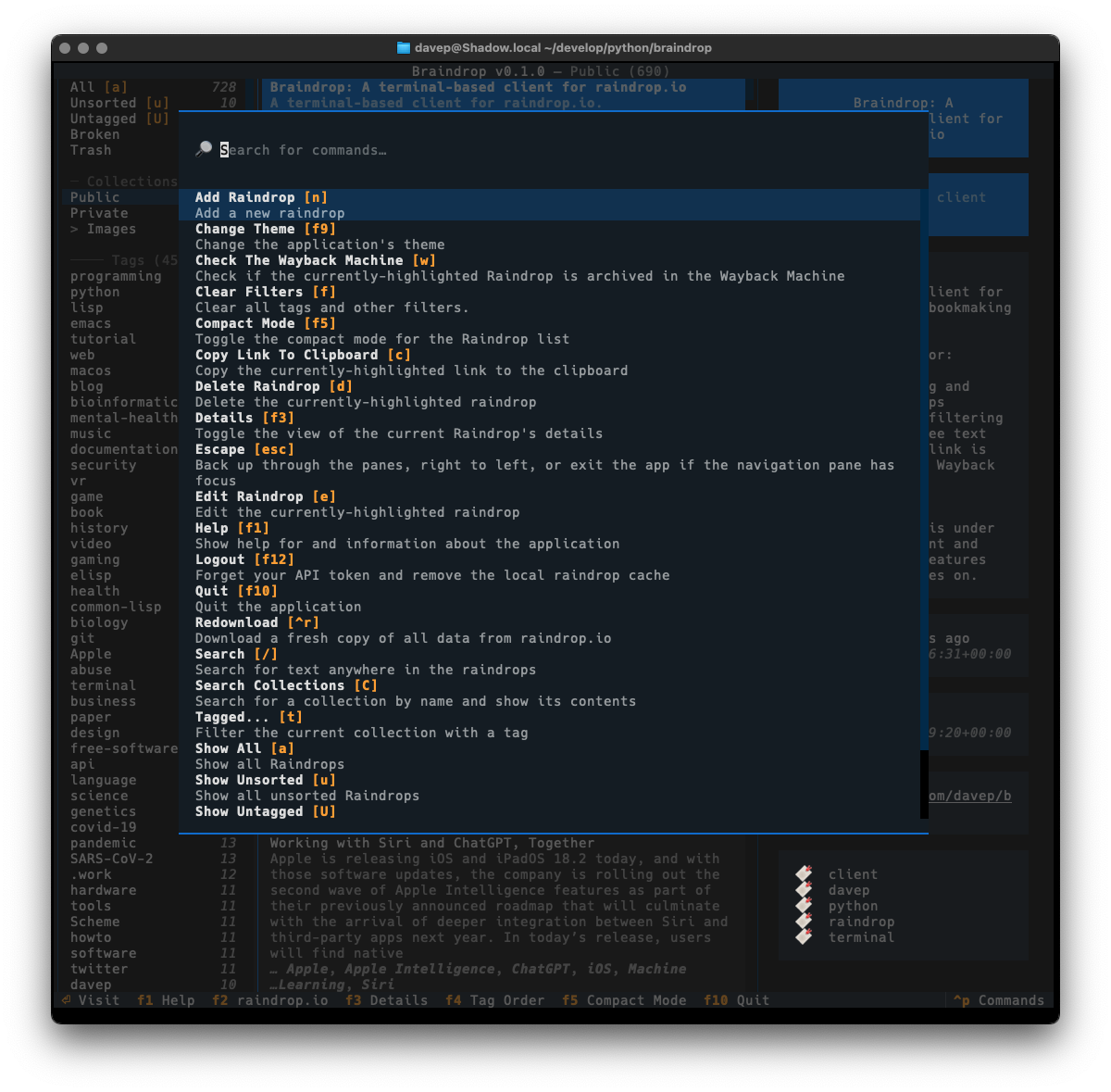
As with Tinboard, I've also made sure to make full use of the command palette, with every action that makes sense having a keyboard hotkey as well as a command in the palette. I also took things a little further and made sure that the hotkeys are shown in the command palette for easier discovery.

The command palette

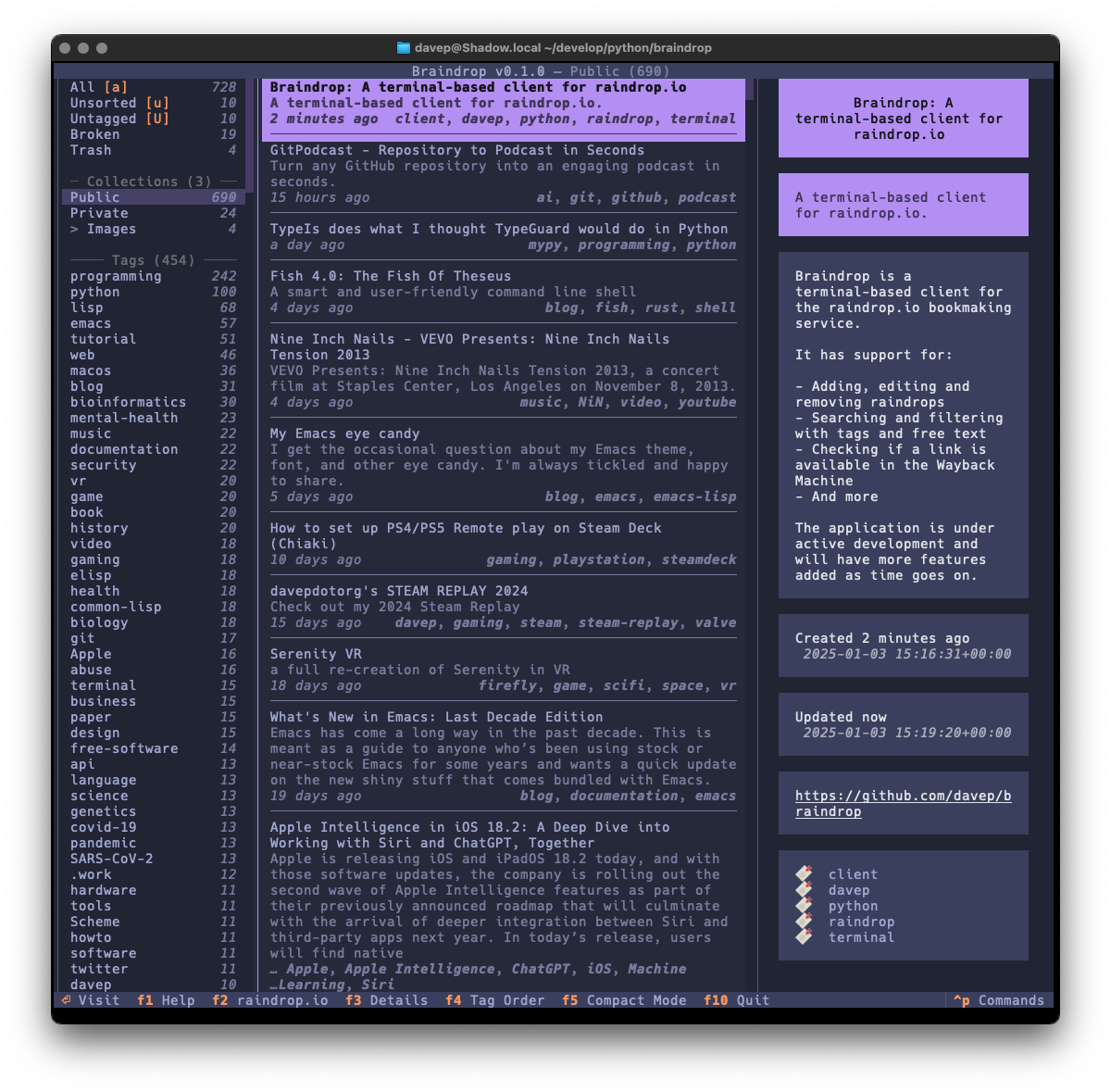
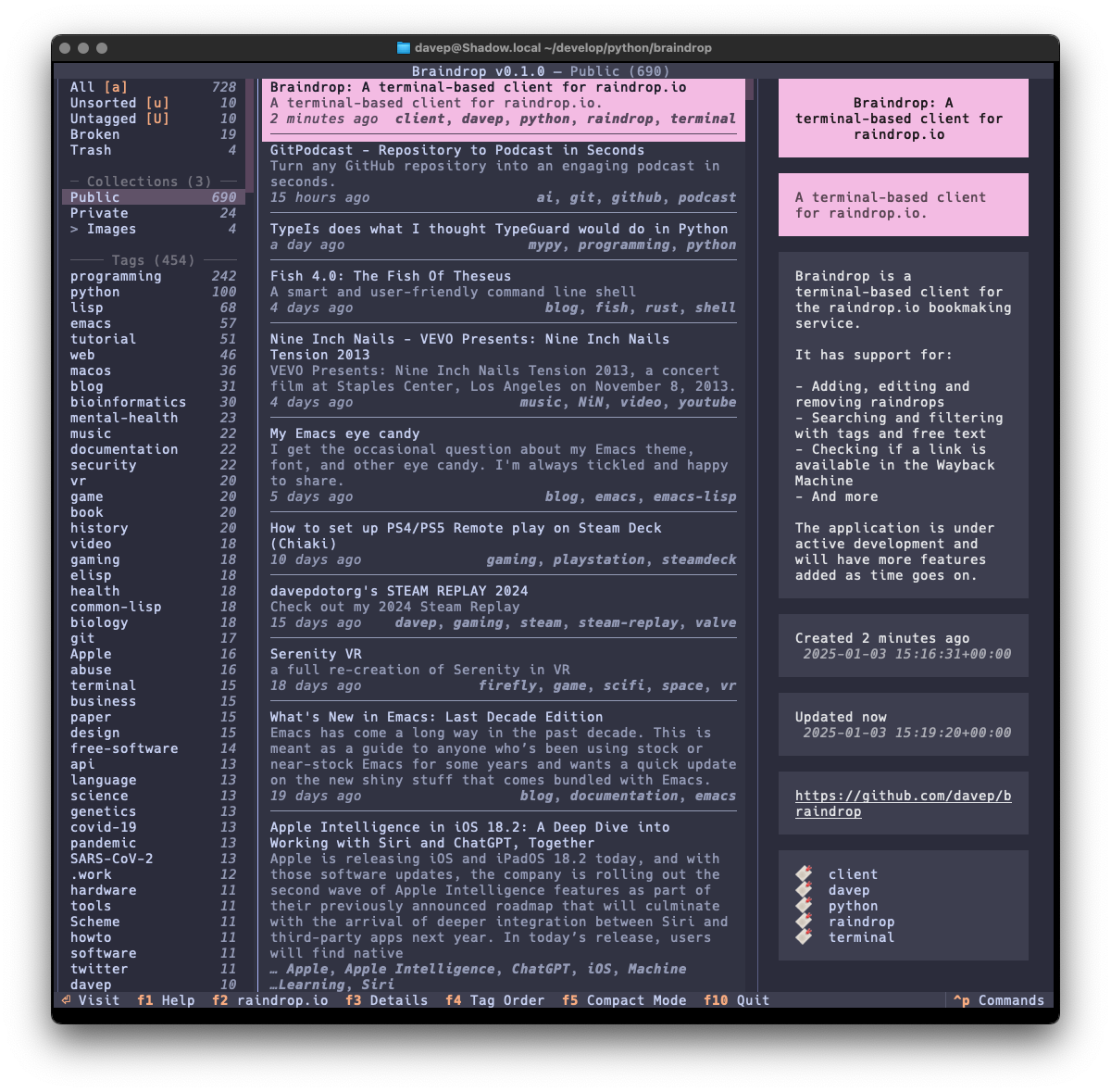
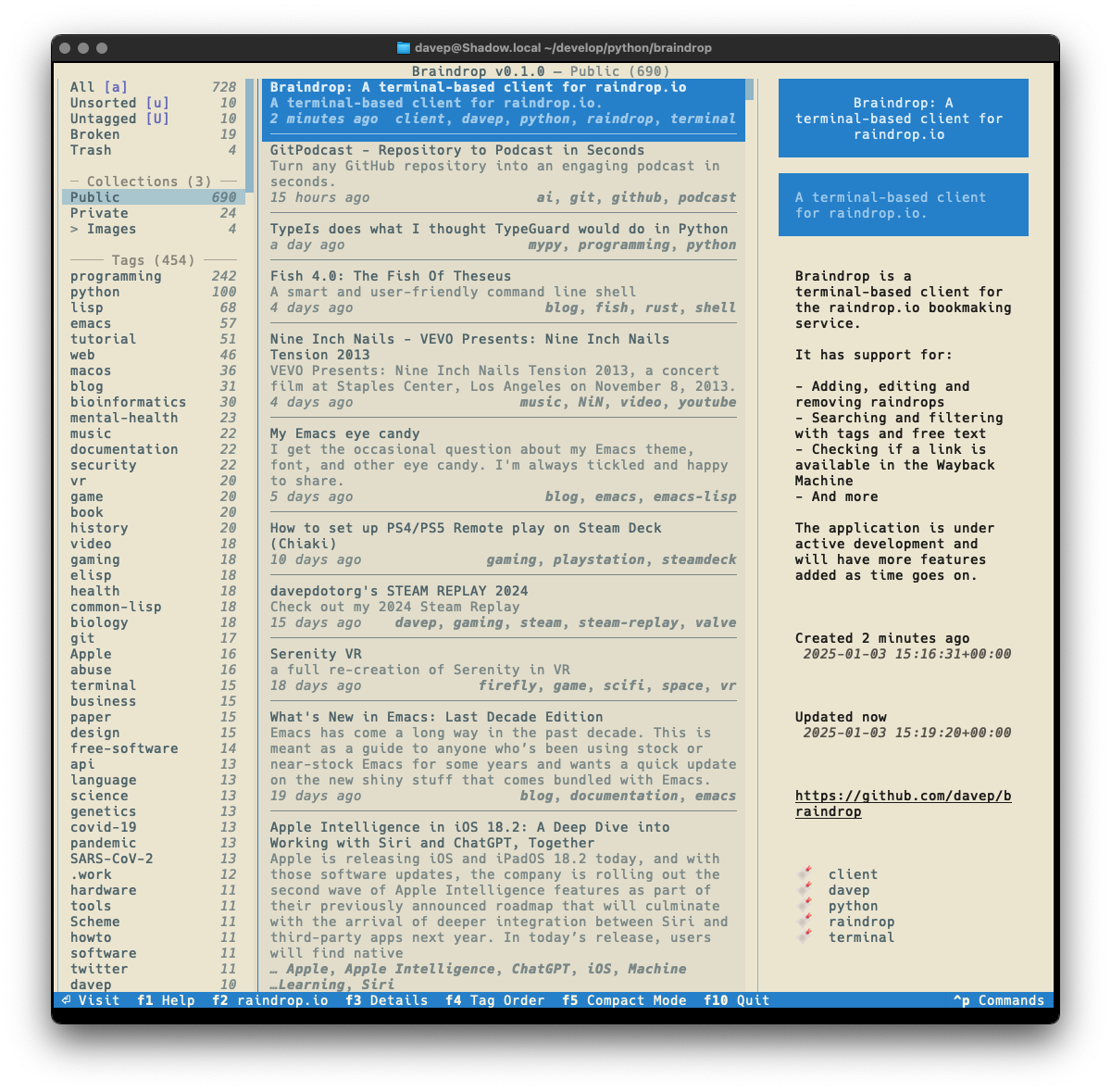
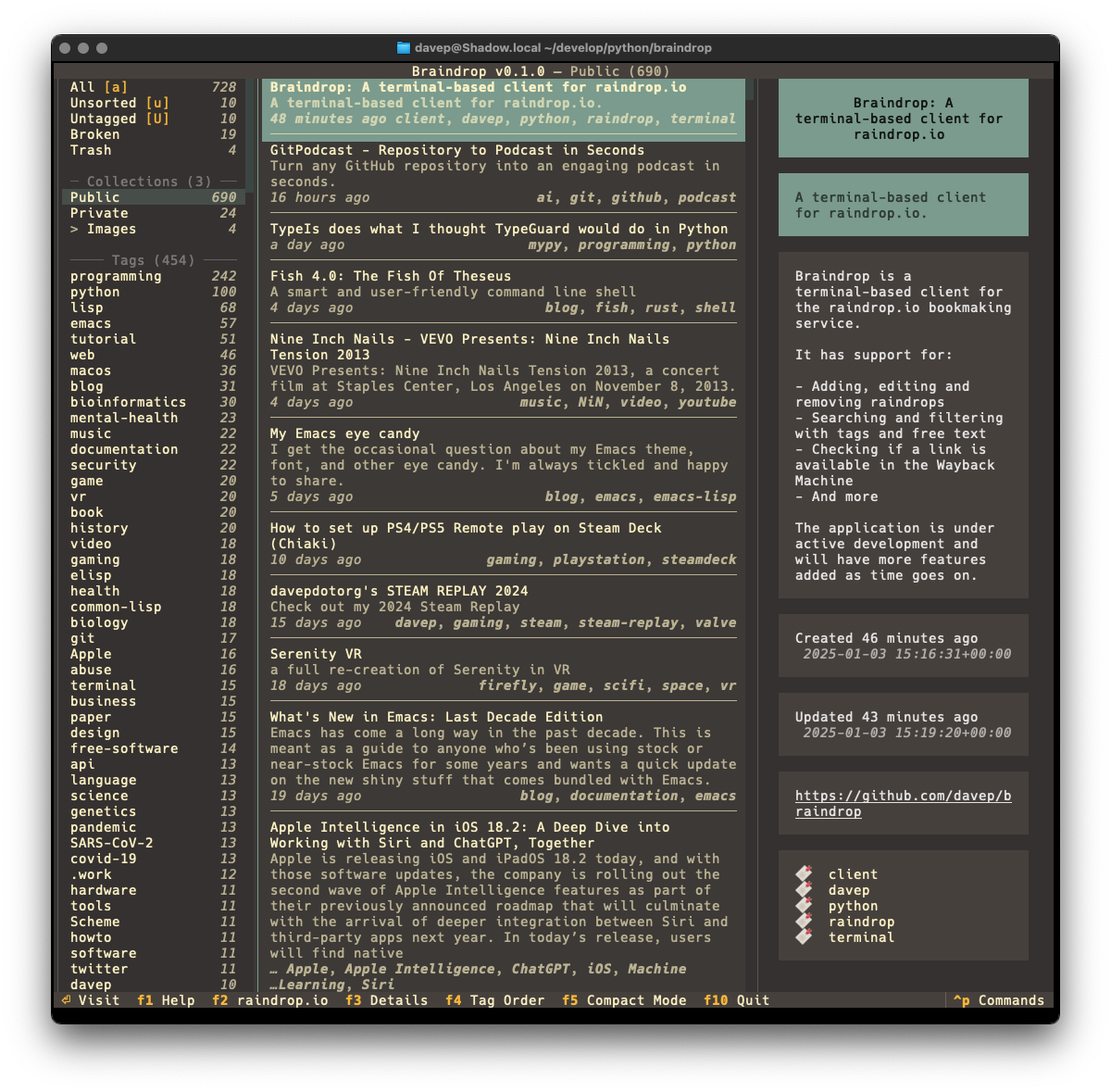
I've also made sure that Textual's new theme system is available for easy use; so out goes dark/light mode toggling and in comes a collection of different themes. Here's a wee selection as an example:

Example theme 1 Example theme 2 Example theme 3 Example theme 4

That's a small selection of the themes, with more to explore.

There's a few more things I want to do before I consider the application v1.0-ready, but it's already in use by me and working well. As I decide what else I want to add to it I'm building up a list of TODO items.

Given that my day job these days is quite varied, isn't quite so coding-intensive, and isn't always related to all things Python, it's actually been fun to sit down and hack up a pure Python application from scratch again. It's also helped me discover a couple or so fresh bugs in Textual (which I've reported, of course) and given me the opportunity to PR some trivial fixes as I've noticed typos and stuff as I go.

Anyway; that's v0.1.0 out in the wild. I'm pleased with how it's turned out and there's more to come. It's licensed GPL-3.0 and available via GitHub and also via PyPi. If you have an environment that has pipx installed you should be able to get up and going with:

$ pipx install braindrop

It can also be installed with Homebrew by tapping davep/homebrew and then installing braindrop:

$ brew tap davep/homebrew
$ brew install braindrop

I hope this is useful to someone else. :-)

Paindrop v1.0.0

4 min read

I was quite late discovering Pinboard; by the looks of things I created my account and paid my first subscription for it in early 2019. Since then I've been a pretty avid user and found it really useful. I've even written a couple of clients for it (one for Emacs and one for the terminal).

During that time it's had its fair share of hiccups and outages, but on the whole I've found it a stable and useful service.

The service does have its detractors, and concerns over its long-term stability and how well it's maintained are fairly common. I half paid attention to these, and had started to think about where I might go if there was an issue.

While maintaining and syncing bookmarks isn't exactly a difficult or unsolved problem, and while it's also true that it could be fun to roll my own solution, there are a couple of things I need that would make building my own approach a bit of a chore.

Things important to me are:

  • An extension for any random browser I might find myself using
  • A good mobile client for at least iOS and iPadOS
  • A good API so I can write my own tools if I need to
  • A clean and focused backend website

I kept these things in mind and kept an eye out but I'd never really felt the need to actively start looking around.

Then I stumbled on this after posting about another Pinboard outage.

That... yeah, that was the final push I needed to start to think seriously about where to move and how.

A couple of people suggested Raindrop, and from what I could tell it was coming up as a pretty popular service that some Pinboard users were migrating to. I had a look and it wasn't quite what I was after; but close.

You see, there's two things I really like about Pinboard that Raindop didn't seem to cover:

  • Simple support for "this shit is unread". I see things, I share to whatever Pinboard app I have on my phone or tablet, etc, and then I review some time later (normally in Tinboard).
  • Support for Private and Public pins. I've liked having a feed of bookmarks I can let people see and Raindrop doesn't have this.

I looked around at some blogs that talked about Pinboard vs Raindrop and didn't see any that really dived into this particular aspect of migrating; I also asked a couple of folk who'd made the move about this and they didn't really have any insight (mainly because they didn't care about those particular uses).

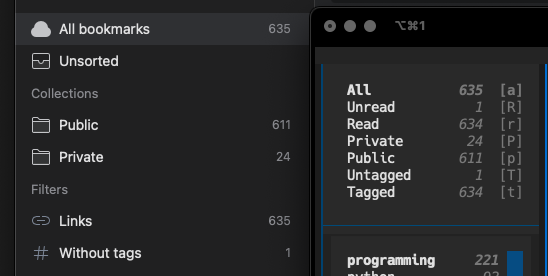
One thing I did notice though was that Raindrop does support making individual collections public. So, if I was willing to sacrifice any other uses for collections (a bookmark in Raindrop can only be in one collection), I could simply have a Public and a Private collection and import pins into the appropriate one. Also, unread pins could be left out of the collections and I could use that to signify unread status.

This seemed fine as I'm heavy on the tags anyway.

Now... Raindrop has a pretty comprehensive import facility built in. I gave it a try with Pinboard's backup file and it worked really well. That is... really well except it just threw away the public/private/unread aspect of the pins. There was only one thing for it then: I had to write my own importer!

Which brings me to Paindrop. It's a quick hack but it does the job, and it does the import just how I wanted. The result of the first test was pretty much spot on (in this image I'm comparing what Raindrop says vs what Tinboard says I have in Pinboard):

Comparing Raindrop and Tinboard contents

Usage is pretty straightforward. You create Public and Private collections in Raindrop, you create an app in Raindrop and get the access token, you grab your Pinboard access token and then:

$ paindrop example:xxxxxxxxxxxxxxxxxxxx xxxxxxx-xxxx-xxxx-xxxx-xxxxxxxxxxxx

where the first parameter is the Pinboard access token and the second the Raindrop access token.

If all goes well, after a few moments, the importer should finish and you should find that all of your pins have migrated to Raindrop, all public pins are in the Public collection and all private pins are in the Private collection. Any pins that were marked as unread will be Unsorted.

Note that if you used different names for your public and private collections you can pass those names to paindrop with the --public and --private switches.

If you're looking to move your bookmarking history out of Pinboard and want to keep the same sort of structure I had I hope Paindrop will be useful to you too.

Paindrop can be installed with pip or (ideally) pipx from PyPi. It can also be installed with Homebrew by tapping davep/homebrew and then installing paindrop:

$ brew tap davep/homebrew
$ brew install paindrop

The source is available on GitHub.

PS: As for the name... originally it was pin2rain but then Darren Burns pointed out the obvious and it had to happen.

textual-dominfo

3 min read

Last week I was wrestling with some Textual code, trying to get something to lay out on the screen "just so". On the whole this isn't too tricky at all, and for those times where it might feel tricky there's some advice available on how to go about it. But in this case I was trying to do a couple of "on the edge" things and one thing I really needed to know was what particular part of the display was being "caused" by what container or widget1.

Now, at the moment anyway, Textual doesn't have a full-blown devtools with all the bells and whistles; not like in your average web browser. It does have a devtools, but not with all the fancy DOM-diving stuff the above would have needed.

What I needed was the equivalent of print-debugging but with a point-and-ask interface. Now, I actually do often do print-debugging with Textual apps only I use notify; this time though notify wasn't going to cut it.

I needed something that would let me point at a widget and say "show me stuff about this". Something that happens when the mouse hovers over a widget. Something like... a tooltip!

So that was easy:

def on_mount(self) -> None:
    for widget in [self, *self.query("*")]:
        widget.tooltip = "\n".join(
            f"{node!r}" for node in widget.ancestors_with_self
        )

Suddenly I could hover my mouse over a bit of space on the screen and get a "traceback" of sorts for what "caused" it.

I posted this little hack to #show-and-tell on the Discord server and someone mentioned it would be handy if it also showed the CSS for the widget too. That was simple enough because every widget has a styles.css property that is the CSS for the widget, as a string.

After that I didn't think much more about it; until today.

Looking back, one thing I realised is that adding the CSS information on_mount wasn't quite good enough, as it would only show me the state of CSS when the mount happened, not at the moment I inspect the widget. I needed the tooltip to be dynamic.

Thing is... Textual tooltips can't be functions (which would be the obvious approach to make it dynamic); so there was no way to get this on-the-fly behaviour I wanted.

Except there was! The type of tooltip is RenderableType. So that means I could assign it an object that is a Rich renderable; that in turn means I could write a __rich__ method for a class that wraps a widget and then reports back what it can see every time it's called.

In other words, via one step of indirection, I could get the "call a function each time" approach I was after!

It works a treat too.

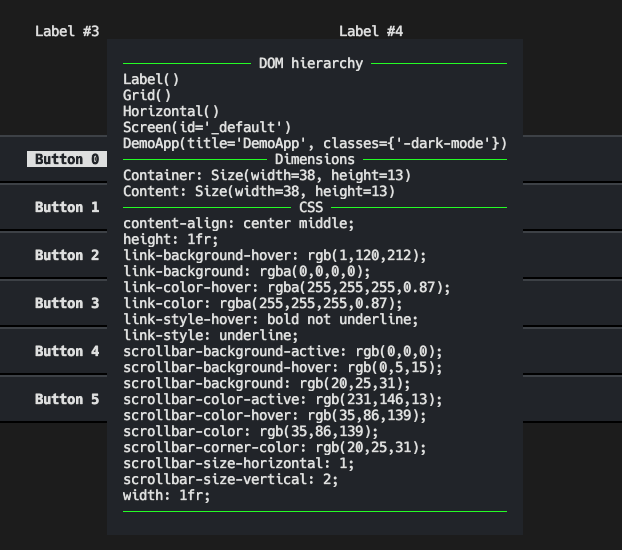
All of which is a long-winded way of saying I now have a print-debug-level DOM inspector tool for when I'm building applications with Textual:

textual-dominfo in action

If this sounds handy to you, you can grab the code too. Install it into your development environment with pip:

$ pip install textual-dominfo

and then attach it to your app or screen or some top-level widget you're interested in via on_mount; for example:

def on_mount(self) -> None:
    from textual_dominfo import DOMInfo
    DOMInfo.attach_to(self)

and then hover away with that mouse cursor and inspect all the things! Whatever you do though, don't make it part of your runtime, and don't keep it installed; just make it a development dependency.

The source can be found over on GitHub and the package is, as mentioned above, over on PyPi.


  1. ObPedant: Containers are widgets, but it's often helpful to make a distinction between widgets that exist just to control the layout of the widgets inside them, and widgets that exist to actually do or show stuff. 

textual-countdown

1 min read

The idea for this one popped into my head while on the bus back from Textual Towers this evening. So after dinner and some nonsense on TV I had to visit my desk and do a quick hack.

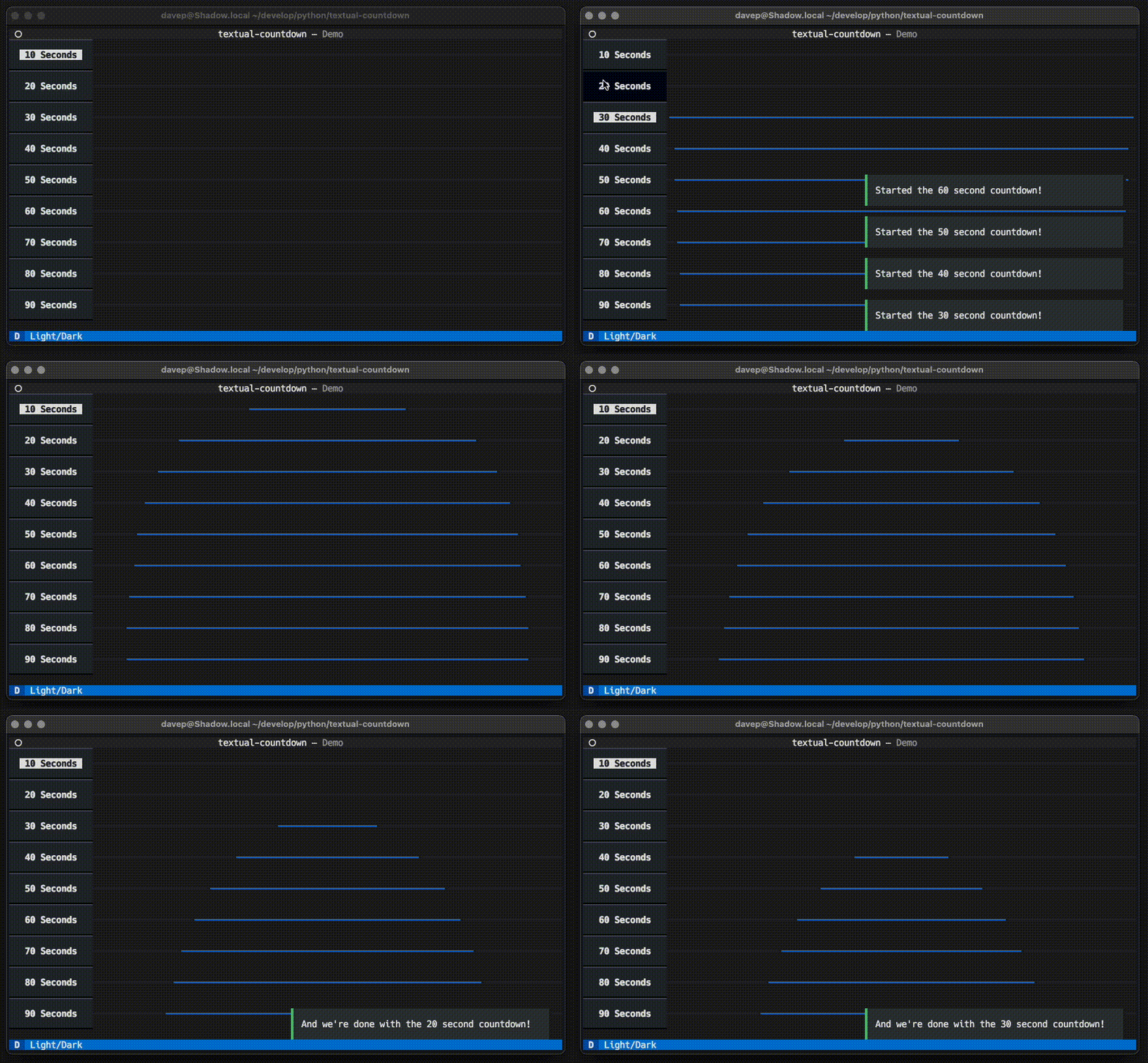
This is textual-countdown, a subtle but I think useful countdown widget for Textual applications.

Textual Countdown in action

The idea is that you compose it somewhere into your screen, and when you start the countdown the bar highlights and then starts to shrink down to "nothing" in the middle of its display. When the countdown ends a message is posted so you can then perform the task that was being waited for in an event handler.

Not really a novel thing, I've seen this kind of thing before on the web; I'm sure we all have. I just thought it would be a fun idea for Textual applications too.

I envisage using this where, perhaps, an application needs to wait for an API-visiting cooldown period, or perhaps as a subtle countdown for a question in a quiz; something like that.

Anyway, if this sounds like it's something useful for your Textual applications, it's now available from PyPi and, of course, the source is over on GitHub.

Evolve Words

2 min read

This follows on from my previous post. If you've not read that, it's worth having a dive in first for the background.

The Ruby code I mention, that was written back in 2008, was actually a pair of scripts. The first one, called selection, did what visual-selection does, only visual-selection does it with a nice TUI interface: it takes a random collection of letters and symbols and evolves them into a target phrase.

As covered before: I don't remember all of the details of the conversation that was going on at the time, but I do seem to remember something along the lines of "yes, but you start out and end up with something the same length" and "nothing more complex is made" (let's gloss over the whole "complex" thing for now... well okay let's just gloss over it, end of story; this is just a fun coding exercise).

What I do remember is that the seed of an idea was planted. Fine: how about I start off with one small word, and using a list of English words as the "fitness landscape" that the mutations had to survive in, mutate a population over and over and see what happens. Would I "randomly" create known words, with fewer letters, with the same letters, with more letters?

So this version of the code randomly did three forms of mutation: it would randomly flip a letter, or randomly delete a letter, or randomly insert a random letter. It would do this over and over and eliminate words that aren't in the original list (the simple form of selecting for survival within the landscape).

Like I said last time: never going to convince anyone of anything, but fun to write some code.

This version became selection2.

So, having turned selection into a TUI application with Textual, I had to do the same with this code...

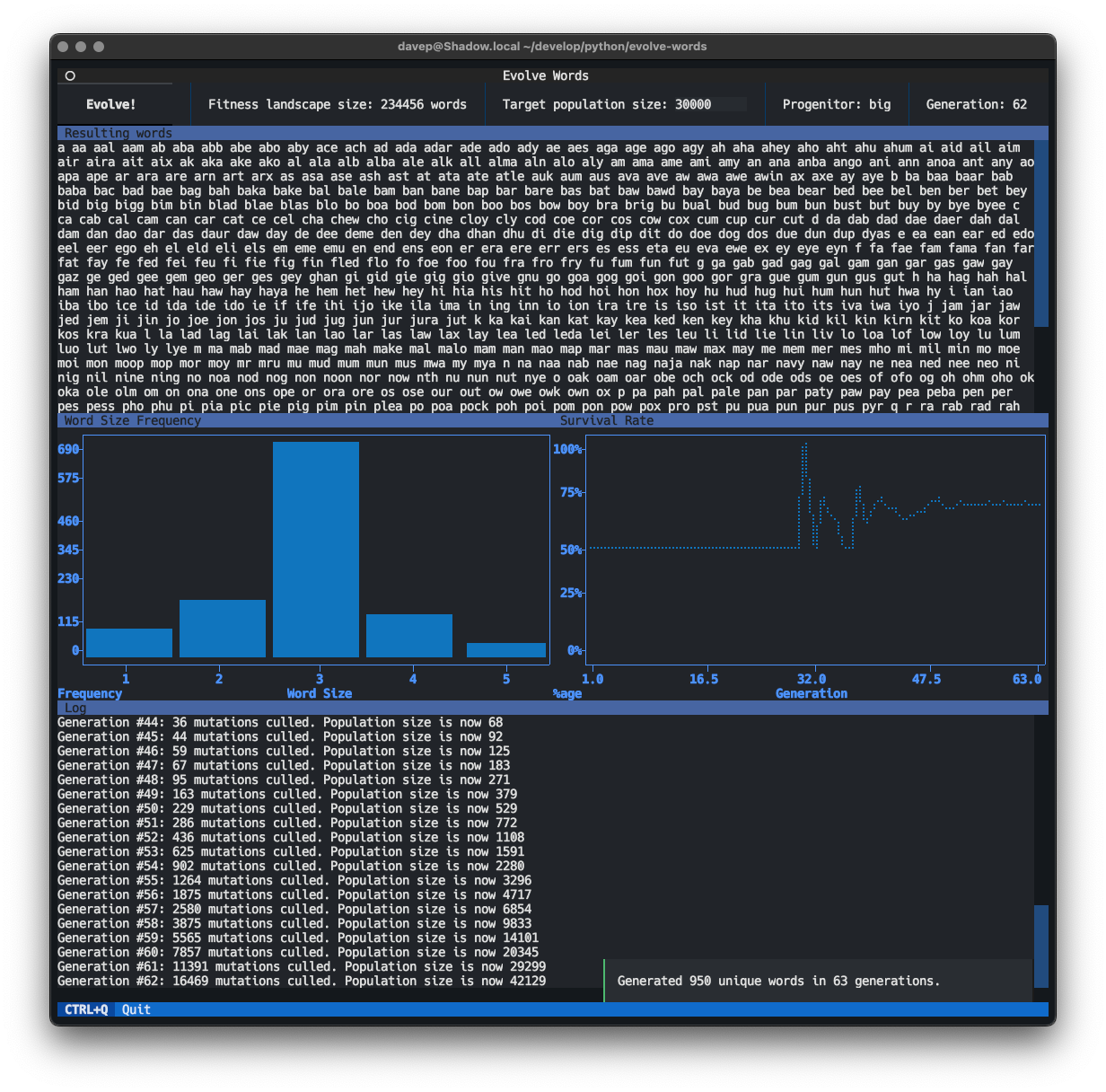
Evolve Words

As before, because it's fun to do so, this leans heavily on the worker API and textual-plotext.

If you want to check out the app itself there's a GitHub repo and it can also be installed from PyPi using pipx.

Visual Selection

4 min read

Over the last few weeks I've had a couple of sessions of working on a library to wrap Plotext -- a popular terminal-based plotting library for Python -- so that it can easily be used in Textual apps; textual-plotext is the result.

I feel it's come together pretty well

But... I've been itching to find a reason to use it in a project of my own.

Meanwhile...

Back in the mid-2000s, when phpBB systems were still the fashion, I used to hang out on a site that was chiefly aimed at the atheist and secular humanist crowd. We'd get a good number of drive-by YEC types who'd want to argue (sorry... debate) and often talk nonsense about biology and the like.

Now, I'm no biologist, I'm no scientist, I'm just a hacker who likes to write code for fun and profit; so any time there was a chance to write some code to help illustrate an idea I'd jump at the chance. I forget the detail now -- this was back in 2008; 15 years ago as of the time of writing -- but one time I remember a conversation was taking place where someone was just flat out claiming that "random mutation" can only cause "loss of information" and could never lead to a "desired result", or some such thing.

If you've ever had, read or watched those debates, you'll know the sort of thing I mean.

So that got me thinking back then, could I write something that could give a simple illustration of how this doesn't quite make sense?

So I had a little hacking session and came up with some Ruby code1 that did what I felt was the job. You'd give it a phrase you wanted it to generate (a stand-in for the current "fitness landscape", in effect), it would then generate a totally random string of that length, and then would set about mutating it, finding mutations that were "fitter" than others (a stand in for selection), breed the best two so far (randomly copy one chunk from another to create a child), then repeat over and over.

When I first wrote it I wasn't sure what to expect; would it ever finish given a reasonably large target string?

It did.

It was fun to code.

It got posted to the BB and of course wasn't in any way persuasive to them (honestly I never expected it would be). I seem to recall it being hand-waved away with calls of there obviously being an intelligent designer involved2.

Anyway, the "meanwhile..." in this: a few times this year I've thought it could be fun to rework this in Python (it's really not that complex after all; just a string-chopping loop really) and use Textual to put a fun UI on it.

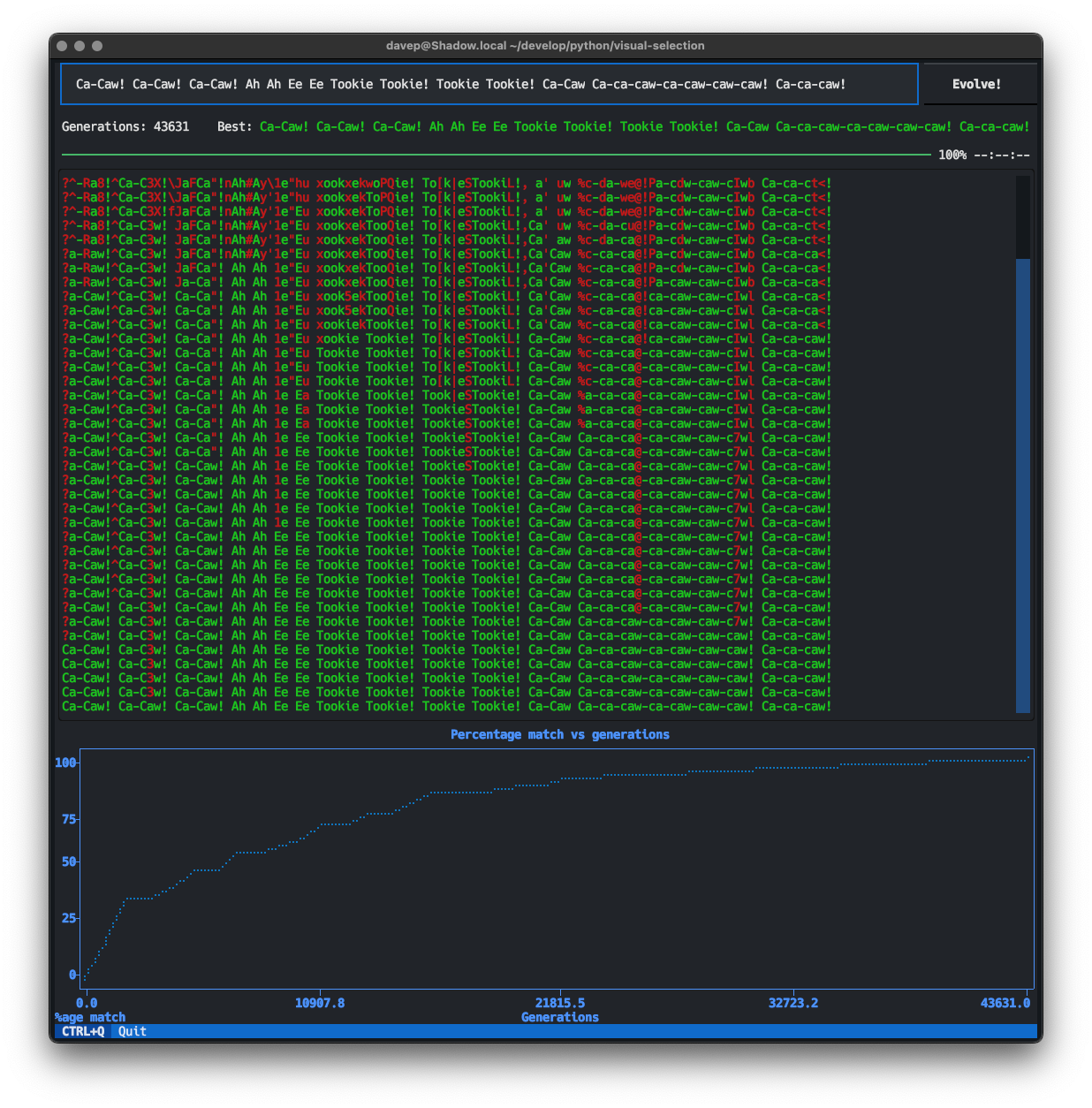
So, that's what I did, complete with textual-plotext plot:

Visual Selection in action

While, 15 years on, this isn't going to convince anyone of the underlying point, I think it does serve a good educational purpose. It shows that you can create a fun UI for the terminal, with Textual, with not a lot of code. It also shows off how you can easily create dynamic plots. Plus -- and I think this might be the really important one -- it shows you can write "traditional" tight-loop code in a Textual application and still have a responsive UI; all thanks to the worker API.

The heart of the code for this application is this:

environment = Environment("This is the target string we want to create!")
while not environment.best_fit_found:
    environment.shit_happens()

Sure, there's some detail in the Environment class, but you get the idea: while we've not hit the target, let life find a way. A loop like that would totally bog down an application with a UI without some other work taking place. With Textual and workers the resulting method in the application, complete with code to send updates to the UI, really doesn't look much different:

@work(thread=True, exclusive=True)
def run_world(self, target: str) -> None:
    worker = get_current_worker()
    environment = Environment(target)
    iterations = 0
    self.post_message(self.WorldUpdate(environment, iterations, *environment.best))
    while not worker.is_cancelled and not environment.best_fit_found:
        environment.shit_happens()
        iterations += 1
        if (iterations % 1000) == 0 or environment.best_fit_found:
            self.post_message(
                self.WorldUpdate(environment, iterations, *environment.best)
            )
    if environment.best_fit_found:
        self.post_message(self.Finished(iterations))

I honestly think the worker API is one of the coolest things added to Textual and I so often see people have real "woah!" moments when they get to grips with it.

Anyway... I've covered science, religion, and how Ruby is better than Python, so I'm sure I've annoyed almost everyone. Job done I guess. ;-)

If you want to check out the app itself there's a GitHub repo and it can also be installed from PyPi using pipx.

Expect it to be my tinker project of choice for a wee while; there's a couple of other things I'd like to add to it.


  1. Possibly unpopular opinion with some folk who will read this, but I've long been a fan of Ruby as a language and actually generally prefer it to Python. 

  2. Me, the coder. While utterly missing the point of a simple illustration, while apparently not understanding the concept of an analogy, I guess at least they felt I was intelligent? 

astare v0.8.0 released

1 min read

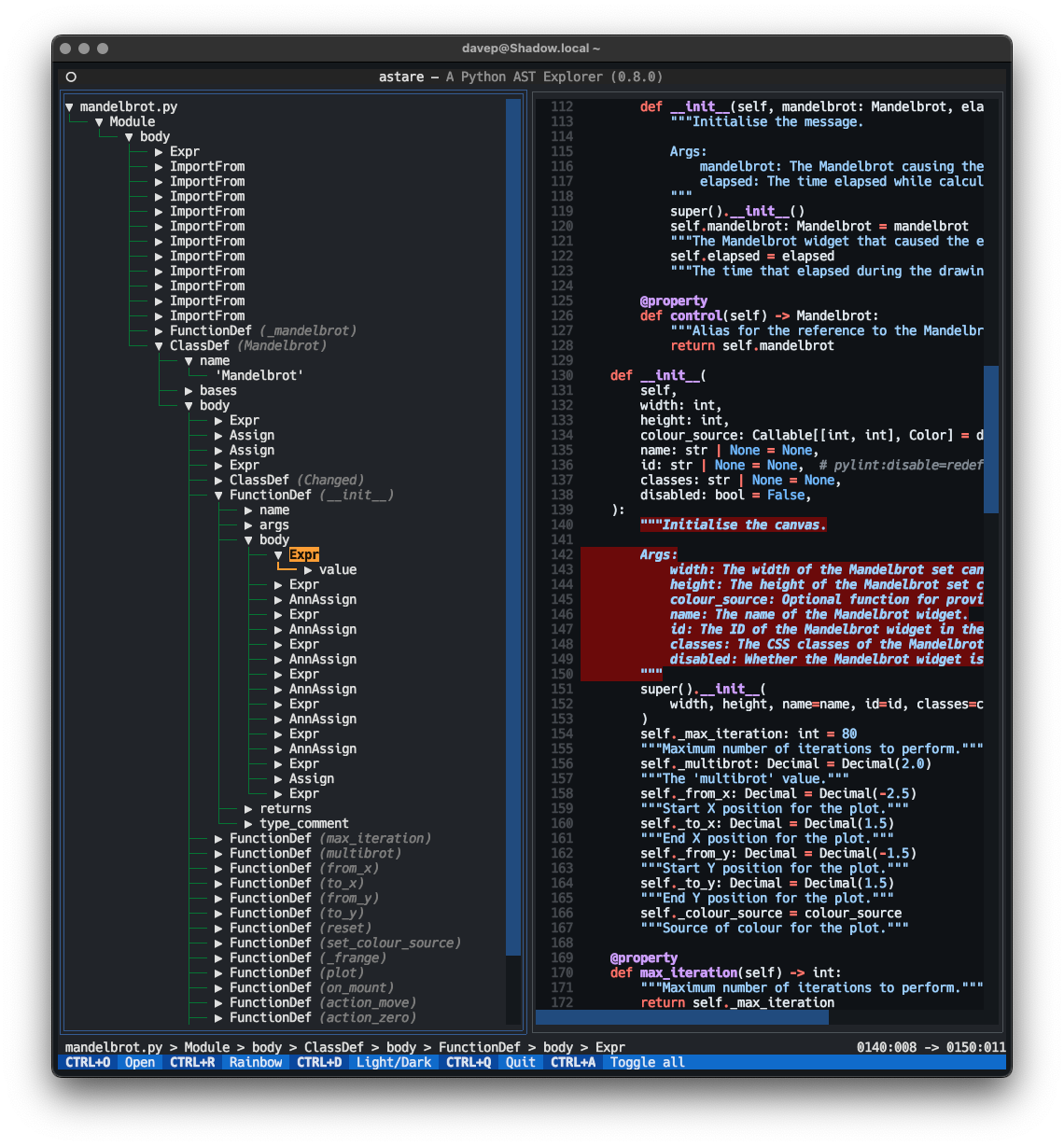
textual-astare is another Textual-based Python project that I've developed in the last year and I don't believe I've mentioned on this blog. Simply put, it's a took for viewing the abstract syntax tree of Python code, in the terminal.

astare in action

I've just made a small update to it this evening after someone asked for a sensible change I've been meaning to do for a while. When I first read the request I was going to look at it next week, when I have some time off work, but you know how it is when you sit at your desk and have a "quick look".

So anyway, yeah, v0.8.0 is out there and can be installed, with the main changes being:

  • Updated textual-fspicker
  • Updated textual
  • Made it so you can open a directory to browser from the command line.
  • Made opening the current working directory the default.
  • Tweaked the way dark/light mode get toggled so that it's now command-palette-friendly.

I think the code does need a wee bit of tidying -- this was one of my earliest apps built with Textual and my approach to writing Textual apps has changed a fair bit this year, and Textual itself has grown and improved in that time -- but it's still working well for now.